meta list in the Game Panel Console to see the Metamod plugins it loads: Reunion, AMX Mod X, Revoice, Ham Sandwich and CSX. You add or switch off Metamod plugins in cstrike/addons/metamod/plugins.ini.
What is Metamod?
Metamod is a plugin loader for Half-Life engine servers. It sits between the engine (ReHLDS on your server) and the game library (ReGameDLL’scs.so) and loads “Metamod plugins” such as AMX Mod X, Reunion and Revoice+. AMX Mod X itself runs as a Metamod plugin, so Metamod must work before any AMX Mod X plugin can.
How to check Metamod is running
1
Open the console
Open your server’s Console. The server must be running.
2
Run meta list
Type
meta list and press Enter.3
Read the result
Every plugin should show
RUN in the stat column, and the last line should read 5 plugins, 5 running.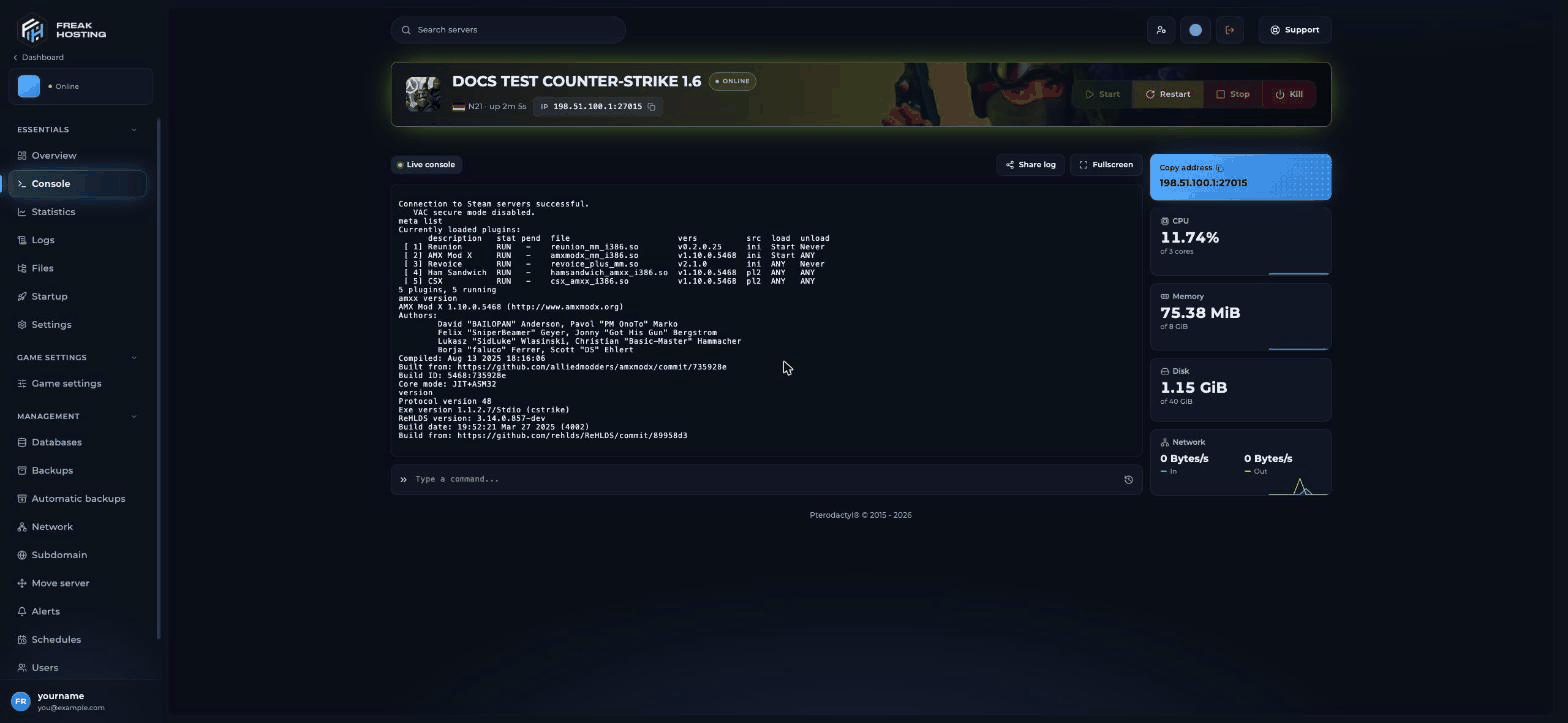
meta list, amxx version and version in the Counter-Strike 1.6 console
If a line shows
fail instead of RUN, see the troubleshooting section below.
How to configure Metamod plugins.ini
cstrike/addons/metamod/plugins.ini lists one Metamod plugin per line, in the format linux <path to .so>. A line that starts with ; is switched off. For example:
; Optional Modules, are five extra Metamod plugins that are already uploaded but switched off: reauthcheck, rechecker, whblocker, resemiclip and hitbox_fix.
1
Back up
Make a backup first.
2
Edit plugins.ini
Open
cstrike/addons/metamod/plugins.ini in Files. To switch an optional module on, remove the ; at the start of its line. To switch a plugin off, add ; at the start.3
Configure the module
Most modules have their own config file in their folder under
cstrike/addons/. Read the module’s documentation before you turn it on.4
Restart and check
Restart the server and run
meta list again.How to update Metamod
Metamod is kept working with the rest of the preinstalled stack. If you want a newer build yourself:- Make a backup.
- Download a Linux build of the same Metamod from its official release page.
- Replace
cstrike/addons/metamod/metamod_i386.sowith the new file, keeping the same file name. - Restart and check
meta list.
How Metamod is installed on a plain HLDS server (for reference)
You don’t need these steps on FREAKHOSTING. On a server without Metamod:- Copy the Metamod Linux file into
cstrike/addons/metamod/. - In
cstrike/liblist.gam, change thegamedll_linuxline to point at the Metamod file instead of the game library. - Create
cstrike/addons/metamod/plugins.iniand add alinux ...line for each plugin. - Start the server and type
meta list.
Troubleshooting Metamod
Frequently asked questions
Do I need to download Metamod for CS 1.6?
No. It’s preinstalled on every FREAKHOSTING CS 1.6 server. Installing another copy over it can stop the server starting.Can I use metamod.dll on my server?
No..dll files are for Windows servers. Your server runs on Linux and uses .so files.
Is Metamod-P or Metamod-R installed?
Your server loadsaddons/metamod/metamod_i386.so, the file layout Metamod-r uses with ReHLDS.
Related guides
CS 1.6 server guide
Every Counter-Strike 1.6 page in one place.
AMX Mod X
Check and configure AMX Mod X.
Reunion and ReHLDS
reunion.cfg and the engine.
AMX Mod X plugins
Install and debug plugins.
Tested by the FREAKHOSTING team on our Game Panel on 30 October 2026 (Counter-Strike 1.6 on ReHLDS 3.14.0.857 with Metamod and AMX Mod X 1.10.0.5468). Install steps checked against the Metamod-r documentation and the Reunion README on 30 October 2026.
Need Extra Help?
If you encounter any issues, our support team is ready to assist:- Live Chat: Quick assistance via our website.
- Support Ticket: Open a Ticket
- Discord: Join our Community
- Email: support@freakhosting.com
Last Updated: October 2026