How to Install Metamod, CounterStrikeSharp and Plugins on Your CS2 Server
Install Metamod:Source, CounterStrikeSharp or SwiftlyS2 in one click, add CS2 plugins, connect them to a database and fix plugins after a CS2 update.
Plugins add features such as admin menus, match systems and retakes to your Counter-Strike 2 server. This guide shows you how to install a plugin framework, add plugins, give them a database and keep them working after game updates.
Open your server and click Frameworks under COUNTER-STRIKE 2 in the sidebar.
The Frameworks page
2
Click Install
Click Install CounterStrikeSharp (or Install SwiftlyS2, or Install Metamod:Source). A window tells you what happens.
The install window for CounterStrikeSharp
For CounterStrikeSharp, the panel installs Metamod:Source first. It adds files under game/csgo/addons and changes game/csgo/gameinfo.gi, keeping the previous file as gameinfo.gi.bak. Your plugins and configuration are kept.
3
Confirm
Click Install. A progress log shows each step. It usually takes about 20 seconds.
4
Restart the server
When the result says DONE — Restart the server to load it, restart your server.
CounterStrikeSharp and Metamod:Source installed
The cards then show INSTALLED, the version, and a Reinstall button. Only one change runs at a time. If you see Another change is running. Wait for it to finish., wait a moment and try again.To check it worked, type meta list in the Console. CounterStrikeSharp should be listed.
Metamod:Source loads through a line in game/csgo/gameinfo.gi. When Valve updates CS2, the update resets this file and switches your frameworks off. Your plugins then stop loading.
1
Open Frameworks
The gameinfo.gi card shows whether the file needs fixing.
2
Click Repair gameinfo.gi
The panel puts the lines back.
3
Restart the server
Your frameworks and plugins load again.
If plugins still fail after a big CS2 update, the framework itself may need an update. Click Reinstall on its card, then restart. See troubleshooting.
There is no one-click plugin catalogue. You upload plugins with the file manager, and they appear on the Plugins page.
CounterStrikeSharp
SwiftlyS2
1
Download the plugin
Download the plugin’s release from its official page, usually GitHub. Unzip it on your computer.
2
Open the plugins folder
Click Files and go to game/csgo/addons/counterstrikesharp/plugins/.
3
Upload the plugin's folder
Each plugin gets its own folder: plugins/<PluginName>/, with the plugin’s .dll inside. Click Upload, or upload the .zip and use Unarchive. See how to use the file manager.
4
Restart and check
Restart the server. Type css_plugins list in the console to see the loaded plugins.
Many plugin downloads already contain the addons/counterstrikesharp/... folders. Upload those into game/csgo/ so the folders merge, rather than into plugins/.
1
Download the plugin
Download a plugin made for SwiftlyS2 from its official page.
2
Upload it
Upload it into SwiftlyS2’s plugins folder, following the plugin’s instructions and the SwiftlyS2 documentation.
3
Restart
Restart the server. The plugin appears on the SwiftlyS2 tab of the Plugins page.
Make a backup before you add or update plugins. Only download plugins from their official pages.
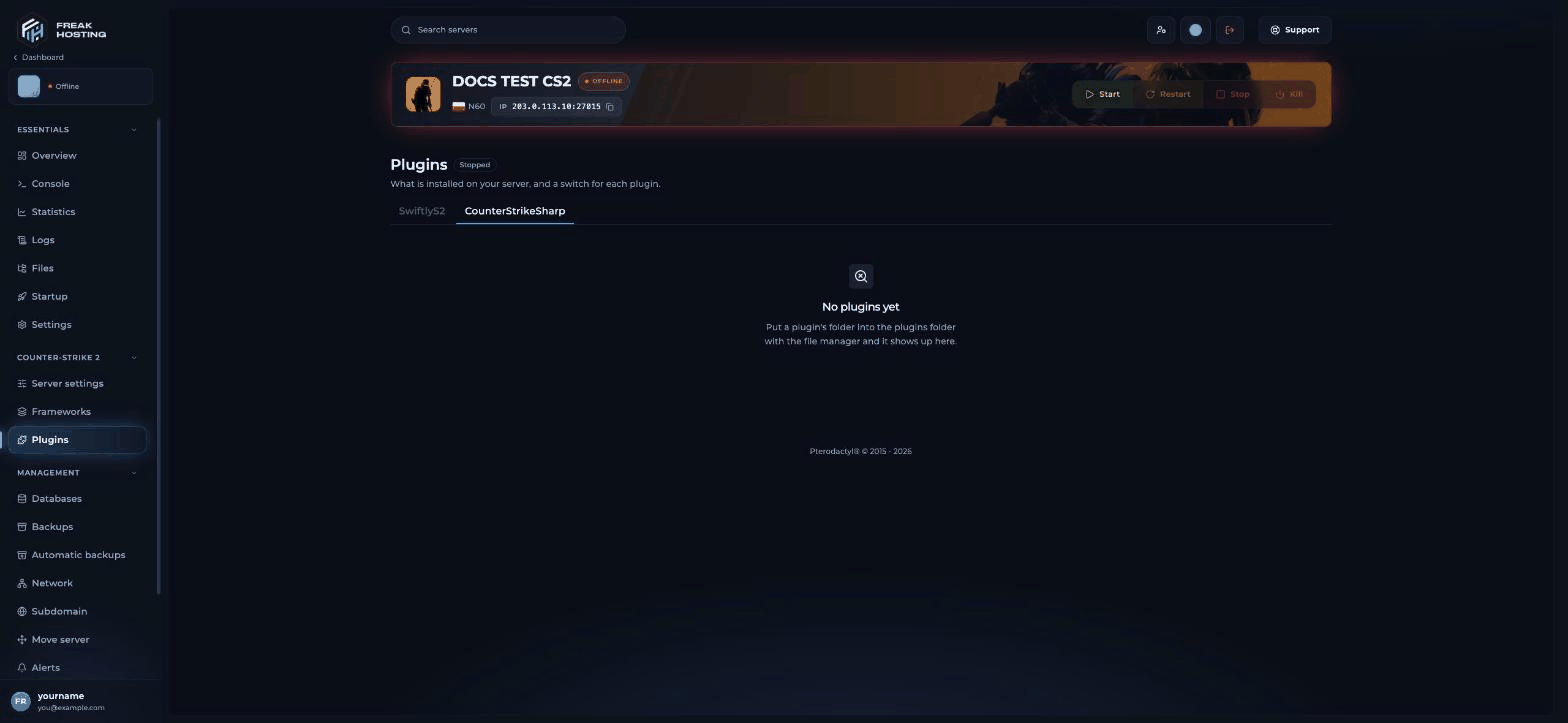
Click Plugins in the sidebar. It shows what’s installed on your server, with a switch for each plugin. Use the tabs to switch between SwiftlyS2 and CounterStrikeSharp.
The Plugins page with no plugins yet
Turn a plugin’s switch off to stop it without deleting it, for example to find which plugin causes a problem. Restart the server afterwards so the change applies.
Restart the server. The config file appears at game/csgo/addons/counterstrikesharp/configs/plugins/Advertisement/Advertisement.json.
3
Write your messages
Edit the file. Each message can show in chat, in the centre of the screen or as centre HTML, on its own timer. Then type css_advert_reload in the console.
Metamod plugins such as MultiAddonManager and CS2Fixes come as a package you extract into game/csgo/. They don’t appear on the Plugins page. Type meta list in the console to check they’re loaded.
Some plugins, such as CS2-SimpleAdmin and MatchZy’s stats, can store data in MySQL.
1
Create a database
Click Databases in the sidebar, then Create database. Give it a name, such as admin. See how to manage databases.
2
Copy the details
The database card shows HOST, DATABASE, USER NAME and PASSWORD, each with a copy button.
3
Paste them into the plugin's config
Use the host exactly as the card shows it. Do not use 127.0.0.1 or localhost: the database doesn’t run inside your game server, so those addresses don’t work.
For example, in CS2-SimpleAdmin’s CS2-SimpleAdmin.json:
CS2 does not support FastDL (sv_downloadurl). Players can’t download custom files from a web server as in older Source games. Custom content reaches players through the Steam Workshop instead:
Sounds, models and other assets, such as custom round-end sounds: publish them as a Workshop addon, then load it with MultiAddonManager. Players download it automatically when they join.
To load an addon with MultiAddonManager, install the plugin, then set the Workshop ID in game/csgo/cfg/multiaddonmanager/multiaddonmanager.cfg:
mm_extra_addons "1234567890"
Separate several IDs with commas. A plugin that plays sounds, for example at round end, then uses the files from that addon.
Ready to upgrade your hosting? Use code KB20 at checkout for 20% off your first order!
Last Updated: October 2026
Was this page helpful?
{"docsConfig":{"theme":"mint","$schema":"https://mintlify.com/docs.json","name":"FREAKHOSTING","colors":{"primary":"#1a6fd1","light":"#4da3ff","dark":"#1a6fd1"},"favicon":"https://cdn.freakhosting.com/website/favicon.ico","appearance":{"default":"dark","strict":false},"background":{"color":{"light":"#ffffff","dark":"#0a0e17"}},"seo":{"metatags":{"og:image":"https://cdn.freakhosting.com/core/assets/heldesk-main.png","og:site_name":"FREAKHOSTING HELPDESK","og:locale":"en_US","twitter:site":"@freakhosting","twitter:card":"summary_large_image","keywords":"game server hosting, FiveM hosting, Minecraft server hosting, CS2 server, Rust server hosting, Palworld server, dedicated game servers, VPS hosting, DDoS protection, game panel, server management, FREAKHOSTING","author":"FREAKHOSTING LTD","robots":"index, follow, max-image-preview:large, max-snippet:-1, max-video-preview:-1","googlebot":"index, follow","bingbot":"index, follow","revisit-after":"3 days","language":"en","distribution":"global","coverage":"Worldwide","category":"Technology","rating":"general","copyright":"Copyright 2018-2026 FREAKHOSTING LTD","reply-to":"support@freakhosting.com","theme-color":"#0a0e17","color-scheme":"light dark"},"indexing":"all"},"integrations":{"ga4":{"measurementId":"G-TSY6L544EM"}},"contextual":{"options":["copy","view","chatgpt","claude","perplexity",{"title":"Order a Server","description":"Browse our game server hosting plans","icon":"server","href":"https://freakhosting.com"},{"title":"Submit a Ticket","description":"Contact our 24/7 support team","icon":"ticket","href":"https://freakhosting.com/clientarea/submitticket.php"},{"title":"Join Discord","description":"Get community support and updates","icon":"discord","href":"https://discord.gg/freakhosting"}],"display":"header"},"interaction":{"drilldown":false},"styling":{"latex":false},"navigation":{"pages":[]}},"deployment":{"deploymentMetadataValue":{"subdomain":"freakhostingltd","hasAudioNarration":false,"actualSubdomain":"freakhostingltd","customDomains":["help.freakhosting.com"],"gitSource":{"type":"github","owner":"freakhosting","repo":"help.freakhosting.com","deployBranch":"main","contentDirectory":"","isPrivate":true,"mountPath":"","label":""},"chroma":{"liveDeploymentHistoryId":"6ae31dfacf19676b2b5881f3","collectionId":"d72d6011-4aba-4745-9dae-9c40d01d34f2","schemaVersion":"v3","latestBuiltDeploymentHistoryId":"6ae31dfacf19676b2b5881f3"},"feedback":{"thumbs":true},"entitlements":{},"buildId":"6ae34546c5540a38c09059f2","clientVersion":"0.0.4006","searchFilterCounts":[{"language":"default","tag":"Games","count":394},{"language":"default","tag":"Survival Games","count":120},{"language":"default","tag":"Popular Games","count":74},{"language":"default","tag":"Shooters","count":59},{"language":"default","tag":"Racing \u0026 Simulation","count":47},{"language":"default","tag":"Sandbox \u0026 Building","count":45},{"language":"default","tag":"Billing Area","count":38},{"language":"default","tag":"GTA \u0026 RDR Multiplayer","count":32},{"language":"default","tag":"VPS Panel","count":27},{"language":"default","tag":"Firewall Panel","count":26}]},"assistantConfig":{"enableAskAiButton":false,"enableStarterQuestions":false,"enableAskAiSearchBar":true},"basePath":"","hasChatPermissions":false,"hasWebMcpPermissions":false,"toggles":[{"name":"kill-isr","enabled":true,"variant":{"name":"disabled","enabled":false,"feature_enabled":true},"impressionData":false},{"name":"agent-mintlify-slack","enabled":true,"variant":{"name":"disabled","enabled":false,"feature_enabled":true},"impressionData":false},{"name":"agent-integrations-settings","enabled":true,"variant":{"name":"disabled","enabled":false,"feature_enabled":true},"impressionData":false},{"name":"automations-pr-grouping","enabled":true,"variant":{"name":"disabled","enabled":false,"feature_enabled":true},"impressionData":false},{"name":"custom-prefix","enabled":true,"variant":{"name":"disabled","enabled":false,"feature_enabled":true},"impressionData":false},{"name":"analytics-v7","enabled":true,"variant":{"name":"disabled","enabled":false,"feature_enabled":true},"impressionData":false},{"name":"user-flows-analytics","enabled":true,"variant":{"name":"disabled","enabled":false,"feature_enabled":true},"impressionData":false},{"name":"no-publish-flow","enabled":true,"variant":{"name":"disabled","enabled":false,"feature_enabled":true},"impressionData":false},{"name":"workos-onboarding","enabled":true,"variant":{"name":"disabled","enabled":false,"feature_enabled":true},"impressionData":false},{"name":"llms-txt-v2","enabled":true,"variant":{"name":"disabled","enabled":false,"feature_enabled":true},"impressionData":false},{"name":"pause-universal-search-reconcile","enabled":true,"variant":{"name":"disabled","enabled":false,"feature_enabled":true},"impressionData":false},{"name":"snapshot-serving-live","enabled":true,"variant":{"name":"disabled","enabled":false,"feature_enabled":true},"impressionData":false},{"name":"stripTemperatureMiddleware","enabled":true,"variant":{"name":"disabled","enabled":false,"feature_enabled":true},"impressionData":false},{"name":"per-site-search-delta","enabled":true,"variant":{"name":"disabled","enabled":false,"feature_enabled":true},"impressionData":false},{"name":"support-platform-pylon-zendesk","enabled":true,"variant":{"name":"disabled","enabled":false,"feature_enabled":true},"impressionData":false},{"name":"snapshot-serving","enabled":true,"variant":{"name":"disabled","enabled":false,"feature_enabled":true},"impressionData":false},{"name":"instant-rollback","enabled":true,"variant":{"name":"disabled","enabled":false,"feature_enabled":true},"impressionData":false},{"name":"granular-notifications-server","enabled":true,"variant":{"name":"disabled","enabled":false,"feature_enabled":true},"impressionData":false},{"name":"granular-notifications","enabled":true,"variant":{"name":"disabled","enabled":false,"feature_enabled":true},"impressionData":false},{"name":"editor-private-page-search","enabled":true,"variant":{"name":"disabled","enabled":false,"feature_enabled":true},"impressionData":false},{"name":"automations-fable","enabled":true,"variant":{"name":"disabled","enabled":false,"feature_enabled":true},"impressionData":false},{"name":"fixed-ai-action-pricing","enabled":true,"variant":{"name":"disabled","enabled":false,"feature_enabled":true},"impressionData":false},{"name":"automation-resolve-merge-conflict","enabled":true,"variant":{"name":"disabled","enabled":false,"feature_enabled":true},"impressionData":false},{"name":"scoped-publishing","enabled":true,"variant":{"name":"disabled","enabled":false,"feature_enabled":true},"impressionData":false},{"name":"mintql","enabled":true,"variant":{"name":"disabled","enabled":false,"feature_enabled":true},"impressionData":false},{"name":"page-level-analytics","enabled":true,"variant":{"name":"disabled","enabled":false,"feature_enabled":true},"impressionData":false},{"name":"editor-version-history-v2","enabled":true,"variant":{"name":"disabled","enabled":false,"feature_enabled":true},"impressionData":false},{"name":"billing-page-v2","enabled":true,"variant":{"name":"disabled","enabled":false,"feature_enabled":true},"impressionData":false},{"name":"workspace-projects","enabled":true,"variant":{"name":"disabled","enabled":false,"feature_enabled":true},"impressionData":false},{"name":"assistant-v5","enabled":true,"variant":{"name":"disabled","enabled":false,"feature_enabled":true},"impressionData":false},{"name":"byok-sep-25","enabled":true,"variant":{"name":"disabled","enabled":false,"feature_enabled":true},"impressionData":false},{"name":"fork-pr-previews","enabled":true,"variant":{"name":"disabled","enabled":false,"feature_enabled":true},"impressionData":false},{"name":"revalidation-jwt","enabled":true,"variant":{"name":"disabled","enabled":false,"feature_enabled":true},"impressionData":false},{"name":"vite-origin","enabled":true,"variant":{"name":"disabled","enabled":false,"feature_enabled":true},"impressionData":false},{"name":"billing-updated-9-15","enabled":true,"variant":{"name":"disabled","enabled":false,"feature_enabled":true},"impressionData":false},{"name":"workos-sso-scim","enabled":true,"variant":{"name":"disabled","enabled":false,"feature_enabled":true},"impressionData":false},{"name":"hobby-abuse-scan","enabled":true,"variant":{"name":"disabled","enabled":false,"feature_enabled":true},"impressionData":false},{"name":"dashboard-inbox","enabled":true,"variant":{"name":"disabled","enabled":false,"feature_enabled":true},"impressionData":false},{"name":"workos-signup","enabled":true,"variant":{"name":"disabled","enabled":false,"feature_enabled":true},"impressionData":false},{"name":"workos-enabled","enabled":true,"variant":{"name":"disabled","enabled":false,"feature_enabled":true},"impressionData":false}],"googleFontsInlined":false},"customCss":[],"page":{"pagePath":"games/counter-strike-2/frameworks-and-plugins","slug":"/games/counter-strike-2/frameworks-and-plugins","pageMetadata":{"title":"How to Install Metamod, CounterStrikeSharp and Plugins on Your CS2 Server","sidebarTitle":"Frameworks and Plugins","description":"Install Metamod:Source, CounterStrikeSharp or SwiftlyS2 in one click, add CS2 plugins, connect them to a database and fix plugins after a CS2 update.","keywords":["FREAKHOSTING","Counter-Strike 2","CS2 plugins","install Metamod CS2","install CounterStrikeSharp","SwiftlyS2","gameinfo.gi","CS2 plugin database","MultiAddonManager","CS2 custom sounds","CS2 advertisements plugin"],"href":"/games/counter-strike-2/frameworks-and-plugins"},"description":{"compiledSource":"\"use strict\";\nconst {jsx: _jsx} = arguments[0];\nconst {useMDXComponents: _provideComponents} = arguments[0];\nfunction _createMdxContent(props) {\n const _components = {\n p: \"p\",\n ..._provideComponents(),\n ...props.components\n };\n return _jsx(_components.p, {\n children: \"Install Metamod:Source, CounterStrikeSharp or SwiftlyS2 in one click, add CS2 plugins, connect them to a database and fix plugins after a CS2 update.\"\n });\n}\nfunction MDXContent(props = {}) {\n const {wrapper: MDXLayout} = {\n ..._provideComponents(),\n ...props.components\n };\n return MDXLayout ? _jsx(MDXLayout, {\n ...props,\n children: _jsx(_createMdxContent, {\n ...props\n })\n }) : _createMdxContent(props);\n}\nreturn {\n default: MDXContent\n};\n","frontmatter":{},"scope":{}},"pageType":"default","mdx":{"mdxSource":{"compiledSource":"\"use strict\";const{Fragment:_Fragment,jsx:_jsx,jsxs:_jsxs}=arguments[0];const{useMDXComponents:_provideComponents}=arguments[0];function _createMdxContent(props){const _components={a:`a`,code:`code`,hr:`hr`,li:`li`,p:`p`,pre:`pre`,span:`span`,strong:`strong`,tbody:`tbody`,td:`td`,th:`th`,thead:`thead`,tr:`tr`,ul:`ul`,..._provideComponents(),...props.components},{Card,CardGroup,CodeBlock,Frame,Heading,Note,OptimizedImage,Step,Steps,Tab,Table,Tabs,Tip,Warning}=_components;if(!Card)_missingMdxReference(`Card`,true);if(!CardGroup)_missingMdxReference(`CardGroup`,true);if(!CodeBlock)_missingMdxReference(`CodeBlock`,true);if(!Frame)_missingMdxReference(`Frame`,true);if(!Heading)_missingMdxReference(`Heading`,true);if(!Note)_missingMdxReference(`Note`,true);if(!OptimizedImage)_missingMdxReference(`OptimizedImage`,true);if(!Step)_missingMdxReference(`Step`,true);if(!Steps)_missingMdxReference(`Steps`,true);if(!Tab)_missingMdxReference(`Tab`,true);if(!Table)_missingMdxReference(`Table`,true);if(!Tabs)_missingMdxReference(`Tabs`,true);if(!Tip)_missingMdxReference(`Tip`,true);if(!Warning)_missingMdxReference(`Warning`,true);return _jsxs(_Fragment,{children:[_jsx(_components.p,{children:`Plugins add features such as admin menus, match systems and retakes to your Counter-Strike 2 server. This guide shows you how to install a plugin framework, add plugins, give them a database and keep them working after game updates.`}),`\n`,_jsxs(CardGroup,{cols:2,children:[_jsx(Card,{title:`Difficulty`,icon:`gauge`,children:_jsx(_components.p,{children:`Intermediate`})}),_jsx(Card,{title:`Time`,icon:`clock`,children:_jsx(_components.p,{children:`15 minutes`})})]}),`\n`,_jsx(_components.hr,{}),`\n`,_jsx(Heading,{level:`2`,id:`how-cs2-plugins-work`,children:`How CS2 plugins work`}),`\n`,_jsxs(_components.p,{children:[`CS2 plugins don’t run on their own. They need a `,_jsx(_components.strong,{children:`framework`}),`, which you install once:`]}),`\n`,_jsxs(Table,{children:[_jsx(_components.thead,{children:_jsxs(_components.tr,{children:[_jsx(_components.th,{children:`Framework`}),_jsx(_components.th,{children:`What it is`})]})}),_jsxs(_components.tbody,{children:[_jsxs(_components.tr,{children:[_jsx(_components.td,{children:_jsx(_components.strong,{children:`Metamod:Source`})}),_jsx(_components.td,{children:`The base that CounterStrikeSharp and Metamod plugins run on.`})]}),_jsxs(_components.tr,{children:[_jsx(_components.td,{children:_jsx(_components.strong,{children:`CounterStrikeSharp`})}),_jsx(_components.td,{children:`Plugin framework for C# plugins. It needs Metamod:Source. Most popular CS2 plugins are made for it.`})]}),_jsxs(_components.tr,{children:[_jsx(_components.td,{children:_jsx(_components.strong,{children:`SwiftlyS2`})}),_jsx(_components.td,{children:`Plugin framework for C# plugins. It does not need Metamod:Source. It replaces the older Swiftly framework, which is no longer developed.`})]})]})]}),`\n`,_jsx(Heading,{level:`3`,id:`which-one-should-i-choose`,children:`Which one should I choose?`}),`\n`,_jsxs(_components.ul,{children:[`\n`,_jsxs(_components.li,{children:[_jsx(_components.strong,{children:`Not sure?`}),` Install `,_jsx(_components.strong,{children:`CounterStrikeSharp`}),`. MatchZy, CS2-SimpleAdmin, Retakes and most other plugins in this guide need it.`]}),`\n`,_jsxs(_components.li,{children:[_jsx(_components.strong,{children:`A plugin says it’s for SwiftlyS2?`}),` Install `,_jsx(_components.strong,{children:`SwiftlyS2`}),`.`]}),`\n`,_jsxs(_components.li,{children:[_jsx(_components.strong,{children:`Only Metamod plugins`}),`, such as MultiAddonManager or CS2Fixes? `,_jsx(_components.strong,{children:`Metamod:Source`}),` on its own is enough.`]}),`\n`]}),`\n`,_jsx(_components.p,{children:`A plugin only works on the framework it was made for. Check the plugin’s page before you download it.`}),`\n`,_jsx(_components.hr,{}),`\n`,_jsx(Heading,{level:`2`,id:`install-a-framework`,children:`Install a framework`}),`\n`,_jsxs(Steps,{children:[_jsxs(Step,{title:`Open Frameworks`,children:[_jsxs(_components.p,{children:[`Open your server and click `,_jsx(_components.strong,{children:`Frameworks`}),` under `,_jsx(_components.strong,{children:`COUNTER-STRIKE 2`}),` in the sidebar.`]}),_jsx(Frame,{caption:`The Frameworks page`,children:_jsx(OptimizedImage,{src:`https://mintcdn.com/freakhostingltd/oRNjFa_9Ix118Tkc/images/games/counter-strike-2/cs2-frameworks.png?fit=max\u0026auto=format\u0026n=oRNjFa_9Ix118Tkc\u0026q=85\u0026s=9b112a29dd16631d71ab831cc916747f`,alt:`Frameworks page with cards for SwiftlyS2, CounterStrikeSharp and Metamod:Source, each marked Not installed with an install button, and a gameinfo.gi card marked Not needed with a Repair gameinfo.gi button`,\"data-og-width\":`1568`,width:`1568`,\"data-og-height\":`723`,height:`723`,\"data-path\":`images/games/counter-strike-2/cs2-frameworks.png`,\"data-optimize\":`true`,\"data-opv\":`3`,srcset:`https://mintcdn.com/freakhostingltd/oRNjFa_9Ix118Tkc/images/games/counter-strike-2/cs2-frameworks.png?w=280\u0026fit=max\u0026auto=format\u0026n=oRNjFa_9Ix118Tkc\u0026q=85\u0026s=76a0e9b799f3b95e298bf400999337f7 280w, https://mintcdn.com/freakhostingltd/oRNjFa_9Ix118Tkc/images/games/counter-strike-2/cs2-frameworks.png?w=560\u0026fit=max\u0026auto=format\u0026n=oRNjFa_9Ix118Tkc\u0026q=85\u0026s=7365dcd65cd287d564dec369ae372aee 560w, https://mintcdn.com/freakhostingltd/oRNjFa_9Ix118Tkc/images/games/counter-strike-2/cs2-frameworks.png?w=840\u0026fit=max\u0026auto=format\u0026n=oRNjFa_9Ix118Tkc\u0026q=85\u0026s=0b69ea5dc9ab706e3bb16a8c7b284118 840w, https://mintcdn.com/freakhostingltd/oRNjFa_9Ix118Tkc/images/games/counter-strike-2/cs2-frameworks.png?w=1100\u0026fit=max\u0026auto=format\u0026n=oRNjFa_9Ix118Tkc\u0026q=85\u0026s=a7ba203ceb528e037af37439cb6ba71f 1100w, https://mintcdn.com/freakhostingltd/oRNjFa_9Ix118Tkc/images/games/counter-strike-2/cs2-frameworks.png?w=1650\u0026fit=max\u0026auto=format\u0026n=oRNjFa_9Ix118Tkc\u0026q=85\u0026s=48a40970da74bf6771ac680f6482985f 1650w, https://mintcdn.com/freakhostingltd/oRNjFa_9Ix118Tkc/images/games/counter-strike-2/cs2-frameworks.png?w=2500\u0026fit=max\u0026auto=format\u0026n=oRNjFa_9Ix118Tkc\u0026q=85\u0026s=e1731727610a6a71f4a090dce5f198df 2500w`})})]}),_jsxs(Step,{title:`Click Install`,children:[_jsxs(_components.p,{children:[`Click `,_jsx(_components.strong,{children:`Install CounterStrikeSharp`}),` (or `,_jsx(_components.strong,{children:`Install SwiftlyS2`}),`, or `,_jsx(_components.strong,{children:`Install Metamod:Source`}),`). A window tells you what happens.`]}),_jsx(Frame,{caption:`The install window for CounterStrikeSharp`,children:_jsx(OptimizedImage,{src:`https://mintcdn.com/freakhostingltd/oRNjFa_9Ix118Tkc/images/games/counter-strike-2/cs2-framework-install.png?fit=max\u0026auto=format\u0026n=oRNjFa_9Ix118Tkc\u0026q=85\u0026s=0e98ddf3d790bbe819a5284a8fd45731`,alt:`Install CounterStrikeSharp dialog explaining that it downloads the CounterStrikeSharp package from GitHub, checks it against its published checksum, installs Metamod:Source first, adds files under game/csgo/addons, changes game/csgo/gameinfo.gi and keeps the previous file as gameinfo.gi.bak, with Cancel and Install buttons`,\"data-og-width\":`576`,width:`576`,\"data-og-height\":`323`,height:`323`,\"data-path\":`images/games/counter-strike-2/cs2-framework-install.png`,\"data-optimize\":`true`,\"data-opv\":`3`,srcset:`https://mintcdn.com/freakhostingltd/oRNjFa_9Ix118Tkc/images/games/counter-strike-2/cs2-framework-install.png?w=280\u0026fit=max\u0026auto=format\u0026n=oRNjFa_9Ix118Tkc\u0026q=85\u0026s=798ce3d443b11f7ed5d31b2f32bc3e0f 280w, https://mintcdn.com/freakhostingltd/oRNjFa_9Ix118Tkc/images/games/counter-strike-2/cs2-framework-install.png?w=560\u0026fit=max\u0026auto=format\u0026n=oRNjFa_9Ix118Tkc\u0026q=85\u0026s=cdcb8d83cdea7d239cc07cf171b23783 560w, https://mintcdn.com/freakhostingltd/oRNjFa_9Ix118Tkc/images/games/counter-strike-2/cs2-framework-install.png?w=840\u0026fit=max\u0026auto=format\u0026n=oRNjFa_9Ix118Tkc\u0026q=85\u0026s=047e984933760b212767e3e6b567ab9a 840w, https://mintcdn.com/freakhostingltd/oRNjFa_9Ix118Tkc/images/games/counter-strike-2/cs2-framework-install.png?w=1100\u0026fit=max\u0026auto=format\u0026n=oRNjFa_9Ix118Tkc\u0026q=85\u0026s=7ccd2f25b0b82e56444d0b035396e2b4 1100w, https://mintcdn.com/freakhostingltd/oRNjFa_9Ix118Tkc/images/games/counter-strike-2/cs2-framework-install.png?w=1650\u0026fit=max\u0026auto=format\u0026n=oRNjFa_9Ix118Tkc\u0026q=85\u0026s=064b600b5f3a918bfcf9d80f22d8b9f3 1650w, https://mintcdn.com/freakhostingltd/oRNjFa_9Ix118Tkc/images/games/counter-strike-2/cs2-framework-install.png?w=2500\u0026fit=max\u0026auto=format\u0026n=oRNjFa_9Ix118Tkc\u0026q=85\u0026s=be4e1d32ed7b662f9cbcc01f6a0b910b 2500w`})}),_jsxs(_components.p,{children:[`For CounterStrikeSharp, the panel installs Metamod:Source first. It adds files under `,_jsx(_components.code,{children:`game/csgo/addons`}),` and changes `,_jsx(_components.code,{children:`game/csgo/gameinfo.gi`}),`, keeping the previous file as `,_jsx(_components.code,{children:`gameinfo.gi.bak`}),`. Your plugins and configuration are kept.`]})]}),_jsx(Step,{title:`Confirm`,children:_jsxs(_components.p,{children:[`Click `,_jsx(_components.strong,{children:`Install`}),`. A progress log shows each step. It usually takes about 20 seconds.`]})}),_jsxs(Step,{title:`Restart the server`,children:[_jsxs(_components.p,{children:[`When the result says `,_jsx(_components.strong,{children:`DONE — Restart the server to load it`}),`, restart your server.`]}),_jsx(Frame,{caption:`CounterStrikeSharp and Metamod:Source installed`,children:_jsx(OptimizedImage,{src:`https://mintcdn.com/freakhostingltd/oRNjFa_9Ix118Tkc/images/games/counter-strike-2/cs2-frameworks-installed.png?fit=max\u0026auto=format\u0026n=oRNjFa_9Ix118Tkc\u0026q=85\u0026s=a49c27694eb1a275ab09b74eea26f9eb`,alt:`Frameworks page after the install, with a Done message asking you to restart the server, a Checks box saying Nothing to fix, CounterStrikeSharp and Metamod:Source marked Installed with their version numbers and Reinstall buttons, and gameinfo.gi marked OK`,\"data-og-width\":`1568`,width:`1568`,\"data-og-height\":`723`,height:`723`,\"data-path\":`images/games/counter-strike-2/cs2-frameworks-installed.png`,\"data-optimize\":`true`,\"data-opv\":`3`,srcset:`https://mintcdn.com/freakhostingltd/oRNjFa_9Ix118Tkc/images/games/counter-strike-2/cs2-frameworks-installed.png?w=280\u0026fit=max\u0026auto=format\u0026n=oRNjFa_9Ix118Tkc\u0026q=85\u0026s=eefb2f04001217694e17c1e0e25c7fbf 280w, https://mintcdn.com/freakhostingltd/oRNjFa_9Ix118Tkc/images/games/counter-strike-2/cs2-frameworks-installed.png?w=560\u0026fit=max\u0026auto=format\u0026n=oRNjFa_9Ix118Tkc\u0026q=85\u0026s=f5370082177f7feaf517b7632fce5a29 560w, https://mintcdn.com/freakhostingltd/oRNjFa_9Ix118Tkc/images/games/counter-strike-2/cs2-frameworks-installed.png?w=840\u0026fit=max\u0026auto=format\u0026n=oRNjFa_9Ix118Tkc\u0026q=85\u0026s=273089f3d9f592433ca6d67442c77513 840w, https://mintcdn.com/freakhostingltd/oRNjFa_9Ix118Tkc/images/games/counter-strike-2/cs2-frameworks-installed.png?w=1100\u0026fit=max\u0026auto=format\u0026n=oRNjFa_9Ix118Tkc\u0026q=85\u0026s=789d2a32955a49b939267b17be5033fa 1100w, https://mintcdn.com/freakhostingltd/oRNjFa_9Ix118Tkc/images/games/counter-strike-2/cs2-frameworks-installed.png?w=1650\u0026fit=max\u0026auto=format\u0026n=oRNjFa_9Ix118Tkc\u0026q=85\u0026s=de4a6e4135ff1ff135dbd0d3024e7157 1650w, https://mintcdn.com/freakhostingltd/oRNjFa_9Ix118Tkc/images/games/counter-strike-2/cs2-frameworks-installed.png?w=2500\u0026fit=max\u0026auto=format\u0026n=oRNjFa_9Ix118Tkc\u0026q=85\u0026s=e58e0c79e1973f73566fc3085f81a234 2500w`})})]})]}),`\n`,_jsxs(_components.p,{children:[`The cards then show `,_jsx(_components.strong,{children:`INSTALLED`}),`, the version, and a `,_jsx(_components.strong,{children:`Reinstall`}),` button. Only one change runs at a time. If you see `,_jsx(_components.strong,{children:`Another change is running. Wait for it to finish.`}),`, wait a moment and try again.`]}),`\n`,_jsxs(_components.p,{children:[`To check it worked, type `,_jsx(_components.code,{children:`meta list`}),` in the `,_jsx(_components.strong,{children:`Console`}),`. CounterStrikeSharp should be listed.`]}),`\n`,_jsx(_components.hr,{}),`\n`,_jsx(Heading,{level:`2`,id:`after-a-cs2-update-repair-gameinfo-gi`,children:`After a CS2 update: repair gameinfo.gi`}),`\n`,_jsxs(_components.p,{children:[`Metamod:Source loads through a line in `,_jsx(_components.code,{children:`game/csgo/gameinfo.gi`}),`. When Valve updates CS2, the update resets this file and switches your frameworks off. Your plugins then stop loading.`]}),`\n`,_jsxs(Steps,{children:[_jsx(Step,{title:`Open Frameworks`,children:_jsxs(_components.p,{children:[`The `,_jsx(_components.strong,{children:`gameinfo.gi`}),` card shows whether the file needs fixing.`]})}),_jsx(Step,{title:`Click Repair gameinfo.gi`,children:_jsx(_components.p,{children:`The panel puts the lines back.`})}),_jsx(Step,{title:`Restart the server`,children:_jsx(_components.p,{children:`Your frameworks and plugins load again.`})})]}),`\n`,_jsxs(_components.p,{children:[`If plugins still fail after a big CS2 update, the framework itself may need an update. Click `,_jsx(_components.strong,{children:`Reinstall`}),` on its card, then restart. See `,_jsx(_components.a,{href:`/games/counter-strike-2/troubleshooting#plugins-stopped-working-after-a-cs2-update`,children:`troubleshooting`}),`.`]}),`\n`,_jsx(_components.hr,{}),`\n`,_jsx(Heading,{level:`2`,id:`install-a-plugin`,children:`Install a plugin`}),`\n`,_jsxs(_components.p,{children:[`There is no one-click plugin catalogue. You upload plugins with the file manager, and they appear on the `,_jsx(_components.strong,{children:`Plugins`}),` page.`]}),`\n`,_jsxs(Tabs,{children:[_jsxs(Tab,{title:`CounterStrikeSharp`,id:`counterstrikesharp`,children:[_jsxs(Steps,{children:[_jsx(Step,{title:`Download the plugin`,children:_jsx(_components.p,{children:`Download the plugin’s release from its official page, usually GitHub. Unzip it on your computer.`})}),_jsx(Step,{title:`Open the plugins folder`,children:_jsxs(_components.p,{children:[`Click `,_jsx(_components.strong,{children:`Files`}),` and go to `,_jsx(_components.code,{children:`game/csgo/addons/counterstrikesharp/plugins/`}),`.`]})}),_jsx(Step,{title:`Upload the plugin's folder`,children:_jsxs(_components.p,{children:[`Each plugin gets its own folder: `,_jsx(_components.code,{children:`plugins/\u003cPluginName>/`}),`, with the plugin’s `,_jsx(_components.code,{children:`.dll`}),` inside. Click `,_jsx(_components.strong,{children:`Upload`}),`, or upload the `,_jsx(_components.code,{children:`.zip`}),` and use `,_jsx(_components.strong,{children:`Unarchive`}),`. See `,_jsx(_components.a,{href:`/portals/game-panel/how-to-use-the-file-manager`,children:`how to use the file manager`}),`.`]})}),_jsx(Step,{title:`Restart and check`,children:_jsxs(_components.p,{children:[`Restart the server. Type `,_jsx(_components.code,{children:`css_plugins list`}),` in the console to see the loaded plugins.`]})})]}),_jsx(Tip,{children:_jsxs(_components.p,{children:[`Many plugin downloads already contain the `,_jsx(_components.code,{children:`addons/counterstrikesharp/...`}),` folders. Upload those into `,_jsx(_components.code,{children:`game/csgo/`}),` so the folders merge, rather than into `,_jsx(_components.code,{children:`plugins/`}),`.`]})})]}),_jsx(Tab,{title:`SwiftlyS2`,id:`swiftlys2`,children:_jsxs(Steps,{children:[_jsx(Step,{title:`Download the plugin`,children:_jsx(_components.p,{children:`Download a plugin made for SwiftlyS2 from its official page.`})}),_jsx(Step,{title:`Upload it`,children:_jsxs(_components.p,{children:[`Upload it into SwiftlyS2’s plugins folder, following the plugin’s instructions and the `,_jsx(_components.a,{href:`https://swiftlys2.net/docs`,children:`SwiftlyS2 documentation`}),`.`]})}),_jsx(Step,{title:`Restart`,children:_jsxs(_components.p,{children:[`Restart the server. The plugin appears on the `,_jsx(_components.strong,{children:`SwiftlyS2`}),` tab of the `,_jsx(_components.strong,{children:`Plugins`}),` page.`]})})]})})]}),`\n`,_jsx(Warning,{children:_jsxs(_components.p,{children:[_jsx(_components.a,{href:`/portals/game-panel/how-to-create-and-restore-backups`,children:`Make a backup`}),` before you add or update plugins. Only download plugins from their official pages.`]})}),`\n`,_jsx(_components.hr,{}),`\n`,_jsx(Heading,{level:`2`,id:`the-plugins-page`,children:`The Plugins page`}),`\n`,_jsxs(_components.p,{children:[`Click `,_jsx(_components.strong,{children:`Plugins`}),` in the sidebar. It shows what’s installed on your server, with a switch for each plugin. Use the tabs to switch between `,_jsx(_components.strong,{children:`SwiftlyS2`}),` and `,_jsx(_components.strong,{children:`CounterStrikeSharp`}),`.`]}),`\n`,_jsx(Frame,{caption:`The Plugins page with no plugins yet`,children:_jsx(OptimizedImage,{src:`https://mintcdn.com/freakhostingltd/oRNjFa_9Ix118Tkc/images/games/counter-strike-2/cs2-plugins.png?fit=max\u0026auto=format\u0026n=oRNjFa_9Ix118Tkc\u0026q=85\u0026s=6a1a97c6574fe867a02e0df00f2d987b`,alt:`Plugins page with SwiftlyS2 and CounterStrikeSharp tabs and the empty message No plugins yet, Put a plugin's folder into the plugins folder with the file manager and it shows up here`,\"data-og-width\":`1568`,width:`1568`,\"data-og-height\":`723`,height:`723`,\"data-path\":`images/games/counter-strike-2/cs2-plugins.png`,\"data-optimize\":`true`,\"data-opv\":`3`,srcset:`https://mintcdn.com/freakhostingltd/oRNjFa_9Ix118Tkc/images/games/counter-strike-2/cs2-plugins.png?w=280\u0026fit=max\u0026auto=format\u0026n=oRNjFa_9Ix118Tkc\u0026q=85\u0026s=f88cf960ab7321129db782fc0e0c9d1d 280w, https://mintcdn.com/freakhostingltd/oRNjFa_9Ix118Tkc/images/games/counter-strike-2/cs2-plugins.png?w=560\u0026fit=max\u0026auto=format\u0026n=oRNjFa_9Ix118Tkc\u0026q=85\u0026s=a763b20cab4461339474589630af231e 560w, https://mintcdn.com/freakhostingltd/oRNjFa_9Ix118Tkc/images/games/counter-strike-2/cs2-plugins.png?w=840\u0026fit=max\u0026auto=format\u0026n=oRNjFa_9Ix118Tkc\u0026q=85\u0026s=9a44e09e1c30bd79d54a3d62f4fd4cbb 840w, https://mintcdn.com/freakhostingltd/oRNjFa_9Ix118Tkc/images/games/counter-strike-2/cs2-plugins.png?w=1100\u0026fit=max\u0026auto=format\u0026n=oRNjFa_9Ix118Tkc\u0026q=85\u0026s=10acee55432fea3e1ef7894922cb4b15 1100w, https://mintcdn.com/freakhostingltd/oRNjFa_9Ix118Tkc/images/games/counter-strike-2/cs2-plugins.png?w=1650\u0026fit=max\u0026auto=format\u0026n=oRNjFa_9Ix118Tkc\u0026q=85\u0026s=b5a867bd05222ac39d95b2a4bcd863ba 1650w, https://mintcdn.com/freakhostingltd/oRNjFa_9Ix118Tkc/images/games/counter-strike-2/cs2-plugins.png?w=2500\u0026fit=max\u0026auto=format\u0026n=oRNjFa_9Ix118Tkc\u0026q=85\u0026s=4282f2f1ebb8bdcc325307646dd2288e 2500w`})}),`\n`,_jsx(_components.p,{children:`Turn a plugin’s switch off to stop it without deleting it, for example to find which plugin causes a problem. Restart the server afterwards so the change applies.`}),`\n`,_jsx(_components.hr,{}),`\n`,_jsx(Heading,{level:`2`,id:`popular-plugins`,children:`Popular plugins`}),`\n`,_jsxs(Table,{children:[_jsx(_components.thead,{children:_jsxs(_components.tr,{children:[_jsx(_components.th,{children:`Plugin`}),_jsx(_components.th,{children:`What it does`}),_jsx(_components.th,{children:`Framework`})]})}),_jsxs(_components.tbody,{children:[_jsxs(_components.tr,{children:[_jsx(_components.td,{children:_jsx(_components.a,{href:`https://github.com/daffyyyy/CS2-SimpleAdmin`,children:`CS2-SimpleAdmin`})}),_jsxs(_components.td,{children:[`Admin menu, bans, mutes, gags, warnings. Also needs PlayerSettings, AnyBaseLibCS2 and MenuManagerCS2. See `,_jsx(_components.a,{href:`/games/counter-strike-2/admin-and-commands#cs2-simpleadmin`,children:`admin and commands`}),`.`]}),_jsx(_components.td,{children:`CounterStrikeSharp`})]}),_jsxs(_components.tr,{children:[_jsx(_components.td,{children:_jsx(_components.a,{href:`https://github.com/shobhit-pathak/MatchZy`,children:`MatchZy`})}),_jsxs(_components.td,{children:[`Scrims and matches: ready system, knife round, pauses, practice mode, demos. See the `,_jsx(_components.a,{href:`/games/counter-strike-2/matchzy`,children:`MatchZy guide`}),`.`]}),_jsx(_components.td,{children:`CounterStrikeSharp`})]}),_jsxs(_components.tr,{children:[_jsx(_components.td,{children:_jsx(_components.a,{href:`https://github.com/B3none/cs2-retakes`,children:`CS2 Retakes`})}),_jsxs(_components.td,{children:[`Retakes game play with bombsite selection, spawns and a queue. See `,_jsx(_components.a,{href:`/games/counter-strike-2/popular-setups#retakes-server`,children:`popular setups`}),`.`]}),_jsx(_components.td,{children:`CounterStrikeSharp`})]}),_jsxs(_components.tr,{children:[_jsx(_components.td,{children:_jsx(_components.a,{href:`https://github.com/partiusfabaa/cs2-advertisement`,children:`cs2-advertisement`})}),_jsxs(_components.td,{children:[`Timed messages in chat or the centre of the screen, a welcome message and commands such as `,_jsx(_components.code,{children:`!discord`}),`.`]}),_jsx(_components.td,{children:`CounterStrikeSharp`})]}),_jsxs(_components.tr,{children:[_jsx(_components.td,{children:_jsx(_components.a,{href:`https://github.com/Source2ZE/MultiAddonManager`,children:`MultiAddonManager`})}),_jsxs(_components.td,{children:[`Loads several Workshop addons at once and makes players download them. See `,_jsx(_components.a,{href:`#custom-sounds-models-and-content`,children:`custom content`}),`.`]}),_jsx(_components.td,{children:`Metamod:Source`})]}),_jsxs(_components.tr,{children:[_jsx(_components.td,{children:_jsx(_components.a,{href:`https://github.com/Source2ZE/CS2Fixes`,children:`CS2Fixes`})}),_jsxs(_components.td,{children:[`Fixes and features aimed mainly at zombie escape servers. Many features are off by default; settings are in `,_jsx(_components.code,{children:`cfg/cs2fixes/cs2fixes.cfg`}),`.`]}),_jsx(_components.td,{children:`Metamod:Source`})]})]})]}),`\n`,_jsx(Heading,{level:`3`,id:`advertisements-in-chat-and-the-centre-of-the-screen`,children:`Advertisements in chat and the centre of the screen`}),`\n`,_jsxs(Steps,{children:[_jsx(Step,{title:`Upload the plugin`,children:_jsxs(_components.p,{children:[`Download `,_jsx(_components.code,{children:`Advertisement.zip`}),` from the `,_jsx(_components.a,{href:`https://github.com/partiusfabaa/cs2-advertisement/releases/latest`,children:`cs2-advertisement releases`}),` and unpack it into `,_jsx(_components.code,{children:`game/csgo/`}),`.`]})}),_jsx(Step,{title:`Start once`,children:_jsxs(_components.p,{children:[`Restart the server. The config file appears at `,_jsx(_components.code,{children:`game/csgo/addons/counterstrikesharp/configs/plugins/Advertisement/Advertisement.json`}),`.`]})}),_jsx(Step,{title:`Write your messages`,children:_jsxs(_components.p,{children:[`Edit the file. Each message can show in chat, in the centre of the screen or as centre HTML, on its own timer. Then type `,_jsx(_components.code,{children:`css_advert_reload`}),` in the console.`]})})]}),`\n`,_jsx(Heading,{level:`3`,id:`metamod-plugins`,children:`Metamod plugins`}),`\n`,_jsxs(_components.p,{children:[`Metamod plugins such as MultiAddonManager and CS2Fixes come as a package you extract into `,_jsx(_components.code,{children:`game/csgo/`}),`. They don’t appear on the `,_jsx(_components.strong,{children:`Plugins`}),` page. Type `,_jsx(_components.code,{children:`meta list`}),` in the console to check they’re loaded.`]}),`\n`,_jsx(_components.hr,{}),`\n`,_jsx(Heading,{level:`2`,id:`give-a-plugin-a-database`,children:`Give a plugin a database`}),`\n`,_jsx(_components.p,{children:`Some plugins, such as CS2-SimpleAdmin and MatchZy’s stats, can store data in MySQL.`}),`\n`,_jsxs(Steps,{children:[_jsx(Step,{title:`Create a database`,children:_jsxs(_components.p,{children:[`Click `,_jsx(_components.strong,{children:`Databases`}),` in the sidebar, then `,_jsx(_components.strong,{children:`Create database`}),`. Give it a name, such as `,_jsx(_components.code,{children:`admin`}),`. See `,_jsx(_components.a,{href:`/portals/game-panel/how-to-manage-databases`,children:`how to manage databases`}),`.`]})}),_jsx(Step,{title:`Copy the details`,children:_jsxs(_components.p,{children:[`The database card shows `,_jsx(_components.strong,{children:`HOST`}),`, `,_jsx(_components.strong,{children:`DATABASE`}),`, `,_jsx(_components.strong,{children:`USER NAME`}),` and `,_jsx(_components.strong,{children:`PASSWORD`}),`, each with a copy button.`]})}),_jsx(Step,{title:`Paste them into the plugin's config`,children:_jsxs(_components.p,{children:[`Use the host exactly as the card shows it. Do `,_jsx(_components.strong,{children:`not`}),` use `,_jsx(_components.code,{children:`127.0.0.1`}),` or `,_jsx(_components.code,{children:`localhost`}),`: the database doesn’t run inside your game server, so those addresses don’t work.`]})})]}),`\n`,_jsxs(_components.p,{children:[`For example, in CS2-SimpleAdmin’s `,_jsx(_components.code,{children:`CS2-SimpleAdmin.json`}),`:`]}),`\n`,_jsx(CodeBlock,{filename:``,numberOfLines:`8`,language:`json`,children:_jsx(_components.pre,{className:`shiki shiki-themes github-light-default dark-plus`,style:{backgroundColor:`#ffffff`,\"--shiki-dark-bg\":`#0B0C0E`,color:`#1f2328`,\"--shiki-dark\":`#D4D4D4`},language:`json`,children:_jsxs(_components.code,{language:`json`,numberOfLines:`8`,children:[_jsxs(_components.span,{className:`line`,children:[_jsx(_components.span,{style:{color:`#0A3069`,\"--shiki-dark\":`#CE9178`},children:`\"DatabaseConfig\"`}),_jsx(_components.span,{style:{color:`#1F2328`,\"--shiki-dark\":`#D4D4D4`},children:`: {`})]}),`\n`,_jsxs(_components.span,{className:`line`,children:[_jsx(_components.span,{style:{color:`#116329`,\"--shiki-dark\":`#9CDCFE`},children:` \"DatabaseType\"`}),_jsx(_components.span,{style:{color:`#1F2328`,\"--shiki-dark\":`#D4D4D4`},children:`: `}),_jsx(_components.span,{style:{color:`#0A3069`,\"--shiki-dark\":`#CE9178`},children:`\"MySQL\"`}),_jsx(_components.span,{style:{color:`#1F2328`,\"--shiki-dark\":`#D4D4D4`},children:`,`})]}),`\n`,_jsxs(_components.span,{className:`line`,children:[_jsx(_components.span,{style:{color:`#116329`,\"--shiki-dark\":`#9CDCFE`},children:` \"DatabaseHost\"`}),_jsx(_components.span,{style:{color:`#1F2328`,\"--shiki-dark\":`#D4D4D4`},children:`: `}),_jsx(_components.span,{style:{color:`#0A3069`,\"--shiki-dark\":`#CE9178`},children:`\"203.0.113.10\"`}),_jsx(_components.span,{style:{color:`#1F2328`,\"--shiki-dark\":`#D4D4D4`},children:`,`})]}),`\n`,_jsxs(_components.span,{className:`line`,children:[_jsx(_components.span,{style:{color:`#116329`,\"--shiki-dark\":`#9CDCFE`},children:` \"DatabasePort\"`}),_jsx(_components.span,{style:{color:`#1F2328`,\"--shiki-dark\":`#D4D4D4`},children:`: `}),_jsx(_components.span,{style:{color:`#0550AE`,\"--shiki-dark\":`#B5CEA8`},children:`3306`}),_jsx(_components.span,{style:{color:`#1F2328`,\"--shiki-dark\":`#D4D4D4`},children:`,`})]}),`\n`,_jsxs(_components.span,{className:`line`,children:[_jsx(_components.span,{style:{color:`#116329`,\"--shiki-dark\":`#9CDCFE`},children:` \"DatabaseUser\"`}),_jsx(_components.span,{style:{color:`#1F2328`,\"--shiki-dark\":`#D4D4D4`},children:`: `}),_jsx(_components.span,{style:{color:`#0A3069`,\"--shiki-dark\":`#CE9178`},children:`\"u123_abcdef\"`}),_jsx(_components.span,{style:{color:`#1F2328`,\"--shiki-dark\":`#D4D4D4`},children:`,`})]}),`\n`,_jsxs(_components.span,{className:`line`,children:[_jsx(_components.span,{style:{color:`#116329`,\"--shiki-dark\":`#9CDCFE`},children:` \"DatabasePassword\"`}),_jsx(_components.span,{style:{color:`#1F2328`,\"--shiki-dark\":`#D4D4D4`},children:`: `}),_jsx(_components.span,{style:{color:`#0A3069`,\"--shiki-dark\":`#CE9178`},children:`\"your-password\"`}),_jsx(_components.span,{style:{color:`#1F2328`,\"--shiki-dark\":`#D4D4D4`},children:`,`})]}),`\n`,_jsxs(_components.span,{className:`line`,children:[_jsx(_components.span,{style:{color:`#116329`,\"--shiki-dark\":`#9CDCFE`},children:` \"DatabaseName\"`}),_jsx(_components.span,{style:{color:`#1F2328`,\"--shiki-dark\":`#D4D4D4`},children:`: `}),_jsx(_components.span,{style:{color:`#0A3069`,\"--shiki-dark\":`#CE9178`},children:`\"s123_admin\"`})]}),`\n`,_jsx(_components.span,{className:`line`,children:_jsx(_components.span,{style:{color:`#1F2328`,\"--shiki-dark\":`#D4D4D4`},children:`}`})}),`\n`]})})}),`\n`,_jsxs(_components.p,{children:[`The host on the card includes the port (`,_jsx(_components.code,{children:`:3306`}),`). If the plugin has a separate port field, put the address in the host field and `,_jsx(_components.code,{children:`3306`}),` in the port field.`]}),`\n`,_jsx(_components.hr,{}),`\n`,_jsx(Heading,{level:`2`,id:`custom-sounds-models-and-content`,children:`Custom sounds, models and content`}),`\n`,_jsxs(_components.p,{children:[`CS2 does `,_jsx(_components.strong,{children:`not`}),` support FastDL (`,_jsx(_components.code,{children:`sv_downloadurl`}),`). Players can’t download custom files from a web server as in older Source games. Custom content reaches players through the `,_jsx(_components.strong,{children:`Steam Workshop`}),` instead:`]}),`\n`,_jsxs(_components.ul,{children:[`\n`,_jsxs(_components.li,{children:[_jsx(_components.strong,{children:`Maps`}),`: see `,_jsx(_components.a,{href:`/games/counter-strike-2/workshop-maps-and-collections`,children:`workshop maps and collections`}),`.`]}),`\n`,_jsxs(_components.li,{children:[_jsx(_components.strong,{children:`Sounds, models and other assets`}),`, such as custom round-end sounds: publish them as a Workshop addon, then load it with `,_jsx(_components.strong,{children:`MultiAddonManager`}),`. Players download it automatically when they join.`]}),`\n`]}),`\n`,_jsxs(_components.p,{children:[`To load an addon with MultiAddonManager, install the plugin, then set the Workshop ID in `,_jsx(_components.code,{children:`game/csgo/cfg/multiaddonmanager/multiaddonmanager.cfg`}),`:`]}),`\n`,_jsx(CodeBlock,{filename:``,numberOfLines:`2`,language:`text`,children:_jsx(_components.pre,{className:`shiki shiki-themes github-light-default dark-plus`,style:{backgroundColor:`#ffffff`,\"--shiki-dark-bg\":`#0B0C0E`,color:`#1f2328`,\"--shiki-dark\":`#D4D4D4`},language:`text`,children:_jsxs(_components.code,{language:`text`,numberOfLines:`2`,children:[_jsx(_components.span,{className:`line`,children:_jsx(_components.span,{children:`mm_extra_addons \"1234567890\"`})}),`\n`,_jsx(_components.span,{className:`line`,children:_jsx(_components.span,{})})]})})}),`\n`,_jsx(_components.p,{children:`Separate several IDs with commas. A plugin that plays sounds, for example at round end, then uses the files from that addon.`}),`\n`,_jsx(_components.hr,{}),`\n`,_jsx(Heading,{level:`2`,id:`related-articles`,children:`Related articles`}),`\n`,_jsxs(CardGroup,{cols:2,children:[_jsx(Card,{title:`Admin and commands`,icon:`users`,href:`/games/counter-strike-2/admin-and-commands`,children:_jsx(_components.p,{children:`CounterStrikeSharp admins and SimpleAdmin.`})}),_jsx(Card,{title:`MatchZy`,icon:`trophy`,href:`/games/counter-strike-2/matchzy`,children:_jsx(_components.p,{children:`Run scrims and matches.`})}),_jsx(Card,{title:`Troubleshooting`,icon:`screwdriver-wrench`,href:`/games/counter-strike-2/troubleshooting`,children:_jsx(_components.p,{children:`Plugins not loading and other fixes.`})}),_jsx(Card,{title:`Manage databases`,icon:`database`,href:`/portals/game-panel/how-to-manage-databases`,children:_jsx(_components.p,{children:`Create and manage MySQL databases.`})})]}),`\n`,_jsx(_components.hr,{}),`\n`,_jsxs(Note,{children:[_jsx(Heading,{level:`3`,id:`need-extra-help`,children:`Need Extra Help?`}),_jsx(_components.p,{children:`If you encounter any issues, our support team is ready to assist:`}),_jsxs(_components.ul,{children:[`\n`,_jsxs(_components.li,{children:[_jsx(_components.strong,{children:`Live Chat:`}),` Quick assistance via our website.`]}),`\n`,_jsxs(_components.li,{children:[_jsx(_components.strong,{children:`Support Ticket:`}),` `,_jsx(_components.a,{href:`https://freakhosting.com/clientarea/submitticket.php`,children:`Open a Ticket`})]}),`\n`,_jsxs(_components.li,{children:[_jsx(_components.strong,{children:`Discord:`}),` `,_jsx(_components.a,{href:`https://discord.gg/freakhosting`,children:`Join our Community`})]}),`\n`,_jsxs(_components.li,{children:[_jsx(_components.strong,{children:`Email:`}),` `,_jsx(_components.a,{href:`mailto:support@freakhosting.com`,children:`support@freakhosting.com`})]}),`\n`]})]}),`\n`,_jsxs(Tip,{children:[_jsx(Heading,{level:`3`,id:`save-on-your-hosting`,children:`Save on Your Hosting`}),_jsxs(_components.p,{children:[`Ready to upgrade your hosting? Use code `,_jsx(_components.strong,{children:`KB20`}),` at checkout for `,_jsx(_components.strong,{children:`20% off`}),` your first order!`]})]}),`\n`,_jsx(_components.hr,{}),`\n`,_jsx(`div`,{align:`center`,children:_jsxs(_components.p,{children:[_jsx(_components.strong,{children:`Last Updated:`}),` October 2026`]})})]})}function MDXContent(props={}){const{wrapper:MDXLayout}={..._provideComponents(),...props.components};return MDXLayout?_jsx(MDXLayout,{...props,children:_jsx(_createMdxContent,{...props})}):_createMdxContent(props)}return{default:MDXContent};function _missingMdxReference(id,component){throw new Error(`Expected `+(component?`component`:`object`)+\" `\"+id+\"` to be defined: you likely forgot to import, pass, or provide it.\")}","frontmatter":{},"scope":{"config":{},"pageMetadata":{"title":"How to Install Metamod, CounterStrikeSharp and Plugins on Your CS2 Server","sidebarTitle":"Frameworks and Plugins","description":"Install Metamod:Source, CounterStrikeSharp or SwiftlyS2 in one click, add CS2 plugins, connect them to a database and fix plugins after a CS2 update.","keywords":["FREAKHOSTING","Counter-Strike 2","CS2 plugins","install Metamod CS2","install CounterStrikeSharp","SwiftlyS2","gameinfo.gi","CS2 plugin database","MultiAddonManager","CS2 custom sounds","CS2 advertisements plugin"],"href":"/games/counter-strike-2/frameworks-and-plugins"}}},"mdxSourceWithNoJs":null},"mdxExtracts":{"tableOfContents":[{"title":"How CS2 plugins work","slug":"how-cs2-plugins-work","depth":2,"children":[{"title":"Which one should I choose?","slug":"which-one-should-i-choose","depth":3,"children":[]}]},{"title":"Install a framework","slug":"install-a-framework","depth":2,"children":[]},{"title":"After a CS2 update: repair gameinfo.gi","slug":"after-a-cs2-update-repair-gameinfo-gi","depth":2,"children":[]},{"title":"Install a plugin","slug":"install-a-plugin","depth":2,"children":[]},{"title":"The Plugins page","slug":"the-plugins-page","depth":2,"children":[]},{"title":"Popular plugins","slug":"popular-plugins","depth":2,"children":[{"title":"Advertisements in chat and the centre of the screen","slug":"advertisements-in-chat-and-the-centre-of-the-screen","depth":3,"children":[]},{"title":"Metamod plugins","slug":"metamod-plugins","depth":3,"children":[]}]},{"title":"Give a plugin a database","slug":"give-a-plugin-a-database","depth":2,"children":[]},{"title":"Custom sounds, models and content","slug":"custom-sounds-models-and-content","depth":2,"children":[]},{"title":"Related articles","slug":"related-articles","depth":2,"children":[{"title":"Need Extra Help?","slug":"need-extra-help","depth":3,"children":[]},{"title":"Save on Your Hosting","slug":"save-on-your-hosting","depth":3,"children":[]}]}],"codeExamples":{}},"jsLinks":[],"subdomain":"freakhostingltd","siteName":"FREAKHOSTING","title":"How to Install Metamod, CounterStrikeSharp and Plugins on Your CS2 Server - FREAKHOSTING","navMaps":{"firstHrefInVersion":{},"firstHrefInLanguage":{}},"lastModified":"2026-10-29T13:08:29.440Z","originalFileLocation":"games/counter-strike-2/frameworks-and-plugins.mdx"},"headHtml":"\u003cscript data-mint-head>(function(){var d=document.documentElement,p=null;if(!p){try{p=localStorage.getItem(\"isDarkMode\")}catch(e){}if(p==='true')p='dark';else if(p==='false')p='light';if(p!=='light'\u0026\u0026p!=='dark'\u0026\u0026p!=='system')p=\"dark\"}var r=p==='system'?(matchMedia(\"(prefers-color-scheme: dark)\").matches?'dark':'light'):p;d.classList.remove(r==='dark'?'light':'dark');d.classList.add(r);d.setAttribute(\"data-theme-preference\",p)})();\u003c/script>\u003cmeta data-mint-head name=\"description\" content=\"Install Metamod:Source, CounterStrikeSharp or SwiftlyS2 in one click, add CS2 plugins, connect them to a database and fix plugins after a CS2 update.\">\u003cmeta data-mint-head name=\"keywords\" content=\"game server hosting, FiveM hosting, Minecraft server hosting, CS2 server, Rust server hosting, Palworld server, dedicated game servers, VPS hosting, DDoS protection, game panel, server management, FREAKHOSTING\">\u003cmeta data-mint-head name=\"application-name\" content=\"FREAKHOSTING\">\u003cmeta data-mint-head name=\"generator\" content=\"Mintlify\">\u003cmeta data-mint-head name=\"robots\" content=\"index, follow, max-image-preview:large, max-snippet:-1, max-video-preview:-1\">\u003clink data-mint-head rel=\"apple-touch-icon\" type=\"image/x-icon\" sizes=\"180x180\" href=\"https://cdn.freakhosting.com/website/favicon.ico\">\u003clink data-mint-head rel=\"icon\" type=\"image/x-icon\" sizes=\"32x32\" href=\"https://cdn.freakhosting.com/website/favicon.ico\">\u003clink data-mint-head rel=\"icon\" type=\"image/x-icon\" sizes=\"16x16\" href=\"https://cdn.freakhosting.com/website/favicon.ico\">\u003clink data-mint-head rel=\"shortcut icon\" type=\"image/x-icon\" href=\"https://cdn.freakhosting.com/website/favicon.ico\">\u003cmeta data-mint-head property=\"og:title\" content=\"How to Install Metamod, CounterStrikeSharp and Plugins on Your CS2 Server - FREAKHOSTING\">\u003cmeta data-mint-head property=\"og:description\" content=\"Install Metamod:Source, CounterStrikeSharp or SwiftlyS2 in one click, add CS2 plugins, connect them to a database and fix plugins after a CS2 update.\">\u003cmeta data-mint-head property=\"og:site_name\" content=\"FREAKHOSTING HELPDESK\">\u003cmeta data-mint-head property=\"og:url\" content=\"https://help.freakhosting.com/games/counter-strike-2/frameworks-and-plugins\">\u003cmeta data-mint-head property=\"og:type\" content=\"website\">\u003cmeta data-mint-head property=\"og:image\" content=\"https://cdn.freakhosting.com/core/assets/heldesk-main.png\">\u003cmeta data-mint-head property=\"og:image:width\" content=\"1200\">\u003cmeta data-mint-head property=\"og:image:height\" content=\"630\">\u003cmeta data-mint-head name=\"twitter:card\" content=\"summary_large_image\">\u003cmeta data-mint-head name=\"twitter:title\" content=\"How to Install Metamod, CounterStrikeSharp and Plugins on Your CS2 Server - FREAKHOSTING\">\u003cmeta data-mint-head name=\"twitter:description\" content=\"Install Metamod:Source, CounterStrikeSharp or SwiftlyS2 in one click, add CS2 plugins, connect them to a database and fix plugins after a CS2 update.\">\u003cmeta data-mint-head name=\"twitter:image\" content=\"https://cdn.freakhosting.com/core/assets/heldesk-main.png\">\u003cmeta data-mint-head name=\"twitter:image:width\" content=\"1200\">\u003cmeta data-mint-head name=\"twitter:image:height\" content=\"630\">\u003cmeta data-mint-head name=\"msapplication-config\" content=\"https://mintlify.s3.us-west-1.amazonaws.com/freakhostingltd/_generated/favicon/browserconfig.xml?v=3\">\u003cmeta data-mint-head name=\"apple-mobile-web-app-title\" content=\"FREAKHOSTING\">\u003cmeta data-mint-head name=\"msapplication-TileColor\" content=\"#1a6fd1\">\u003cmeta data-mint-head name=\"og:locale\" content=\"en_US\">\u003cmeta data-mint-head name=\"author\" content=\"FREAKHOSTING LTD\">\u003cmeta data-mint-head name=\"googlebot\" content=\"index, follow\">\u003cmeta data-mint-head name=\"bingbot\" content=\"index, follow\">\u003cmeta data-mint-head name=\"revisit-after\" content=\"3 days\">\u003cmeta data-mint-head name=\"language\" content=\"en\">\u003cmeta data-mint-head name=\"distribution\" content=\"global\">\u003cmeta data-mint-head name=\"coverage\" content=\"Worldwide\">\u003cmeta data-mint-head name=\"category\" content=\"Technology\">\u003cmeta data-mint-head name=\"rating\" content=\"general\">\u003cmeta data-mint-head name=\"copyright\" content=\"Copyright 2018-2026 FREAKHOSTING LTD\">\u003cmeta data-mint-head name=\"reply-to\" content=\"support@freakhosting.com\">\u003cmeta data-mint-head name=\"theme-color\" content=\"#0a0e17\">\u003cmeta data-mint-head name=\"color-scheme\" content=\"light dark\">\u003clink data-mint-head rel=\"canonical\" href=\"https://help.freakhosting.com/games/counter-strike-2/frameworks-and-plugins\">\u003clink data-mint-head rel=\"alternate\" type=\"application/xml\" href=\"/sitemap.xml\">\u003clink data-mint-head rel=\"alternate\" type=\"text/markdown\" href=\"/games/counter-strike-2/frameworks-and-plugins.md\">\u003cscript data-mint-head type=\"application/ld+json\">{\"@context\":\"https://schema.org\",\"@graph\":[{\"@type\":\"Organization\",\"@id\":\"https://help.freakhosting.com/#organization\",\"name\":\"FREAKHOSTING\",\"url\":\"https://help.freakhosting.com\"},{\"@type\":\"WebSite\",\"@id\":\"https://help.freakhosting.com#website\",\"name\":\"FREAKHOSTING\",\"url\":\"https://help.freakhosting.com\",\"publisher\":{\"@id\":\"https://help.freakhosting.com/#organization\"}},{\"@type\":\"WebPage\",\"@id\":\"https://help.freakhosting.com/games/counter-strike-2/frameworks-and-plugins#webpage\",\"url\":\"https://help.freakhosting.com/games/counter-strike-2/frameworks-and-plugins\",\"name\":\"How to Install Metamod, CounterStrikeSharp and Plugins on Your CS2 Server\",\"description\":\"Install Metamod:Source, CounterStrikeSharp or SwiftlyS2 in one click, add CS2 plugins, connect them to a database and fix plugins after a CS2 update.\",\"dateModified\":\"2026-10-29T13:08:29.440Z\",\"isPartOf\":{\"@id\":\"https://help.freakhosting.com#website\"},\"breadcrumb\":{\"@id\":\"https://help.freakhosting.com/games/counter-strike-2/frameworks-and-plugins#breadcrumb\"}},{\"@type\":\"BreadcrumbList\",\"@id\":\"https://help.freakhosting.com/games/counter-strike-2/frameworks-and-plugins#breadcrumb\",\"itemListElement\":[{\"@type\":\"ListItem\",\"position\":1,\"name\":\"Popular Games\",\"item\":\"https://help.freakhosting.com/games/fivem/getting-started\"},{\"@type\":\"ListItem\",\"position\":2,\"name\":\"Counter Strike 2\",\"item\":\"https://help.freakhosting.com/games/counter-strike-2/getting-started\"},{\"@type\":\"ListItem\",\"position\":3,\"name\":\"How to Install Metamod, CounterStrikeSharp and Plugins on Your CS2 Server\",\"item\":\"https://help.freakhosting.com/games/counter-strike-2/frameworks-and-plugins\"}]},{\"@type\":[\"Article\",\"TechArticle\"],\"@id\":\"https://help.freakhosting.com/games/counter-strike-2/frameworks-and-plugins#article\",\"headline\":\"How to Install Metamod, CounterStrikeSharp and Plugins on Your CS2 Server\",\"name\":\"How to Install Metamod, CounterStrikeSharp and Plugins on Your CS2 Server\",\"description\":\"Install Metamod:Source, CounterStrikeSharp or SwiftlyS2 in one click, add CS2 plugins, connect them to a database and fix plugins after a CS2 update.\",\"url\":\"https://help.freakhosting.com/games/counter-strike-2/frameworks-and-plugins\",\"mainEntityOfPage\":{\"@id\":\"https://help.freakhosting.com/games/counter-strike-2/frameworks-and-plugins#webpage\"},\"image\":\"https://cdn.freakhosting.com/core/assets/heldesk-main.png\",\"dateModified\":\"2026-10-29T13:08:29.440Z\",\"keywords\":\"FREAKHOSTING, Counter-Strike 2, CS2 plugins, install Metamod CS2, install CounterStrikeSharp, SwiftlyS2, gameinfo.gi, CS2 plugin database, MultiAddonManager, CS2 custom sounds, CS2 advertisements plugin\",\"publisher\":{\"@id\":\"https://help.freakhosting.com/#organization\"},\"isPartOf\":{\"@id\":\"https://help.freakhosting.com#website\"}}]}\u003c/script>\u003cscript data-mint-head type=\"application/ld+json\">{\"@context\":\"https://schema.org\",\"@type\":\"WebSite\",\"name\":\"FREAKHOSTING\",\"creator\":{\"@type\":\"Organization\",\"name\":\"Mintlify\",\"url\":\"https://mintlify.com\"}}\u003c/script>","siteName":"FREAKHOSTING","nav":{"global":null,"tabs":[{"tab":"Get Started","icon":"rocket","pages":[{"title":"Get Started","href":"/get-started/welcome"}]},{"tab":"Billing Area","icon":"credit-card","pages":[{"title":"Billing Area","href":"/portals/billing/how-to-login-and-access-the-billing-panel"}]},{"tab":"Game Panel","icon":"gamepad","pages":[{"title":"Game Panel","href":"/portals/game-panel/how-to-login-and-access-the-game-panel"}]},{"tab":"VPS Panel","icon":"server","pages":[{"title":"VPS Panel","href":"/portals/vps-panel/how-to-login-and-access-the-vps-control-panel"}]},{"tab":"Web Panel","icon":"globe","pages":[{"title":"Web Panel","href":"/portals/web-panel/web-panel-overview-and-dashboard"}]},{"tab":"Firewall Panel","icon":"shield","pages":[{"title":"Firewall Panel","href":"/portals/firewall/firewall-panel-overview"}]},{"tab":"Games","icon":"dice","groups":[{"group":"Getting Started","pages":[{"title":"Game Server Hosting Guides and Tutorials","href":"/games/getting-started"}]},{"group":"Popular Games","icon":"fire","expanded":false,"pages":[{"group":"Fivem","pages":[{"title":"How to Set Up Your FiveM Server for the First Time","sidebarTitle":"Getting Started","href":"/games/fivem/getting-started"},{"title":"How to Configure Your FiveM Server: server.cfg, Startup and FXServer Builds","sidebarTitle":"Server Configuration","href":"/games/fivem/server-configuration"},{"title":"How to Add Resources, Cars, Maps and Interiors to Your FiveM Server","sidebarTitle":"Resources","href":"/games/fivem/resources"},{"title":"How to Manage Admins, Permissions and Whitelists on Your FiveM Server","sidebarTitle":"Admin and Commands","href":"/games/fivem/admin-and-commands"},{"title":"Popular FiveM Setups: Frameworks, Voice, Loading Screens, EUP and Handling","sidebarTitle":"Popular Setups","href":"/games/fivem/popular-setups"},{"title":"How to Install vMenu and Set Its Permissions on Your FiveM Server","sidebarTitle":"vMenu","href":"/games/fivem/vmenu"},{"title":"How to Fix Lag and Hitch Warnings on Your FiveM Server","sidebarTitle":"Performance","href":"/games/fivem/performance"},{"title":"How to Fix Common FiveM Server Problems","sidebarTitle":"Troubleshooting","href":"/games/fivem/troubleshooting"},{"title":"FiveM Server FAQ","sidebarTitle":"FAQ","href":"/games/fivem/faq"}]},{"group":"Minecraft","pages":[{"title":"How to Set Up Your Minecraft Server for the First Time","sidebarTitle":"Getting Started","href":"/games/minecraft/getting-started"},{"title":"How to Configure Your Minecraft Server: Properties, Version and Startup","sidebarTitle":"Server Configuration","href":"/games/minecraft/server-configuration"},{"title":"How to Install Plugins, Mods and Modpacks on Your Minecraft Server","sidebarTitle":"Plugins, Mods, Modpacks","href":"/games/minecraft/plugins-mods-modpacks"},{"title":"How to Install, Upload and Switch Worlds on Your Minecraft Server","sidebarTitle":"Worlds","href":"/games/minecraft/worlds"},{"title":"How to Manage Players, Operators and Commands on Your Minecraft Server","sidebarTitle":"Admin and Commands","href":"/games/minecraft/admin-and-commands"},{"title":"Popular Minecraft Server Setups: SMP, Claims, Economy, Voting and More","sidebarTitle":"Popular Setups","href":"/games/minecraft/popular-setups"},{"title":"How to Let Bedrock Players Join Your Java Server with GeyserMC","sidebarTitle":"Bedrock Crossplay","href":"/games/minecraft/crossplay-geysermc"},{"title":"How to Set Up a Web Map with Dynmap or BlueMap","sidebarTitle":"Web Maps","href":"/games/minecraft/web-maps"},{"title":"How to Set Up a Velocity Proxy Network for Minecraft","sidebarTitle":"Proxy Network","href":"/games/minecraft/proxy-network"},{"title":"How to Fix Lag and Improve Minecraft Server Performance","sidebarTitle":"Performance and Lag","href":"/games/minecraft/performance"},{"title":"How to Fix Common Minecraft Server Problems","sidebarTitle":"Troubleshooting","href":"/games/minecraft/troubleshooting"},{"title":"Minecraft Server FAQ","sidebarTitle":"FAQ","href":"/games/minecraft/faq"}]},{"group":"Rust","pages":[{"title":"How to Ban Players in Rust","href":"/games/rust/banning-players-by-steamid-and-ip"},{"title":"How to Configure Map Seeds \u0026 World Size in Rust","href":"/games/rust/changing-the-map-seed-and-size-in-rust"},{"title":"How to Configure BetterLoot \u0026 Drop Rates in Rust","href":"/games/rust/configuring-loot-tables-betterloot"},{"title":"How to Configure Server Identity \u0026 Branding in Rust","href":"/games/rust/configuring-server-description-and-header-image"},{"title":"How to Set Up RCON \u0026 RustAdmin in Rust","href":"/games/rust/connecting-rcon-tools-rustadmin"},{"title":"How to Create Starter Kits \u0026 VIP Ranks in Rust","href":"/games/rust/creating-start-kits-and-vip-kits"},{"title":"How to Install Custom Maps \u0026 RustEdit in Rust","href":"/games/rust/how-to-install-custom-maps-rustedit"},{"title":"How to Wipe Your Rust Server (Map \u0026 Blueprints)","href":"/games/rust/how-to-wipe-your-rust-server-map-blueprints"},{"title":"How to Install Oxide \u0026 uMod in Rust","href":"/games/rust/installing-oxideumod-on-your-rust-server"},{"title":"How to Fix Steam Auth Timeouts in Rust","href":"/games/rust/resolving-steam-auth-timeout-errors-in-rust"},{"title":"How to Configure Discord Authentication in Rust","href":"/games/rust/rust-discord-authentication"},{"title":"How to Configure an In-Game Server Shop in Rust","href":"/games/rust/setting-up-a-server-shop"},{"title":"How to Configure Restarts \u0026 Wipe Schedules in Rust","href":"/games/rust/setting-up-automatic-restarts-and-wipe-schedules"},{"title":"How to Configure the Remover Tool in Rust","href":"/games/rust/setting-up-remover-tool"},{"title":"How to Configure Admin \u0026 Moderator Ranks in Rust","href":"/games/rust/setting-up-rust-server-admins-and-moderators"}]},{"group":"Counter Strike 2","pages":[{"title":"How to Set Up Your Counter-Strike 2 Server for the First Time","sidebarTitle":"Getting Started","href":"/games/counter-strike-2/getting-started"},{"title":"How to Configure Your Counter-Strike 2 Server: Settings, Game Modes and Startup","sidebarTitle":"Server Configuration","description":"Change your CS2 server name, password, game mode, map, map rotation, rules, bots, voice chat, tags and startup variables in the FREAKHOSTING Game Panel.","href":"/games/counter-strike-2/server-configuration"},{"title":"How to Install Metamod, CounterStrikeSharp and Plugins on Your CS2 Server","sidebarTitle":"Frameworks and Plugins","href":"/games/counter-strike-2/frameworks-and-plugins"},{"title":"How to Add Admins and Use Commands on Your Counter-Strike 2 Server","sidebarTitle":"Admin and Commands","description":"Add CounterStrikeSharp admins in admins.json, set up CS2-SimpleAdmin, use RCON and console commands, and run practice or live configs on your CS2 server.","href":"/games/counter-strike-2/admin-and-commands"},{"title":"How to Play Workshop Maps and Host Collections on Your CS2 Server","sidebarTitle":"Workshop Maps","href":"/games/counter-strike-2/workshop-maps-and-collections"},{"title":"How to Run Scrims and Matches on Your CS2 Server with MatchZy","sidebarTitle":"MatchZy","href":"/games/counter-strike-2/matchzy"},{"title":"How to Set Up a CS2 Practice, Retakes, Deathmatch or Demo Recording Server","sidebarTitle":"Popular Setups","href":"/games/counter-strike-2/popular-setups"},{"title":"How to Keep Your Counter-Strike 2 Server Running Smoothly","sidebarTitle":"Performance","href":"/games/counter-strike-2/performance"},{"title":"How to Fix Common Counter-Strike 2 Server Problems","sidebarTitle":"Troubleshooting","href":"/games/counter-strike-2/troubleshooting"},{"title":"Counter-Strike 2 Server FAQ","sidebarTitle":"FAQ","href":"/games/counter-strike-2/faq"}]},{"group":"Palworld","pages":[{"title":"How to Use Admin Commands in Palworld","href":"/games/palworld/admin-commands-list-for-palworld"},{"title":"How to Configure Death Penalties in Palworld","href":"/games/palworld/configuring-death-penalties-keep-inventory"},{"title":"How to Configure RCON \u0026 Admin Tools in Palworld","href":"/games/palworld/configuring-rcon-and-admin-tools-for-palworld"},{"title":"How to Fix Corrupted Saves in Palworld","href":"/games/palworld/fixing-corrupted-saves"},{"title":"How to Fix the Password UI Bug in Palworld","href":"/games/palworld/fixing-the-no-password-prompt-connection-bug"},{"title":"How to Configure World Settings \u0026 XP Multipliers in Palworld","href":"/games/palworld/how-to-configure-palworld-world-settings-xp-capture-rate"},{"title":"How to Install UE4SS Modding Framework in Palworld","href":"/games/palworld/how-to-install-ue4ss-modding-framework"},{"title":"How to Increase Player \u0026 Guild Limits in Palworld","href":"/games/palworld/increasing-the-32-player-limit-guild-limit"},{"title":"How to Manage Abandoned Bases \u0026 Structure Decay in Palworld","href":"/games/palworld/managing-abandoned-bases-auto-decay"},{"title":"How to Manage Saves \u0026 Backups in Palworld","href":"/games/palworld/managing-save-files-and-backups-in-palworld"},{"title":"How to Optimize Breeding Speed in Palworld","href":"/games/palworld/optimizing-breeding-settings-for-speed"},{"title":"How to Set a Server Password in Palworld","href":"/games/palworld/setting-up-a-password-for-your-palworld-server"},{"title":"How to Manage Memory Leaks \u0026 Automated Restarts in Palworld","href":"/games/palworld/understanding-palworld-memory-leaks-and-auto-restarts"},{"title":"How to Install \u0026 Configure PalGuard Anti-Cheat in Palworld","href":"/games/palworld/using-palguard-anti-cheat"}]},{"group":"Garrys Mod","pages":[{"title":"How to Add Weapon Packs (M9K, CW2.0, Arc9) in GMod","href":"/games/garrys-mod/adding-weapon-packs-m9k-cw2"},{"title":"How to Configure DarkRP Jobs in GMod","href":"/games/garrys-mod/configuring-darkrp-jobs"},{"title":"How to Set Up the ULX Admin Mod in GMod","href":"/games/garrys-mod/configuring-ulx-admin-mod"},{"title":"How to Configure ULX Groups and Permissions in GMod","href":"/games/garrys-mod/configuring-ulx-groups-and-permissions"},{"title":"How to Set Up WorkshopDL (FastDL) in GMod","href":"/games/garrys-mod/how-to-create-a-fastdl-collection-for-gmod"},{"title":"How to Force Custom Content Downloads in GMod","href":"/games/garrys-mod/how-to-force-server-clients-to-download-content"},{"title":"How to Install and Restrict Wiremod in GMod","href":"/games/garrys-mod/installing-and-restricting-wiremod"},{"title":"How to Fix Missing Textures (CSS Content) in GMod","href":"/games/garrys-mod/installing-css-content"},{"title":"How to Mount CS:Source on Your GMod Server","href":"/games/garrys-mod/mounting-css-content-on-your-gmod-server"},{"title":"How to Optimize for High Player Counts in GMod","href":"/games/garrys-mod/optimizing-servercfg-for-high-player-counts"},{"title":"How to Set Up a TTT Server in GMod","href":"/games/garrys-mod/setting-up-a-ttt-server"},{"title":"How to Set Up the DarkRP Gamemode in GMod","href":"/games/garrys-mod/setting-up-darkrp-gamemode"},{"title":"How to Configure Falcos Prop Protection (FPP) in GMod","href":"/games/garrys-mod/setting-up-falcos-prop-protection"},{"title":"How to Choose WorkshopDL vs. FastDL in GMod","href":"/games/garrys-mod/using-collection-loader-vs-manual-fastdl"}]}]},{"group":"Survival Games","icon":"tent","expanded":false,"pages":[{"group":"7 Days To Die","pages":[{"title":"How to Use Admin Commands in 7 Days to Die","href":"/games/7-days-to-die/admin-commands-for-7-days-to-die"},{"title":"How to Configure serverconfig.xml for 7D2D","href":"/games/7-days-to-die/configuring-serverconfigxml-for-7d2d"},{"title":"How to Set Up Solar and Battery Banks in 7D2D","href":"/games/7-days-to-die/electricity-101-solar-and-battery-banks"},{"title":"How to Enable Telnet for Remote Admin in 7D2D","href":"/games/7-days-to-die/enabling-telnet-for-remote-admin"},{"title":"How to Enable Twitch Integration on Your 7D2D Server","href":"/games/7-days-to-die/enabling-twitch-integration-on-server"},{"title":"How to Use Farming 2.0 Seed Mechanics in 7D2D","href":"/games/7-days-to-die/farming-2-0-seed-mechanics"},{"title":"How to Manage Gyrocopter \u0026 Vehicle Limits in 7D2D","href":"/games/7-days-to-die/gyrocopter-spawning-and-vehicle-limits"},{"title":"How to Install Mods on 7 Days to Die","href":"/games/7-days-to-die/how-to-install-mods-on-7-days-to-die"},{"title":"How to Install Alloc's Server Fixes for 7D2D","href":"/games/7-days-to-die/installing-allocs-server-fixes"},{"title":"How to Configure Land Claim Block Keystone Hardening in 7D2D","href":"/games/7-days-to-die/land-claim-block-keystone-hardening"},{"title":"How to Configure Trader Protection \u0026 Opening Hours in 7D2D","href":"/games/7-days-to-die/trader-protection-and-opening-hours"},{"title":"How to Tune Horde Night Difficulty in 7D2D","href":"/games/7-days-to-die/tuning-horde-night-difficulty"},{"title":"How to Use Custom Maps with Teragon \u0026 KingGen in 7D2D","href":"/games/7-days-to-die/using-custom-maps-kinggen"}]},{"group":"Dayz","pages":[{"title":"How to Access VPP Admin Tools in DayZ","href":"/games/dayz/accessing-vpp-admin-tools"},{"title":"How to Configure Custom Spawns \u0026 Loadouts in DayZ","href":"/games/dayz/configuring-spawn-select-loadouts"},{"title":"How to Master types.xml (Loot Economy) in DayZ","href":"/games/dayz/configuring-typesxml-for-loot-spawns-in-dayz"},{"title":"How to Configure Unlimited Stamina in DayZ","href":"/games/dayz/configuring-unlimited-stamina"},{"title":"How to Tune Server Performance in DayZ","href":"/games/dayz/dayz-server-performance-tuning"},{"title":"How to Fix VerifySignatures Failed Errors in DayZ","href":"/games/dayz/fixing-verify-signatures-errors-for-players"},{"title":"How to Admin Your Server with CFTools in DayZ","href":"/games/dayz/how-to-admin-your-server-with-cftools"},{"title":"How to Install DayZ Expansion","href":"/games/dayz/how-to-install-dayz-expansion"},{"title":"How to Install DayZ Standalone Mods","href":"/games/dayz/how-to-install-mods-on-dayz-standalone"},{"title":"How to Install \u0026 Configure the Trader Mod in DayZ","href":"/games/dayz/installing-and-configuring-trader-mod"},{"title":"How to Set Up Custom Loading Screens in DayZ","href":"/games/dayz/setting-up-a-custom-loading-screen-mod"},{"title":"How to Set Up a Party \u0026 Group System in DayZ","href":"/games/dayz/setting-up-a-party-group-system"},{"title":"How to Manage Mission Files \u0026 Maps in DayZ","href":"/games/dayz/setting-up-dayz-server-mission-files"},{"title":"How to Use CodeLocks vs. Combination Locks in DayZ","href":"/games/dayz/using-codelock-vs-combination-lock"},{"title":"How to Configure Whitelisting in DayZ","href":"/games/dayz/whitelisting-players-on-dayz"}]},{"group":"Valheim","pages":[{"title":"How to Configure Advanced BepInEx in Valheim","href":"/games/valheim/advanced-bepinex-configuration"},{"title":"How to Configure Raid Frequency in Valheim","href":"/games/valheim/configuring-raid-frequency"},{"title":"How to Configure Death Penalties \u0026 Skill Drain in Valheim","href":"/games/valheim/configuring-skill-drain-on-death"},{"title":"How to Set Up Eitr Refinery \u0026 Structure Safety in Valheim","href":"/games/valheim/eitr-refinery-and-marble-mistlands"},{"title":"How to Fix Incompatible Version Errors in Valheim","href":"/games/valheim/fixing-incompatible-version-errors-in-valheim"},{"title":"How to Upload a Local World in Valheim","href":"/games/valheim/how-to-upload-a-local-world-to-your-valheim-server"},{"title":"How to Install BepInEx \u0026 Mods in Valheim","href":"/games/valheim/installing-bepinex-and-mods-on-valheim"},{"title":"How to Manage the Admin List in Valheim","href":"/games/valheim/managing-the-valheim-admin-list"},{"title":"How to Restore World Backups in Valheim","href":"/games/valheim/restoring-a-backup"},{"title":"How to Set Up Crossplay (Xbox \u0026 PC) in Valheim","href":"/games/valheim/setting-up-valheim-crossplay-xbox-pc"},{"title":"How to Use Ghost Mode \u0026 Debugfly in Valheim","href":"/games/valheim/using-ghost-mode-and-debugfly"},{"title":"How to Use the Cartography Table for Map Sharing in Valheim","href":"/games/valheim/using-the-cartography-table-map-sharing"},{"title":"How to Use Vulkan API for Valheim Servers","href":"/games/valheim/using-vulkan-for-valheim-server"},{"title":"How to Configure Wards \u0026 PvP Settings in Valheim","href":"/games/valheim/ward-settings-and-pvp"},{"title":"How to Configure World Modifiers in Valheim","href":"/games/valheim/world-modifiers-no-map-hardcore"}]},{"group":"Project Zomboid","pages":[{"title":"How to Use Admin Commands in Project Zomboid","href":"/games/project-zomboid/admin-commands-and-invisible-mode"},{"title":"How to Configure Car Mechanics in Project Zomboid","href":"/games/project-zomboid/car-mechanics-and-hotwiring-settings"},{"title":"How to Configure Erosion \u0026 Nature in Project Zomboid","href":"/games/project-zomboid/configuring-erosion-and-nature-takeover"},{"title":"How to Configure Sandbox Variables in Project Zomboid","href":"/games/project-zomboid/how-to-configure-sandbox-variables-in-project-zomboid"},{"title":"How to Install Brita's Weapon Pack in Project Zomboid","href":"/games/project-zomboid/installing-britas-weapon-pack"},{"title":"How to Install Mods on a Project Zomboid Server","href":"/games/project-zomboid/installing-mods-to-a-project-zomboid-server"},{"title":"How to Manage Panic \u0026 Stress in Project Zomboid","href":"/games/project-zomboid/managing-panic-and-stress"},{"title":"How to Optimize RAM Allocation in Project Zomboid","href":"/games/project-zomboid/optimizing-ram-allocation"},{"title":"How to Set Custom Spawn Regions in Project Zomboid","href":"/games/project-zomboid/setting-custom-spawn-regions"},{"title":"How to Configure Safehouses \u0026 Factions in Project Zomboid","href":"/games/project-zomboid/setting-up-safehouses-and-factions"},{"title":"How to Configure Skill Book Reading Speed in Project Zomboid","href":"/games/project-zomboid/skill-book-reading-speed"},{"title":"How to Soft Reset Your Map in Project Zomboid","href":"/games/project-zomboid/soft-resetting-a-project-zomboid-server"},{"title":"How to Use VHS Tapes \u0026 XP Boosts in Project Zomboid","href":"/games/project-zomboid/vhs-tapes-and-xp-boosts"},{"title":"How to Install Cryogenic Winter in Project Zomboid","href":"/games/project-zomboid/winter-is-coming-cryogenic-winter"}]},{"group":"Enshrouded","pages":[{"title":"How to Change Server Name \u0026 Password in Enshrouded","href":"/games/enshrouded/changing-server-password-and-name"},{"title":"How to Manage World Saves \u0026 Backups in Enshrouded","href":"/games/enshrouded/how-to-manage-save-games-in-enshrouded"},{"title":"How to Manage Flame Altar Limits in Enshrouded","href":"/games/enshrouded/increasing-flame-altar-limits"},{"title":"How to Locate Save Files for Backup in Enshrouded","href":"/games/enshrouded/locating-save-files-for-backup"},{"title":"How to Optimize Server Performance in Enshrouded","href":"/games/enshrouded/performance-optimization"},{"title":"How to Perform a World Wipe in Enshrouded","href":"/games/enshrouded/performing-a-world-wipe"},{"title":"How to Understand Quest Progression in Enshrouded","href":"/games/enshrouded/quest-progression-shared-vs-personal"},{"title":"How to Read Server Logs \u0026 Debug Crashes in Enshrouded","href":"/games/enshrouded/reading-logs-and-debugging-crashes"},{"title":"How to Restore Terrain \u0026 Voxels in Enshrouded","href":"/games/enshrouded/restoring-terrain-voxels"},{"title":"How to Secure Your Enshrouded Realm with a Password","href":"/games/enshrouded/setting-up-an-enshrouded-dedicated-server-password"},{"title":"How to Troubleshoot Connection Issues in Enshrouded","href":"/games/enshrouded/troubleshooting-connection-issues-in-enshrouded"},{"title":"How to Update Your Enshrouded Dedicated Server","href":"/games/enshrouded/updating-the-enshrouded-server"},{"title":"How to Configure Whitelisting \u0026 Security in Enshrouded","href":"/games/enshrouded/whitelisting-players-and-passwords"}]},{"group":"V Rising","pages":[{"title":"How to Change Game Settings in V Rising","href":"/games/v-rising/changing-game-settings-in-v-rising-items-sunlight"},{"title":"How to Configure PvP Protection \u0026 Raid Times in V Rising","href":"/games/v-rising/configuring-pvp-protection-and-raid-times"},{"title":"How to Configure Servant Missions in V Rising","href":"/games/v-rising/configuring-servant-missions"},{"title":"How to Enable Teleport with Resources in V Rising","href":"/games/v-rising/enabling-teleport-with-resources"},{"title":"How to Become Admin in V Rising","href":"/games/v-rising/how-to-become-admin-in-v-rising"},{"title":"How to Manage Clans \u0026 Group Limits in V Rising","href":"/games/v-rising/managing-clans-and-group-limits"},{"title":"How to Manage Save Files in V Rising","href":"/games/v-rising/managing-save-files-in-v-rising"},{"title":"How to Configure Offline Raiding Protection in V Rising","href":"/games/v-rising/offline-raiding-settings"},{"title":"How to Adjust Sun Damage in V Rising","href":"/games/v-rising/reducing-sun-damage-easy-mode"},{"title":"How to Reset Castle Decay \u0026 Clean Up Maps in V Rising","href":"/games/v-rising/resetting-map-chunks"},{"title":"How to Tune Castle Decay in V Rising","href":"/games/v-rising/tuning-castle-decay-rate"},{"title":"How to Use the Vampire Lockbox in V Rising","href":"/games/v-rising/usage-of-vampire-lockbox"},{"title":"How to Use Admin Spectator Mode in V Rising","href":"/games/v-rising/using-admin-spectator-mode"}]},{"group":"Sons Of The Forest","pages":[{"title":"How to Configure Season Length in Sons of the Forest","href":"/games/sons-of-the-forest/configuring-season-length"},{"title":"How to Use Cheatstick \u0026 Admin Console in Sons of the Forest","href":"/games/sons-of-the-forest/console-commands-cheatstick"},{"title":"How to Configure Server Admin in Sons of the Forest","href":"/games/sons-of-the-forest/dedicated-server-admin-config"},{"title":"How to Enable Tree Regrowth in Sons of the Forest","href":"/games/sons-of-the-forest/enabling-tree-regrowth"},{"title":"How to Change Difficulty \u0026 Seasons in Sons of Forest","href":"/games/sons-of-the-forest/how-to-change-difficulty-and-season-length-in-sons-of-the-forest"},{"title":"How to Use Infinite Logs \u0026 Build Hacks in Sons of the Forest","href":"/games/sons-of-the-forest/infinite-logs-and-build-hacks"},{"title":"How to Spawn Items in Sons of the Forest","href":"/games/sons-of-the-forest/item-spawning-ids"},{"title":"How to Manage Kelvin \u0026 Virginia in Sons of the Forest","href":"/games/sons-of-the-forest/managing-kelvin-and-virginia"},{"title":"How to Manage Save Slots in Sons of the Forest","href":"/games/sons-of-the-forest/managing-save-slots-in-sons-of-the-forest"},{"title":"How to Configure Sleep Settings in Sons of Forest","href":"/games/sons-of-the-forest/multiplayer-sleep-settings"},{"title":"How to Set Up Admins in Sons of the Forest","href":"/games/sons-of-the-forest/setting-up-admins-for-sons-of-the-forest"},{"title":"How to Teleport Players in Sons of the Forest","href":"/games/sons-of-the-forest/teleporting-players"},{"title":"How to Tune Enemy Aggression in Sons of the Forest","href":"/games/sons-of-the-forest/tuning-enemy-aggression"}]},{"group":"Icarus","pages":[{"title":"How to Configure Automatic Server Updates in ICARUS","href":"/games/icarus/automatic-server-updates"},{"title":"How to Call Dropships and Extract in ICARUS","href":"/games/icarus/calling-dropships-and-extraction"},{"title":"How to Configure Insurance and Permadeath in ICARUS","href":"/games/icarus/configuring-insurance-and-permadeath"},{"title":"How to Delete Glitched Characters in ICARUS","href":"/games/icarus/deleting-glitched-characters"},{"title":"How to Edit Difficulty and Hardcore Settings in ICARUS","href":"/games/icarus/editing-difficulty-hardcore"},{"title":"How to Configure Exotics Farming Settings in ICARUS","href":"/games/icarus/exotics-farming-settings"},{"title":"How to Configure Fire Settings and Destruction in ICARUS","href":"/games/icarus/fire-settings-and-destruction"},{"title":"How to Configure Prospect Settings in ICARUS","href":"/games/icarus/icarus-configuring-prospect-settings"},{"title":"How to Choose Between Open World and Styx Map in ICARUS","href":"/games/icarus/open-world-vs-styx-map"},{"title":"How to Resume Prospects in ICARUS","href":"/games/icarus/resuming-prospects"}]},{"group":"Ark Survival Evolved","pages":[{"title":"How to Use Admin Commands in Ark: Survival Evolved","href":"/games/ark-survival-evolved/admin-commands-guide-for-ark"},{"title":"How to Change Ark Server Multipliers \u0026 Rates","href":"/games/ark-survival-evolved/changing-ark-server-settings-multipliers-rates"},{"title":"How to Configure Custom Drops with Beacon App","href":"/games/ark-survival-evolved/configuring-custom-drops-with-beacon-app"},{"title":"How to Configure Custom Level Ramps in Ark","href":"/games/ark-survival-evolved/configuring-custom-level-ramp"},{"title":"How to Configure the Genesis Hex Shop in Ark","href":"/games/ark-survival-evolved/configuring-genesis-hex-shop"},{"title":"How to Configure Breeding \u0026 Mutation Settings in Ark","href":"/games/ark-survival-evolved/detailed-breeding-and-mutation-settings"},{"title":"How to Enable Epic Games Crossplay in Ark","href":"/games/ark-survival-evolved/enabling-epic-games-crossplay"},{"title":"How to Enable In-Game Event Colors in Ark","href":"/games/ark-survival-evolved/enabling-event-colors"},{"title":"How to Install Ark Mods","href":"/games/ark-survival-evolved/how-to-install-mods-on-ark-survival-evolved"},{"title":"How to Install Ark Server API \u0026 Plugins","href":"/games/ark-survival-evolved/installing-ark-server-api-and-plugins"},{"title":"How to Manually Summon Bosses \u0026 Ascension in Ark","href":"/games/ark-survival-evolved/manually-summoning-bosses"},{"title":"How to Restore a Corrupt World Save in Ark","href":"/games/ark-survival-evolved/restoring-a-corrupt-world-save"},{"title":"How to Set Up an Ark Cluster","href":"/games/ark-survival-evolved/setting-up-an-ark-cluster"}]},{"group":"Ark 2","pages":[{"title":"How to Prepare for Ark 2 Server Hosting","href":"/games/ark-2/ark-2-preparing-for-ark-2-server-hosting"}]}]},{"group":"GTA \u0026 RDR Multiplayer","icon":"car","expanded":false,"pages":[{"group":"alt:V","pages":[{"title":"How to Configure Admin Permissions in Alt:V","href":"/games/altv/admin-permissions"},{"title":"How to Get Started with Alt:V Server Setup","href":"/games/altv/altv-getting-started-with-altv-server-setup"},{"title":"How to Configure Voice Chat in Alt:V","href":"/games/altv/configuring-voice-chat"},{"title":"How to Get Your Server on the Alt:V Masterlist","href":"/games/altv/getting-your-server-on-the-masterlist"},{"title":"How to Install C# and JS Modules in Alt:V","href":"/games/altv/installing-csharp-and-js-modules"},{"title":"How to Install Resources in Alt:V","href":"/games/altv/installing-resources"}]},{"group":"Redm","pages":[{"title":"How to Set Up Admin Menu in RedM","href":"/games/redm/admin-menu-setup"},{"title":"How to Set Up Banking and Economy in RedM","href":"/games/redm/banking-and-economy"},{"title":"How to Configure OneSync in RedM","href":"/games/redm/configuring-onesync"},{"title":"How to Configure Trains and Trolleys in RedM","href":"/games/redm/configuring-trains-and-trolleys"},{"title":"How to Set Up MariaDB Database in RedM","href":"/games/redm/database-setup-mariadb"},{"title":"How to Set Up Horse Stables and Ownership in RedM","href":"/games/redm/horse-stables-and-ownership"},{"title":"How to Install VORP Core and Resources in RedM","href":"/games/redm/installing-vorp-core-and-resources"},{"title":"How to Set Up Judiciary System in RedM","href":"/games/redm/judiciary-system-courts-and-jails"},{"title":"How to Set Up a RedM Peak Server","href":"/games/redm/redm-setting-up-a-redm-peak-server"},{"title":"How to Set Up Telegrams Mail System in RedM","href":"/games/redm/sending-telegrams-mail-system"}]},{"group":"Rage Multiplayer","pages":[{"title":"How to Set Up 3D Markets and Checkpoints in RAGE:MP","href":"/games/rage-multiplayer/3d-markets-and-checkpoints"},{"title":"How to Understand Client vs Server Side Scripts in RAGE:MP","href":"/games/rage-multiplayer/client-side-vs-server-side-scripts"},{"title":"How to Create Map Blips in RAGE:MP","href":"/games/rage-multiplayer/creating-map-blips"},{"title":"How to Enable 3D Voice Chat in RAGE:MP","href":"/games/rage-multiplayer/enabling-3d-voice-chat"},{"title":"How to Handle DLC and Modded Clothing in RAGE:MP","href":"/games/rage-multiplayer/handling-dlc-and-modded-clothing"},{"title":"How to Install Bridge (C# vs Node) in RAGE:MP","href":"/games/rage-multiplayer/installing-bridge-csharp-vs-node"},{"title":"How to Configure a Basic RAGE:MP Server","href":"/games/rage-multiplayer/rage-multiplayer-basic-server-configuration-guide"},{"title":"How to Configure conf.json in RAGE:MP","href":"/games/rage-multiplayer/server-config-conf-json"},{"title":"How to Sync Weather and Time in RAGE:MP","href":"/games/rage-multiplayer/syncing-weather-and-time"},{"title":"How to Use CEF for UI in RAGE:MP","href":"/games/rage-multiplayer/using-cef-for-ui"}]},{"group":"Multi Theft Auto","pages":[{"title":"How to Configure ACL.xml in MTA","href":"/games/multi-theft-auto/configuring-acl-xml"},{"title":"How to Configure FPS Limit in MTA","href":"/games/multi-theft-auto/configuring-fps-limit"},{"title":"How to Install MySQL Modules in MTA","href":"/games/multi-theft-auto/installing-modules-mysql"},{"title":"How to Install Resources on MTA:SA","href":"/games/multi-theft-auto/multi-theft-auto-installing-resources-on-mtasa"},{"title":"How to Set a Server Password in MTA","href":"/games/multi-theft-auto/setting-a-server-password"},{"title":"How to Set the Default Gamemode in MTA","href":"/games/multi-theft-auto/setting-the-default-gamemode"}]}]},{"group":"Racing \u0026 Simulation","icon":"flag-checkered","expanded":false,"pages":[{"group":"Assetto Corsa","pages":[{"title":"How to Configure Dynamic Track Grip in Assetto Corsa","href":"/games/assetto-corsa/configuring-dynamic-track-rubbering-in"},{"title":"How to Configure Race Sessions in Assetto Corsa","href":"/games/assetto-corsa/configuring-practice-qualifying-and-race-sessions"},{"title":"How to Enable CSP Server Features in Assetto Corsa","href":"/games/assetto-corsa/enabling-content-manager-features-csp"},{"title":"How to Install Content Manager \u0026 CSP for Assetto Corsa","href":"/games/assetto-corsa/how-to-install-content-manager-csp-for-assetto-corsa"},{"title":"How to Install Server Plugins in Assetto Corsa","href":"/games/assetto-corsa/installing-server-plugins"},{"title":"How to Install Sol \u0026 Pure Weather System in Assetto Corsa","href":"/games/assetto-corsa/installing-sol-pure-weather"},{"title":"How to Manage the Server Blacklist in Assetto Corsa","href":"/games/assetto-corsa/managing-server-blacklist"},{"title":"How to Use Server Admin Commands in Assetto Corsa","href":"/games/assetto-corsa/server-admin-commands"},{"title":"How to Install Custom Tracks in Assetto Corsa","href":"/games/assetto-corsa/setting-up-a-custom-track-in-assetto-corsa"},{"title":"How to Set Up AI Traffic in Assetto Corsa","href":"/games/assetto-corsa/setting-up-ai-traffic"},{"title":"How to Tune Physics \u0026 Tyre Wear in Assetto Corsa","href":"/games/assetto-corsa/tweaking-physics-and-tyre-wear"},{"title":"How to Configure entry_list.ini in Assetto Corsa","href":"/games/assetto-corsa/understanding-entrylistini"},{"title":"How to Use Content Manager as a Server Wrapper","href":"/games/assetto-corsa/using-ac-server-wrapper-content-manager"}]},{"group":"Beammp","pages":[{"title":"How to Add Chat Commands in BeamMP","href":"/games/beammp/adding-chat-commands"},{"title":"How to Configure Anti-Grief \u0026 SafeZones in BeamMP","href":"/games/beammp/anti-grief-protection-no-collision"},{"title":"How to Install Mods on a BeamMP Server","href":"/games/beammp/beammp-how-to-install-mods-on-beammp-server"},{"title":"How to Change Maximum Player Capacity in BeamMP","href":"/games/beammp/changing-max-players"},{"title":"How to Create Server Events (Lua) in BeamMP","href":"/games/beammp/creating-server-events-lua"},{"title":"How to Install Custom Maps in BeamMP","href":"/games/beammp/installing-custom-maps"},{"title":"How to Configure Lag Compensation \u0026 SendRates in BeamMP","href":"/games/beammp/lag-compensation-settings"},{"title":"How to Optimize Bandwidth in BeamMP","href":"/games/beammp/optimizing-bandwidth-for-beammp"},{"title":"How to Restrict Vehicles \u0026 Props in BeamMP","href":"/games/beammp/restricting-vehicles-allowlist"},{"title":"How to Configure Private Access Control in BeamMP","href":"/games/beammp/setting-a-private-server-password"},{"title":"How to Configure Server Identity \u0026 Auth Keys in BeamMP","href":"/games/beammp/setting-server-name-and-auth-key"}]},{"group":"Euro Truck Simulator 2","pages":[{"title":"How to Add Custom Radio Streams in ETS2","href":"/games/euro-truck-simulator-2/adding-custom-radio-streams"},{"title":"How to Use Admin Commands \u0026 Moderation in ETS2","href":"/games/euro-truck-simulator-2/admin-commands-and-moderation"},{"title":"How to Configure AI Traffic Density in ETS2","href":"/games/euro-truck-simulator-2/configuring-ai-traffic-density"},{"title":"How to Use the Developer Console \u0026 Teleporting in ETS2","href":"/games/euro-truck-simulator-2/creating-a-teleport-hack-developer-console"},{"title":"How to Configure Hardcore Mode \u0026 Disable GPS in ETS2","href":"/games/euro-truck-simulator-2/disabling-gps-and-hardcore-mode"},{"title":"How to Manage Player DLC Requirements in ETS2","href":"/games/euro-truck-simulator-2/handling-missing-dlcs"},{"title":"How to Set Up a Dedicated Convoy Server in ETS2","href":"/games/euro-truck-simulator-2/how-to-set-up-a-dedicated-convoy-server-ets2"},{"title":"How to Increase Maximum Player Capacity in ETS2","href":"/games/euro-truck-simulator-2/increasing-convoy-max-players"},{"title":"How to Install ProMods for Multiplayer in ETS2","href":"/games/euro-truck-simulator-2/installing-promods"},{"title":"How to Manage Server-Side Mods in ETS2","href":"/games/euro-truck-simulator-2/managing-mods-for-ets2-server"},{"title":"How to Edit Saves for Multiplayer in ETS2","href":"/games/euro-truck-simulator-2/safe-save-editing-for-multiplayer"},{"title":"How to Use World of Trucks Events \u0026 Contracts in ETS2","href":"/games/euro-truck-simulator-2/world-of-trucks-events-on-dedicated-servers"}]},{"group":"American Truck Simulator","pages":[{"title":"How to Use Admin Commands in ATS","href":"/games/american-truck-simulator/admin-commands-for-ats"},{"title":"How to Set Up an ATS Convoy Server","href":"/games/american-truck-simulator/american-truck-simulator-setting-up-an-ats-convoy-server"},{"title":"How to Configure Speed Limiters \u0026 Police in ATS","href":"/games/american-truck-simulator/configuring-speed-limiters-and-police"},{"title":"How to Configure Force Feedback Settings for ATS","href":"/games/american-truck-simulator/force-feedback-settings-on-server"},{"title":"How to Install the Coast to Coast (C2C) Map in ATS","href":"/games/american-truck-simulator/installing-coast-to-coast-map"},{"title":"How to Install Truck Mods in ATS","href":"/games/american-truck-simulator/installing-truck-mods"},{"title":"How to Install Winter Mods (Frosty) in ATS","href":"/games/american-truck-simulator/installing-winter-mods-frosty"},{"title":"How to Configure Rapid Time Cycle (Day/Night) in ATS","href":"/games/american-truck-simulator/rapid-time-cycle-day-night"},{"title":"How to Reset Economy \u0026 Jobs in ATS","href":"/games/american-truck-simulator/resetting-economy-and-jobs"},{"title":"How to Set Up Optional Mods in ATS","href":"/games/american-truck-simulator/setting-up-optional-mods"},{"title":"How to Configure Triple Monitors in ATS","href":"/games/american-truck-simulator/triple-monitor-configuration"}]}]},{"group":"Shooters","icon":"crosshairs","expanded":false,"pages":[{"group":"Counter Strike Source","pages":[{"title":"How to Configure the MOTD (HTML) in CS: Source","href":"/games/counter-strike-source/configuring-motdtxt-html"},{"title":"How to Set Up a 5v5 Scrim Server in CS: Source","href":"/games/counter-strike-source/cs-source-setting-up-a-css-war-server"},{"title":"How to Fix Missing Map Errors in CS: Source","href":"/games/counter-strike-source/fixing-missing-map-errors-in-css"},{"title":"How to Add Custom Player Skins in CS: Source","href":"/games/counter-strike-source/how-to-add-custom-skins"},{"title":"How to Install SourceMod \u0026 Metamod in CS: Source","href":"/games/counter-strike-source/installing-sourcemod-for-css"},{"title":"How to Set Up a Surf Server in CS: Source","href":"/games/counter-strike-source/setting-up-a-surf-server"}]},{"group":"Counter Strike 1.6","pages":[{"title":"How to Configure 1000 FPS Rates in CS 1.6","href":"/games/counter-strike-16/configuring-servercfg-rates-1000-fps"},{"title":"How to Install AMX Mod X \u0026 Metamod in CS 1.6","href":"/games/counter-strike-16/cs-16-installing-amx-mod-x-on-cs-16"},{"title":"How to Manage Map Rotations in CS 1.6","href":"/games/counter-strike-16/how-to-change-your-cs-16-server-map"},{"title":"How to Install Metamod in CS 1.6","href":"/games/counter-strike-16/how-to-install-metamod"},{"title":"How to Install Reunion \u0026 ReHLDS in CS 1.6","href":"/games/counter-strike-16/installing-reunion-and-rehlds"},{"title":"How to Configure FastDL (HTTP Download) in CS 1.6","href":"/games/counter-strike-16/setting-up-fast-download-http"},{"title":"How to Compress FastDL Files to .bz2 in CS 1.6","href":"/games/counter-strike-16/compressing-fastdl-files-bz2"},{"title":"How to Manage AMX Mod X Plugins in CS 1.6","href":"/games/counter-strike-16/using-amx-mod-x-plugins"}]},{"group":"Left 4 Dead 2","pages":[{"title":"How to Configure Vote Permissions in L4D2","href":"/games/left-4-dead-2/configuring-vote-permissions"},{"title":"How to Enable Player Spray Logos in L4D2","href":"/games/left-4-dead-2/enabling-spray-logos"},{"title":"How to Fix Consistency Errors in L4D2","href":"/games/left-4-dead-2/fixing-consistency-errors"},{"title":"How to Install Left 4 DHooks in L4D2","href":"/games/left-4-dead-2/how-to-install-left-4-dhooks"},{"title":"How to Install Custom Campaigns in L4D2","href":"/games/left-4-dead-2/installing-custom-campaigns"},{"title":"How to Set Up a Competitive Versus Server in L4D2","href":"/games/left-4-dead-2/left-4-dead-2-setting-up-a-versus-competitive-server"},{"title":"How to Host 8+ Player Slots (SuperVersus) in L4D2","href":"/games/left-4-dead-2/setting-up-8-player-servers-superversus"},{"title":"How to Use Competitive Configs (ZoneMod) in L4D2","href":"/games/left-4-dead-2/setting-up-competitive-configs"},{"title":"How to Use SourceMod Administration in L4D2","href":"/games/left-4-dead-2/sourcemod-admin-menu-basics"},{"title":"How to Unlock 100 Tickrate Performance in L4D2","href":"/games/left-4-dead-2/unlocking-100-tickrate"},{"title":"How to Implement RPG Perk Systems in L4D2","href":"/games/left-4-dead-2/using-perk-mods-rpg"}]},{"group":"Killing Floor 2","pages":[{"title":"How to Access the KF2 WebAdmin GUI","href":"/games/killing-floor-2/accessing-kf2-webadmin"},{"title":"How to Add Custom Music and Audio Mods in KF2","href":"/games/killing-floor-2/adding-custom-music"},{"title":"How to Configure Gamemodes and Difficulty in KF2","href":"/games/killing-floor-2/configuring-gamemodes-and-difficulty-in-kf2"},{"title":"How to Configure Server Branding and MOTD in KF2","href":"/games/killing-floor-2/configuring-server-name-and-motd"},{"title":"How to Enable Ranked XP and Prestige in KF2","href":"/games/killing-floor-2/enabling-prestige-leveling"},{"title":"How to Force Seasonal Events in KF2","href":"/games/killing-floor-2/forcing-seasonal-events"},{"title":"How to Install Workshop Maps in KF2","href":"/games/killing-floor-2/how-to-setup-custom-mapsworkshop-in-kf2"},{"title":"How to Install Controlled Difficulty (Hardcore Mode) in KF2","href":"/games/killing-floor-2/installing-controlled-difficulty"},{"title":"How to Install Server Mutators in KF2","href":"/games/killing-floor-2/installing-mutators"},{"title":"How to Set a Server Password in KF2","href":"/games/killing-floor-2/setting-a-server-password"},{"title":"How to Increase Max Player Slots in KF2","href":"/games/killing-floor-2/setting-max-players-to-100"},{"title":"How to Set Up FastDL HTTP Redirect in KF2","href":"/games/killing-floor-2/setting-up-fastdl-redirect"}]},{"group":"Arma 3","pages":[{"title":"How to Configure Custom Difficulty \u0026 AI Skill in Arma 3","href":"/games/arma-3/configuring-custom-difficulty-and-ai-skill"},{"title":"How to Configure server.cfg for Arma 3","href":"/games/arma-3/configuring-servercfg-for-arma-3"},{"title":"How to Enforce V2 Signatures in Arma 3","href":"/games/arma-3/enforcing-v2-signatures"},{"title":"How to Install Creator DLCs in Arma 3","href":"/games/arma-3/how-to-install-creator-dlcs"},{"title":"How to Install Mods and Mission Files in Arma 3","href":"/games/arma-3/installing-mods-and-mission-files-in-arma-3"},{"title":"How to Install and Configure TFAR in Arma 3","href":"/games/arma-3/installing-task-force-radio-tfar"},{"title":"How to Manage BattlEye Filters in Arma 3","href":"/games/arma-3/managing-battleye-filters-script-restrictions"},{"title":"How to Monitor Server FPS in Arma 3","href":"/games/arma-3/monitoring-server-fps"},{"title":"How to Set Up Headless Clients in Arma 3","href":"/games/arma-3/setting-up-a-headless-client"},{"title":"How to Set Up Altis Life in Arma 3","href":"/games/arma-3/setting-up-an-altis-life-server"},{"title":"How to Set Up extDB3 Database in Arma 3","href":"/games/arma-3/setting-up-extdb3-database"},{"title":"How to Configure Startup Parameters in Arma 3","href":"/games/arma-3/understanding-startup-parameters"}]},{"group":"Scp Secret Laboratory","pages":[{"title":"How to Adjust Light Containment Decontamination in SCP:SL","href":"/games/scp-secret-laboratory/adjusting-light-containment-decontamination"},{"title":"How to Configure Friendly Fire in SCP:SL","href":"/games/scp-secret-laboratory/configuring-friendly-fire"},{"title":"How to Configure SCP-914 Recipes in SCP:SL","href":"/games/scp-secret-laboratory/configuring-scp-914-recipes"},{"title":"How to Customize the Lobby Waiting Screen in SCP:SL","href":"/games/scp-secret-laboratory/customizing-the-lobby-waiting-screen"},{"title":"How to Configure Door Access Permissions in SCP:SL","href":"/games/scp-secret-laboratory/door-access-permissions"},{"title":"How to Configure Grenade Chain Reactions in SCP:SL","href":"/games/scp-secret-laboratory/grenade-chain-reactions"},{"title":"How to Configure Intercom Cooldowns in SCP:SL","href":"/games/scp-secret-laboratory/intercom-cooldowns-and-speech-time"},{"title":"How to Configure RemoteAdmin Permissions in SCP:SL","href":"/games/scp-secret-laboratory/remoteadmin-config-permissions"},{"title":"How to Configure SCP Health and Spawn Scaling in SCP:SL","href":"/games/scp-secret-laboratory/scp-health-and-spawn-scaling"},{"title":"How to Configure RemoteAdmin (RA) in SCP:SL","href":"/games/scp-secret-laboratory/scp-secret-laboratory-configuring-remoteadmin-ra"}]}]},{"group":"Sandbox \u0026 Building","icon":"cube","expanded":false,"pages":[{"group":"Terraria","pages":[{"title":"How to Change World Size \u0026 Difficulty in Terraria","href":"/games/terraria/changing-world-size-and-difficulty-in-terraria"},{"title":"How to Set Up Starter Kits \u0026 Loadouts in Terraria","href":"/games/terraria/class-setup-and-loadout-plugins"},{"title":"How to Configure Auto-Backups \u0026 Saves in Terraria","href":"/games/terraria/configuring-auto-backup-interval"},{"title":"How to Configure Journey Mode in Terraria","href":"/games/terraria/configuring-journey-mode-settings"},{"title":"How to Configure TShock Groups \u0026 Permissions in Terraria","href":"/games/terraria/configuring-tshock-groups-and-permissions"},{"title":"How to Configure Expert \u0026 Master Mode Loot in Terraria","href":"/games/terraria/expert-and-master-mode-drop-rates"},{"title":"How to Install \u0026 Set Up TShock in Terraria","href":"/games/terraria/how-to-install-tshock-on-terraria"},{"title":"How to Install \u0026 Manage TShock Plugins in Terraria","href":"/games/terraria/installing-tshock-plugins"},{"title":"How to Manage Bans \u0026 Guest Permissions in Terraria","href":"/games/terraria/managing-bans-and-guests-in-terraria"},{"title":"How to Manually Trigger World Events in Terraria","href":"/games/terraria/manually-triggering-events"},{"title":"How to Visualize World Seeds \u0026 Maps in Terraria","href":"/games/terraria/seed-map-viewer-terramap"},{"title":"How to Configure Server Passwords in Terraria","href":"/games/terraria/setting-up-a-terraria-server-password"},{"title":"How to Troubleshoot Pylon Network Issues in Terraria","href":"/games/terraria/troubleshooting-pylon-network-on-servers"},{"title":"How to Upload a Custom World in Terraria","href":"/games/terraria/uploading-a-custom-terraria-world"},{"title":"How to Use TEdit for World Manipulation in Terraria","href":"/games/terraria/using-tedit-with-dedicated-server-worlds"}]},{"group":"Satisfactory","pages":[{"title":"How to Manage Admins in Satisfactory","href":"/games/satisfactory/admin-management-in-satisfactory"},{"title":"How to Fix Belt Quality Settings in Satisfactory","href":"/games/satisfactory/changing-server-quality-settings-for-belts-satisfactory"},{"title":"How to Use Creative Mode Options in Satisfactory","href":"/games/satisfactory/creative-mode-options"},{"title":"How to Fix Pipeline Issues in Satisfactory","href":"/games/satisfactory/fluid-dynamics-and-pipeline-issues"},{"title":"How to Upload Your Save to a Satisfactory Server","href":"/games/satisfactory/how-to-upload-your-save-to-a-satisfactory-server"},{"title":"How to Use Blueprints on Dedicated Servers in Satisfactory","href":"/games/satisfactory/understanding-blueprints-on-dedicated-servers"},{"title":"How to Unlock All Milestones in Satisfactory","href":"/games/satisfactory/unlocking-all-milestones"},{"title":"How to Use Map Editors (SCIM) in Satisfactory","href":"/games/satisfactory/using-map-editors-scim"}]},{"group":"Unturned","pages":[{"title":"How to Configure Arena Mode (Battle Royale) in Unturned","href":"/games/unturned/configuring-arena-mode-battle-royale"},{"title":"How to Configure Loot Tables \u0026 Spawns in Unturned","href":"/games/unturned/configuring-loot-tables"},{"title":"How to Install Custom Workshop Maps in Unturned","href":"/games/unturned/how-to-add-workshop-maps-to-unturned"},{"title":"How to Install the RocketMod Framework in Unturned","href":"/games/unturned/installing-rocketmod-on-unturned"},{"title":"How to Use Item IDs \u0026 Admin Spawning in Unturned","href":"/games/unturned/item-ids-and-spawning"},{"title":"How to Find \u0026 Install Plugins in Unturned","href":"/games/unturned/plugin-repositories-openmod-rocket"},{"title":"How to Choose Popular Curated Maps in Unturned","href":"/games/unturned/popular-curated-maps-list"},{"title":"How to Configure Permission Group Hierarchies in Unturned","href":"/games/unturned/rocketmod-permission-groups-detailed"},{"title":"How to Configure Localization \u0026 Chat Colors in Unturned","href":"/games/unturned/rocketmod-translation-and-colors"},{"title":"How to Configure RocketMod Permissions in Unturned","href":"/games/unturned/setting-up-permissions-in-rocketmod-unturned"},{"title":"How to Spawn \u0026 Manage Vehicles in Unturned","href":"/games/unturned/spawning-vehicles"},{"title":"How to Configure Steam Group Whitelisting in Unturned","href":"/games/unturned/whitelisting-via-steam-group"},{"title":"How to Configure Workshop Collections in Unturned","href":"/games/unturned/workshop-collections-auto-subscribe"}]},{"group":"Hytale","pages":[{"title":"How to Configure Advanced Server Settings in Hytale","href":"/games/hytale/advanced-server-configuration"},{"title":"How to Add an Admin to Your Server","href":"/games/hytale/how-to-add-an-admin-to-your-server"},{"title":"How to Add a Password to Your Server","href":"/games/hytale/how-to-add-a-password-to-your-server"},{"title":"How to Change the Name of Your Server","href":"/games/hytale/how-to-change-the-name-of-your-server"},{"title":"How to Enable and Manage a Whitelist","href":"/games/hytale/how-to-enable-and-manage-a-whitelist"},{"title":"How to Import Player Data from Singleplayer","href":"/games/hytale/how-to-import-player-data-from-singleplayer"},{"title":"How to Join Your Hytale Server","href":"/games/hytale/how-to-join-your-hytale-server"},{"title":"How to Upload a Singleplayer World to Your Server","href":"/games/hytale/how-to-upload-a-singleplayer-world-to-your-server"},{"title":"How to Fix Connection \u0026 World Loading in Hytale","href":"/games/hytale/slow-connection-and-world-not-loading-fix"}]}]},{"group":"Other Games","icon":"gamepad","expanded":false,"pages":[{"group":"Mordhau","pages":[{"title":"How to Customize Server Name and Branding in MORDHAU","href":"/games/mordhau/adding-colors-to-server-name"},{"title":"How to Use Advanced Admin Commands in MORDHAU","href":"/games/mordhau/advanced-admin-management"},{"title":"How to Configure Map Rotation and Vote Lists in MORDHAU","href":"/games/mordhau/configuring-map-rotation"},{"title":"How to Optimize Tickrate and Slot Limits in MORDHAU","href":"/games/mordhau/configuring-tickrate-and-max-players"},{"title":"How to Install Custom Workshop Maps in MORDHAU","href":"/games/mordhau/installing-custom-maps"},{"title":"How to Install Mods via Mod.io in MORDHAU","href":"/games/mordhau/installing-mods-modio"},{"title":"How to Manage the Admin Whitelist in MORDHAU","href":"/games/mordhau/managing-admins"},{"title":"How to Master Map Rotations and Gamemodes in MORDHAU","href":"/games/mordhau/mordhau-configuring-map-rotation-and-gamemodes"},{"title":"How to Configure Physics and Arrow Camera in MORDHAU","href":"/games/mordhau/tweak-physics-and-arrow-cam"},{"title":"How to Unban Players in MORDHAU","href":"/games/mordhau/unbanning-players"},{"title":"How to Set Up RCON in MORDHAU","href":"/games/mordhau/using-rcon-for-mordhau"}]},{"group":"Risk Of Rain 2","pages":[{"title":"How to Configure Server Browser Tags in RoR2","href":"/games/risk-of-rain-2/configuring-server-browser-tags"},{"title":"How to Enable Scavengers and Secret Bosses in RoR2","href":"/games/risk-of-rain-2/enabling-scavengers-and-secret-bosses"},{"title":"How to Host Prismatic Trials in RoR2","href":"/games/risk-of-rain-2/hosting-prismatic-trials"},{"title":"How to Configure Ping Limits and Kick Settings in RoR2","href":"/games/risk-of-rain-2/ping-limits-and-kick-settings"},{"title":"How to Play Eclipse Mode on a Dedicated Server in RoR2","href":"/games/risk-of-rain-2/playing-eclipse-mode-on-dedicated-server"}]}]}]},{"tab":"Other","icon":"ellipsis","pages":[{"title":"Other","href":"/portals/other/how-to-connect-to-database-using-heidisql"}]}]},"title":"How to Install Metamod, CounterStrikeSharp and Plugins on Your CS2 Server - FREAKHOSTING","buildId":"dpl_2xiSHD9XEvLsPGPcfoMtkLTB3dy9","deploymentId":"dpl_2xiSHD9XEvLsPGPcfoMtkLTB3dy9","dynamics":["07c022d89b","a74be98ba7"],"chunks":["Frame-DYplxqhs.js","DynamicMarkdown-Cc6AuSHS.js","zoom-image-lightbox-BNnMwe0F.js","lightbox-handle-r17bVUz3.js"]}