Before you start
- Sign in to the Game Panel and open your server. See how to log in.
- Your server runs Build 42, the current stable build of Project Zomboid. Players need Build 42 too.
How to set up your Project Zomboid server
1
Change the admin password
Open Startup. Set Admin Password to a password only you know. Admin Username is
admin unless you change it. This is the admin account you join with. Changes save when you click away from the field.2
Check the Server Name variable
Server Name on the Startup page is the internal name of your save and config files. The files in
.cache/Server are named after it, such as <Server Name>.ini. Set it once and leave it: a new name starts a new world with new settings files. The name players see in the server list is Server name in Game settings.3
Start the server once
Click Start. On the first start the server downloads its files and creates the settings files. Until then, Game settings tells you the settings file doesn’t exist yet.
4
Pick a preset or set the basics
Open Game settings under GAME SETTINGS. Click Presets to fill in several settings at once: Peaceful co-op, PvP server, Hardcore or Relaxed. Under Server, set Server name, Description, Server password and Player slots.
5
Turn off the backup on start
If Game settings shows Backups on start can fill the temporary space, click Turn it off. Every start otherwise copies and zips the save into a small temporary folder, and after a few days the server stops starting with “No space left on device”. Use the panel’s Backups instead.
6
Review, save and restart
Click Review and save, check the changes, save, and restart the server.
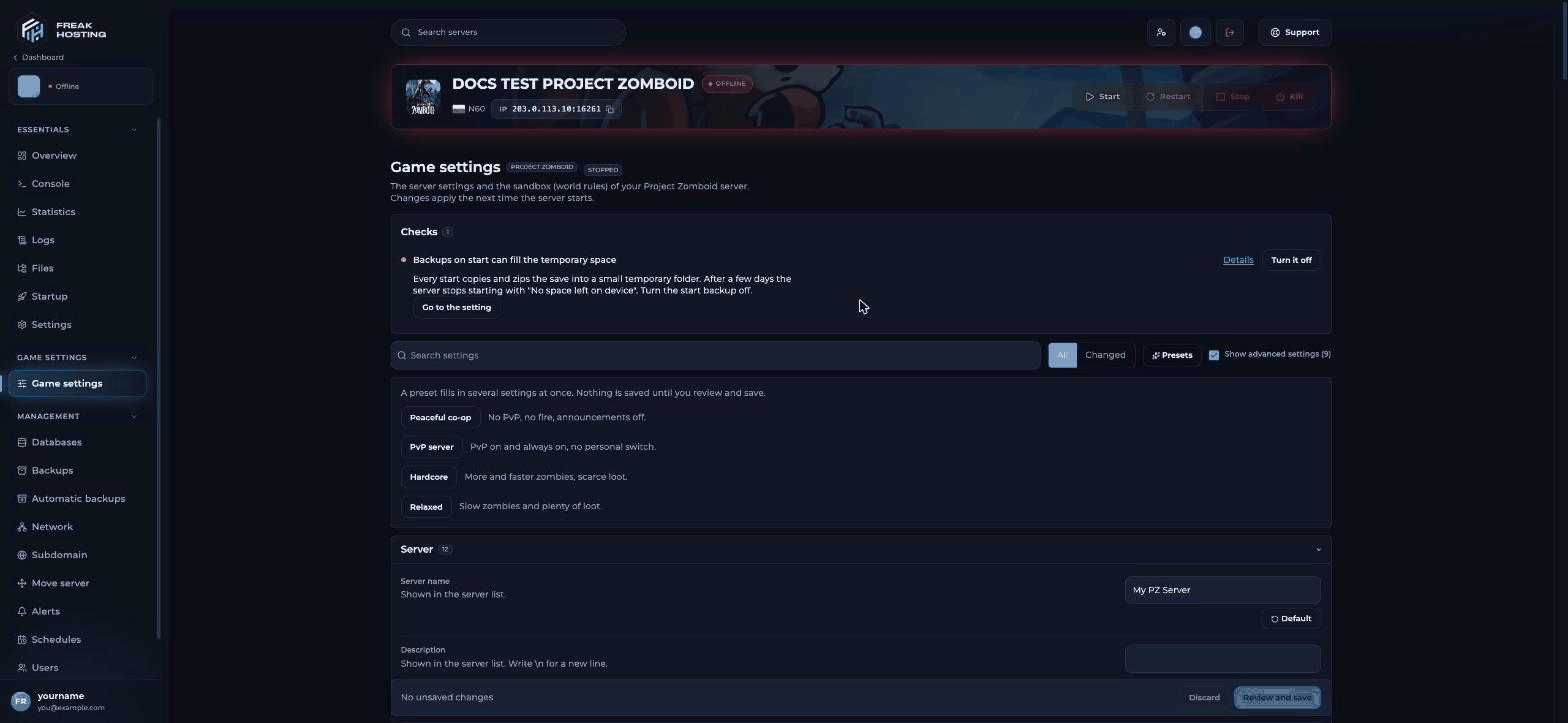
The Game settings page with its Checks, presets and Server section
How do players join a Project Zomboid server?
1
Copy your address
Copy the IP and port from the Console or Overview page, for example
203.0.113.10 and your port.2
Join from the game
In Project Zomboid, click Join, enter the IP, the port and the server password.
3
Create an account
Enter a user name and password for your account on this server. With Anyone can join switched on, the account is created the first time you join. Switched off, you create accounts yourself with
adduser "name" "password" in the panel console.Build 42 or Build 41?
Build 42 became the stable branch of Project Zomboid with version 42.20 on 29 July 2026. Build 41 is still available to players as thelegacy41 Steam beta. The two builds can’t play together, and Build 41 saves don’t load in Build 42. Many Build 41 mods don’t work on Build 42 yet, so check each mod’s Workshop page. If you need a Build 41 server, open a ticket.
Make your first backup
Open Backups and click Create backup, or set a daily backup on Automatic backups. See create and restore backups.Frequently asked questions
How do I make myself admin?
Join with the Admin Username and Admin Password from Startup, or typesetaccesslevel "YourName" admin in the panel console. See admin commands.
Why can’t I see my server in the server list?
Switch on Show in the server list in Game settings and restart. Players can always join directly with your IP and port.How many players can join?
Set Player slots in Game settings. The panel warns that above 32 players map streaming gets poor.Where are the server’s config files?
In.cache/Server in Files. They are named after the Server Name startup variable: <Server Name>.ini, <Server Name>_SandboxVars.lua, <Server Name>_spawnpoints.lua and <Server Name>_spawnregions.lua.
Related guides
Project Zomboid guide
Every Project Zomboid page in one place.
Server settings explained
Every section of Game settings.
Install mods
Workshop items and mod ids.
Admin commands
Access levels and commands.
Configure startup variables
How the Startup page works.
Tested by the FREAKHOSTING team on 30 October 2026 (Project Zomboid Build 42 on our Game Panel). Steps may differ slightly if the game or its mods change.
Need Extra Help?
If you encounter any issues, our support team is ready to assist:- Live Chat: Quick assistance via our website.
- Support Ticket: Open a Ticket
- Discord: Join our Community
- Email: support@freakhosting.com
Last Updated: October 2026