modoverrides.lua in both the Master and Caves folders, then restart.
Before you start
- Your server needs a valid Klei cluster token to start and load mods.
- Make a backup. Some mods change your world for good.
- Find the Workshop id of each mod. It is the number at the end of the mod’s Steam Workshop address, after
?id=. For example,https://steamcommunity.com/sharedfiles/filedetails/?id=378160has the id378160.
Step 1: Add the mods in Game settings
1
Open the Mods section
Open your server in the Game Panel, click Game settings and open Mods.
2
Paste a link or id
Paste a Steam Workshop link or id into Paste Steam Workshop links or ids and click Add. A full Workshop link is shortened to its id. The mod then appears in the list. If nothing is added, check that you pasted a Workshop link or a number.
3
Repeat for each mod
Add every mod you want. The counter under the list shows how many are added.
4
Review and save
Click Review and save. The window shows the change to
dedicated_server_mods_setup.lua, the file that tells the server which mods to download. The panel keeps the old file as dedicated_server_mods_setup.lua.bak. Click Save changes.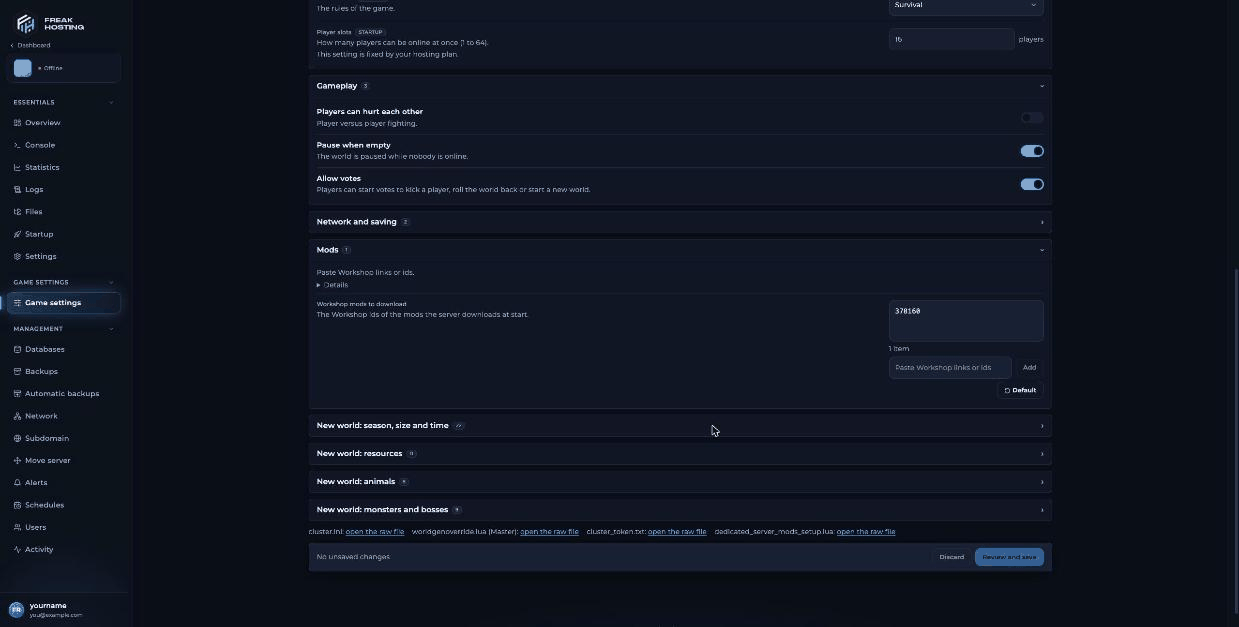
The Mods section in Game settings with one Workshop mod added
Step 2: Switch the mods on in modoverrides.lua
Downloading a mod doesn’t switch it on. Each shard (the overworld, calledMaster, and the Caves) needs a modoverrides.lua file that lists the mods to enable. A new server doesn’t have this file yet.
1
Stop the server
Stop the server before you edit files.
2
Open the Master folder
In Files, go to
DoNotStarveTogether/config/server/Master/. See the File Manager guide.3
Create modoverrides.lua
Create a new file called For two mods, add a line for each, separated by commas.
modoverrides.lua and add one entry per mod. The mod name is workshop- followed by its id:4
Copy it to Caves
Create the same
modoverrides.lua in DoNotStarveTogether/config/server/Caves/. Each shard reads its own file, so enable the mod in both.5
Start and check the console
Start the server and watch the console. Lines starting with
[Workshop] show the mod download.How to change a mod’s options
Many mods have options. Add them inmodoverrides.lua under configuration_options. Use the option names and values from the mod’s own description or its modinfo.lua:
Master and Caves unless the mod tells you otherwise.
What if a mod doesn’t load?
Frequently asked questions
Where do I find a DST mod’s Workshop id?
Open the mod on the Steam Workshop. The id is the number after?id= in the address bar.
Why are my mods downloaded but not working?
The Mods section only downloads mods. To switch them on, list them inmodoverrides.lua in both the Master and Caves folders, then restart.
Can I add a Workshop collection?
The Mods section takes single mods. Add each mod in the collection by its link or id.How do I remove a mod?
Remove it from Workshop mods to download in Game settings, save, delete its entry from bothmodoverrides.lua files and restart.
Related guides
DST server guide
Every Don’t Starve Together page in one place.
cluster.ini explained
The server’s config files.
World settings
Seasons, resources and monsters.
Fix E_INVALID_TOKEN
Server will not start.
File Manager
Create and edit files.
Tested by the FREAKHOSTING team on our Game Panel on 3 November 2026 (Don’t Starve Together dedicated server, version 761239). The
modoverrides.lua format is checked against the official Don’t Starve Wiki dedicated server guide. Steps may differ slightly if the game or the mods change.Need Extra Help?
If you encounter any issues, our support team is ready to assist:- Live Chat: Quick assistance via our website.
- Support Ticket: Open a Ticket
- Discord: Join our Community
- Email: support@freakhosting.com
Last Updated: November 2026