Before you start
- Sign in to the Game Panel and open your Killing Floor 2 server.
- Have Killing Floor 2 installed on your PC, so you can test the server.
How to set the basics on Startup
KF2 has no game settings page in the panel. The main settings are Startup variables. A field saves when you click out of it.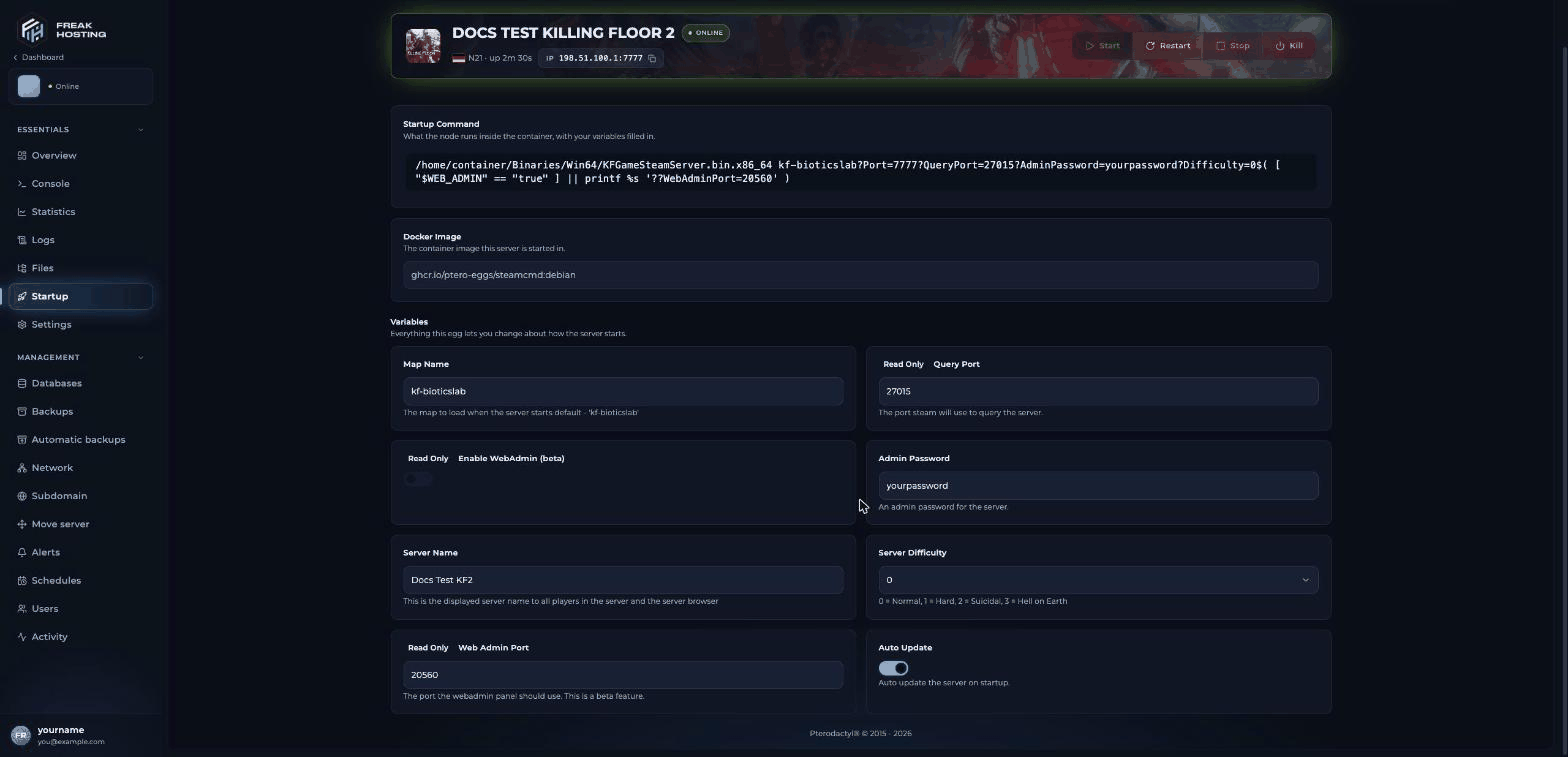
The Startup page of a Killing Floor 2 server
How to start your KF2 server for the first time
1
Start the server
Click Start. Open Console to follow the start-up. On the first start the game creates its config files in
KFGame/Config/.2
Wait until it is ready
The server is ready when the console shows
DevOnline: Steam Servers Connected, followed by a Server data: line with the map and slots. This takes a few seconds.3
Stop the server
Click Stop. The first start still uses the game’s default name, because the config files didn’t exist yet.
4
Start it again
Click Start. From now on, your Server Name and Admin Password are written into the config files at every start.
How to join your Killing Floor 2 server
1
Copy the address
On Overview, click copy next to ADDRESS. It looks like
203.0.113.10:7777.2
Find it in game
Search for your Server Name in the in-game server browser.
3
Or join by address
Open the game console and type
open followed by the address, for example open 203.0.113.10:7777.What to do next
- Make yourself admin. In the game console type
AdminLoginand your Admin Password. See admin commands. - Set a password if the server is only for friends. See server password.
- Write a welcome message. See server name and MOTD.
- Make your first backup under Backups. See backups.
Frequently asked questions
Why does my server still show “Killing Floor 2 Server”?
The server has only started once. Stop it and start it again, and your Server Name is applied.How many players can join?
Up to 6 in the normal co-op modes and 12 in Versus. See max players.Do I need to update the server myself?
No. With Auto Update on, the server checks for a game update every time it starts. Restart the server after Tripwire releases an update.Where are the config files?
InKFGame/Config/ in Files. See config files explained.
Related guides
KF2 server guide
Every Killing Floor 2 page in one place.
Server name and MOTD
Name, welcome message and banner.
Difficulty and game modes
Normal to Hell on Earth.
Admin commands
Log in as admin in game.
Startup variables
How the Startup page works.
Tested by the FREAKHOSTING team on our Game Panel on 3 November 2026 (Killing Floor 2 dedicated server, version 9189). Steps may differ slightly if the game changes.
Need Extra Help?
If you encounter any issues, our support team is ready to assist:- Live Chat: Quick assistance via our website.
- Support Ticket: Open a Ticket
- Discord: Join our Community
- Email: support@freakhosting.com
Last Updated: November 2026