yes in the console if you agree. The server then creates its config folder. Set Server name on Game settings, click Review and save and restart. Players join in game by connecting directly with your server’s IP and port.
Before you start
- Log in to the Game Panel and open your server.
- Have SCP: Secret Laboratory installed from Steam.
- Your server runs LocalAdmin (the program that starts and manages the SCP:SL server) with EXILED already installed. You don’t need plugins to play.
How to start your server for the first time
1
Start the server
Click Start and open Console. The server first updates the game files through SteamCMD, then starts LocalAdmin. You see
Welcome to LocalAdmin version ….2
Read the EULA
LocalAdmin shows
Before starting please read and accept the SCP:SL EULA. and the link https://link.scpslgame.com/eula. A copy, EULA.pdf, is also in your server’s main folder in Files. Read it. Accepting it is your decision, so FREAKHOSTING does not accept it for you.3
Accept it in the console
At
Do you accept the EULA? [yes/no], type yes in the console box (“Type a command…”) and press Enter. LocalAdmin then carries on and creates the config folder for your port.4
Wait for the server to finish loading
Let the server run until the console stops scrolling. If it does not carry on after you type
yes, open a ticket and the team will set it up with you.How to name your server
1
Open Game settings
Click Game settings under GAME SETTINGS. This page edits
config_gameplay.txt. If it shows config_gameplay.txt does not exist yet, the first start has not finished yet; go back to the steps above.2
Set the name
In Server, enter a Server name. This is the name in the server list. It supports colour tags such as
<color=#ff0000>Name</color>; see lobby and server name.3
Check your slots
Player slots shows the slots in your plan. For more slots, open a ticket.
4
Save and restart
Click Review and save, check the changes and save. Then restart the server.
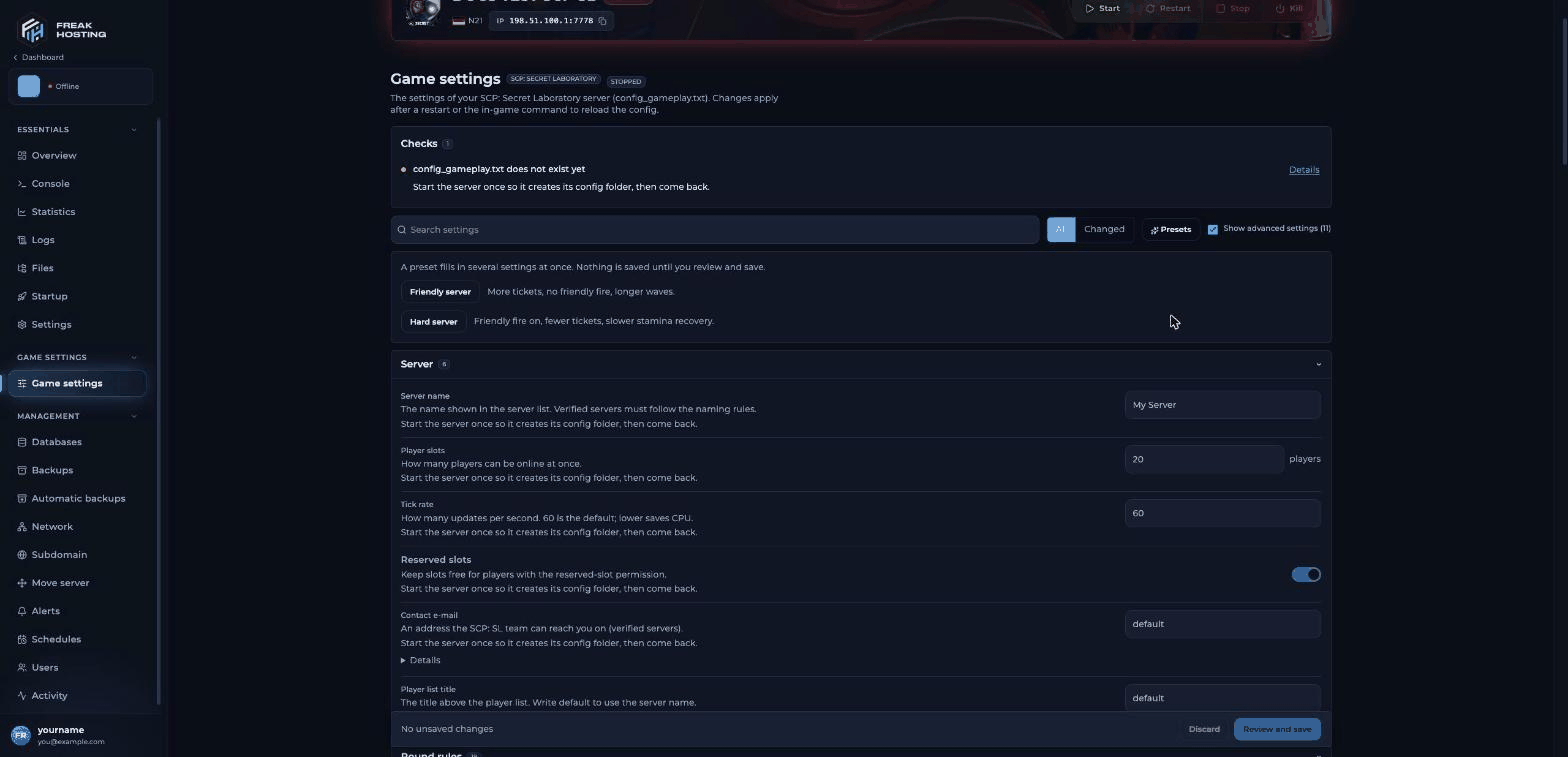
Game settings for SCP: Secret Laboratory in the FREAKHOSTING Game Panel
How to join your SCP:SL server
Use the IP and port shown for your server in the Game Panel. Your port can be different from
7777.
What to do next
- Make yourself admin so you can use Remote Admin.
- Change the rules on Game settings; see game settings explained.
- Make a backup once your configs are set up.
Frequently asked questions
Why does Game settings say config_gameplay.txt does not exist yet?
The server creates its config folder only after the first start, when the EULA is accepted. Start the server, accept the EULA in the console, let it load, then open Game settings again.What port does SCP: Secret Laboratory use?
SCP:SL usually uses port 7777, but your server uses the port shown in the Game Panel. The config folder is named after that port, for example.config/SCP Secret Laboratory/config/7777/.
Do I need EXILED to run the server?
No. EXILED is installed with the server for plugins, and the server runs normally without extra plugins.Where are the server’s config files?
In Files, open.config/SCP Secret Laboratory/config/<port>/. You find config_gameplay.txt and config_remoteadmin.txt there.
Related guides
SCP:SL server guide
Every SCP:SL page in one place.
Make yourself admin
Owner role and the RA panel.
Game settings explained
Every setting on the page.
Not showing in the list
Verification and direct connect.
Use the console
Send commands to your server.
Tested by the FREAKHOSTING team on our Game Panel on 3 November 2026 (SCP: Secret Laboratory dedicated server with EXILED, LocalAdmin 2.5.16). Game behaviour checked against the official SCP:SL tech wiki. Steps may differ slightly if the game changes.
Need Extra Help?
If you encounter any issues, our support team is ready to assist:- Live Chat: Quick assistance via our website.
- Support Ticket: Open a Ticket
- Discord: Join our Community
- Email: support@freakhosting.com
Last Updated: November 2026