csgo/cfg/server.cfg under Files, choose a Map, and start the server. Players join from the CS:GO console with connect and the address shown in the panel.
Before you start
- Log in to the Game Panel.
- Have a Steam account that meets Valve’s token rules (a registered phone number, not limited, not banned). See add a GSLT.
- Know that this is CS:GO, not Counter-Strike 2. Your server runs the final CS:GO build, version 1.38.8.1. For CS2, see our CS2 server guide.
How to set up your CS:GO server
1
Add your Steam game server token first
Open Startup and paste your GSLT into Steam Account Token. The field saves when you click away from it. The default value
0 is not a real token: with it, the server can’t log in to Steam and the panel stays on Starting. Follow add a GSLT to create one.2
Name your server
Open Files, go to
csgo/cfg/ and open server.cfg. Change the hostname line, for example hostname "My CS:GO Server", and save. The panel does not overwrite this file, so your changes stay.3
Choose a map and game mode
On Startup, set Map (for example
de_mirage). Game Type 0 with Game Mode 1 is Classic Competitive, the default. For other modes, see game modes.4
Start the server
Start the server and watch the console. The first start loads a long list of settings, which is normal. Type
status in the console to see the server name, map and players.5
Join the server
In CS:GO, turn on the developer console in the game settings, press the console key and type
connect followed by your address and port, for example connect 203.0.113.10:27015. Use the IP and port shown at the top of your server in the panel.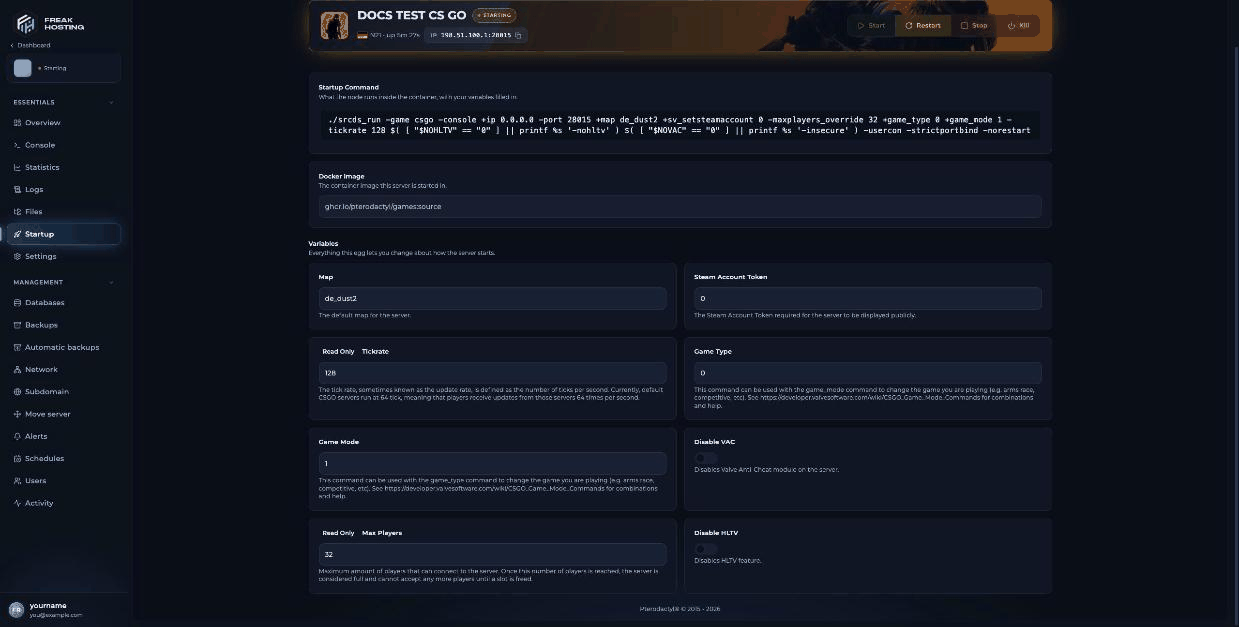
The Startup page of a CS:GO server in the FREAKHOSTING Game Panel
What each Startup setting does
Make your first backup
Once your settings work, make a panel backup. It keeps a copy ofserver.cfg and any maps you upload.
Frequently asked questions
Do I need a GSLT for a CS:GO server?
Yes. Without a valid token the server can’t log in to Steam, isn’t listed, and stays on Starting in the panel. See stuck on Starting.How do players get CS:GO in 2026?
CS:GO is a separate free app on Steam (app 4465480). Its store page is unlisted, so players open it from the direct Steam link. See CS:GO legacy vs CS2.Why does stopping my CS:GO server take a while?
A normal Stop takes about 30 to 40 seconds while the server shuts down. Wait for it to show as offline before you start it again.How do I add RCON or a password?
Neither is set by default. Addrcon_password or sv_password to server.cfg. See set up RCON and set a password.
Related guides
CS:GO server guide
Every CS:GO page in one place.
Add a GSLT
Create and paste your Steam token.
server.cfg explained
What each default line does.
Change the map
Start map and changelevel.
Startup variables
How Startup works.
Tested by the FREAKHOSTING team on our Game Panel on 3 November 2026 (Counter-Strike: Global Offensive legacy, version 1.38.8.1). Steps may differ slightly if the game changes.
Need Extra Help?
If you encounter any issues, our support team is ready to assist:- Live Chat: Quick assistance via our website.
- Support Ticket: Open a Ticket
- Discord: Join our Community
- Email: support@freakhosting.com
Last Updated: November 2026