How to set up a FiveM server on FREAKHOSTING: add your Cfx.re licence key, start the server, finish txAdmin with the PIN, add a framework and database, connect.
To set up a FiveM server on FREAKHOSTING, paste your free Cfx.re licence key into Startup, start the server, click Open txAdmin and enter the PIN from the console. Then pick a deployment type in txAdmin (for example a QBCore or ESX recipe), create a database if your framework needs one, and connect from FiveM with your server address.
Open your server in the Game Panel and click Startup in the sidebar. Replace changemeplease in FxServer License Key with your key, then click outside the field. It saves on its own.
The Startup page of a FiveM server
3
Start the server
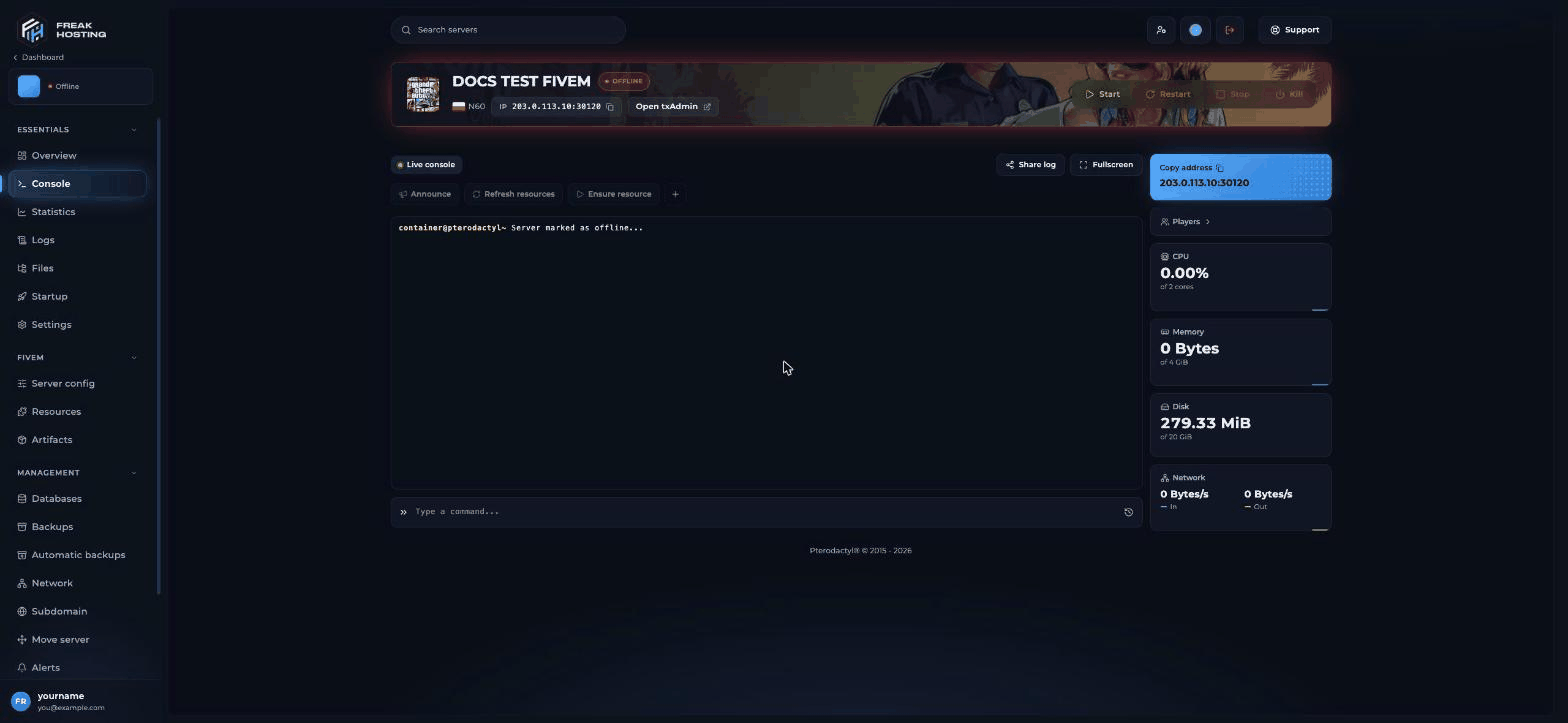
Click Console, then Start at the top of the page. On the first start, txAdmin prints a 4-digit PIN in the console.
4
Open txAdmin and enter the PIN
Click Open txAdmin next to your server’s IP. It opens txAdmin on port 40120 in a new tab. Enter the PIN, click Link account, sign in with your Cfx.re account and set a backup password. See how to set up txAdmin.
5
Pick a deployment type
Choose Popular Recipes to install a framework such as QBCore, Qbox or ESX, or Existing Server Data to keep the files already in your server’s main folder. Paste the same licence key when txAdmin asks for it.
6
Save and run
Check the server.cfg txAdmin shows you, then click Save & Run Server.
The panel’s Server config and Resources pages edit the server.cfg and resources folder in your server’s main folder. If txAdmin runs a recipe in another folder, Server config shows the check txAdmin runs this server, and changes on those pages are not used. Edit that server’s files in txAdmin instead.
Only if you use a framework such as QBCore, Qbox or ESX, or scripts that save data. Plain servers and vMenu don’t need one. Click Databases, then Create database, and copy the ready-made line under FORMAT > FiveM (oxmysql). See how to set up a FiveM database.
Tested by the FREAKHOSTING team on our Game Panel on 29 October 2026 (FXServer build 35245 (Recommended) with txAdmin). Steps may differ slightly if FiveM or txAdmin change.
Ready to upgrade your hosting? Use code KB20 at checkout for 20% off your first order!
Last Updated: October 2026
Was this page helpful?
{"docsConfig":{"theme":"mint","$schema":"https://mintlify.com/docs.json","name":"FREAKHOSTING","colors":{"primary":"#1a6fd1","light":"#4da3ff","dark":"#1a6fd1"},"favicon":"https://cdn.freakhosting.com/website/favicon.ico","appearance":{"default":"dark","strict":false},"background":{"color":{"light":"#ffffff","dark":"#0a0e17"}},"seo":{"metatags":{"og:image":"https://cdn.freakhosting.com/core/assets/heldesk-main.png","og:site_name":"FREAKHOSTING Help Center","og:locale":"en_GB","twitter:site":"@freakhosting","twitter:card":"summary_large_image","author":"FREAKHOSTING LTD","robots":"index, follow, max-image-preview:large, max-snippet:-1, max-video-preview:-1","copyright":"Copyright 2018-2026 FREAKHOSTING LTD","theme-color":"#0a0e17","color-scheme":"light dark"},"organization":{"id":"https://freakhosting.com/#organization","name":"FREAKHOSTING","legalName":"FREAKHOSTING LTD","url":"https://freakhosting.com","logo":"https://cdn.freakhosting.com/core/assets/img/logo-footer.png","sameAs":["https://x.com/freakhosting","https://discord.gg/freakhosting","https://github.com/freakhosting"]},"indexing":"all"},"integrations":{"ga4":{"measurementId":"G-TSY6L544EM"}},"contextual":{"options":["copy","view","chatgpt","claude","perplexity",{"title":"Order a Server","description":"Browse our game server hosting plans","icon":"server","href":"https://freakhosting.com"},{"title":"Submit a Ticket","description":"Contact our 24/7 support team","icon":"ticket","href":"https://freakhosting.com/clientarea/submitticket.php"},{"title":"Join Discord","description":"Get community support and updates","icon":"discord","href":"https://discord.gg/freakhosting"}],"display":"header"},"interaction":{"drilldown":false},"styling":{"latex":false},"navigation":{"pages":[]}},"deployment":{"deploymentMetadataValue":{"subdomain":"freakhostingltd","hasAudioNarration":false,"actualSubdomain":"freakhostingltd","customDomains":["help.freakhosting.com"],"gitSource":{"type":"github","owner":"freakhosting","repo":"help.freakhosting.com","deployBranch":"main","contentDirectory":"","isPrivate":true,"mountPath":"","label":""},"chroma":{"liveDeploymentHistoryId":"6ae35a4486c7ae22426dc750","collectionId":"bcaf8907-3238-48f7-9ee6-9e0b8c9e3bc8","schemaVersion":"v3","latestBuiltDeploymentHistoryId":"6ae35a4486c7ae22426dc750"},"feedback":{"thumbs":true},"entitlements":{},"buildId":"6ae35bd051fbfc0519ab29b6","clientVersion":"0.0.4006","searchFilterCounts":[{"language":"default","tag":"Games","count":478},{"language":"default","tag":"Popular Games","count":158},{"language":"default","tag":"Survival Games","count":120},{"language":"default","tag":"Shooters","count":59},{"language":"default","tag":"Racing \u0026 Simulation","count":47},{"language":"default","tag":"Sandbox \u0026 Building","count":45},{"language":"default","tag":"Minecraft","count":45},{"language":"default","tag":"Game Panel guides","count":43},{"language":"default","tag":"Billing Area","count":38},{"language":"default","tag":"Counter Strike 2","count":37}]},"assistantConfig":{"enableAskAiButton":false,"enableStarterQuestions":false,"enableAskAiSearchBar":true},"basePath":"","hasChatPermissions":false,"hasWebMcpPermissions":false,"toggles":[{"name":"kill-isr","enabled":true,"variant":{"name":"disabled","enabled":false,"feature_enabled":true},"impressionData":false},{"name":"agent-mintlify-slack","enabled":true,"variant":{"name":"disabled","enabled":false,"feature_enabled":true},"impressionData":false},{"name":"agent-integrations-settings","enabled":true,"variant":{"name":"disabled","enabled":false,"feature_enabled":true},"impressionData":false},{"name":"automations-pr-grouping","enabled":true,"variant":{"name":"disabled","enabled":false,"feature_enabled":true},"impressionData":false},{"name":"custom-prefix","enabled":true,"variant":{"name":"disabled","enabled":false,"feature_enabled":true},"impressionData":false},{"name":"analytics-v7","enabled":true,"variant":{"name":"disabled","enabled":false,"feature_enabled":true},"impressionData":false},{"name":"user-flows-analytics","enabled":true,"variant":{"name":"disabled","enabled":false,"feature_enabled":true},"impressionData":false},{"name":"no-publish-flow","enabled":true,"variant":{"name":"disabled","enabled":false,"feature_enabled":true},"impressionData":false},{"name":"workos-onboarding","enabled":true,"variant":{"name":"disabled","enabled":false,"feature_enabled":true},"impressionData":false},{"name":"llms-txt-v2","enabled":true,"variant":{"name":"disabled","enabled":false,"feature_enabled":true},"impressionData":false},{"name":"pause-universal-search-reconcile","enabled":true,"variant":{"name":"disabled","enabled":false,"feature_enabled":true},"impressionData":false},{"name":"snapshot-serving-live","enabled":true,"variant":{"name":"disabled","enabled":false,"feature_enabled":true},"impressionData":false},{"name":"stripTemperatureMiddleware","enabled":true,"variant":{"name":"disabled","enabled":false,"feature_enabled":true},"impressionData":false},{"name":"per-site-search-delta","enabled":true,"variant":{"name":"disabled","enabled":false,"feature_enabled":true},"impressionData":false},{"name":"support-platform-pylon-zendesk","enabled":true,"variant":{"name":"disabled","enabled":false,"feature_enabled":true},"impressionData":false},{"name":"snapshot-serving","enabled":true,"variant":{"name":"disabled","enabled":false,"feature_enabled":true},"impressionData":false},{"name":"instant-rollback","enabled":true,"variant":{"name":"disabled","enabled":false,"feature_enabled":true},"impressionData":false},{"name":"granular-notifications-server","enabled":true,"variant":{"name":"disabled","enabled":false,"feature_enabled":true},"impressionData":false},{"name":"granular-notifications","enabled":true,"variant":{"name":"disabled","enabled":false,"feature_enabled":true},"impressionData":false},{"name":"editor-private-page-search","enabled":true,"variant":{"name":"disabled","enabled":false,"feature_enabled":true},"impressionData":false},{"name":"automations-fable","enabled":true,"variant":{"name":"disabled","enabled":false,"feature_enabled":true},"impressionData":false},{"name":"fixed-ai-action-pricing","enabled":true,"variant":{"name":"disabled","enabled":false,"feature_enabled":true},"impressionData":false},{"name":"automation-resolve-merge-conflict","enabled":true,"variant":{"name":"disabled","enabled":false,"feature_enabled":true},"impressionData":false},{"name":"scoped-publishing","enabled":true,"variant":{"name":"disabled","enabled":false,"feature_enabled":true},"impressionData":false},{"name":"mintql","enabled":true,"variant":{"name":"disabled","enabled":false,"feature_enabled":true},"impressionData":false},{"name":"page-level-analytics","enabled":true,"variant":{"name":"disabled","enabled":false,"feature_enabled":true},"impressionData":false},{"name":"editor-version-history-v2","enabled":true,"variant":{"name":"disabled","enabled":false,"feature_enabled":true},"impressionData":false},{"name":"billing-page-v2","enabled":true,"variant":{"name":"disabled","enabled":false,"feature_enabled":true},"impressionData":false},{"name":"workspace-projects","enabled":true,"variant":{"name":"disabled","enabled":false,"feature_enabled":true},"impressionData":false},{"name":"assistant-v5","enabled":true,"variant":{"name":"disabled","enabled":false,"feature_enabled":true},"impressionData":false},{"name":"byok-sep-25","enabled":true,"variant":{"name":"disabled","enabled":false,"feature_enabled":true},"impressionData":false},{"name":"fork-pr-previews","enabled":true,"variant":{"name":"disabled","enabled":false,"feature_enabled":true},"impressionData":false},{"name":"revalidation-jwt","enabled":true,"variant":{"name":"disabled","enabled":false,"feature_enabled":true},"impressionData":false},{"name":"vite-origin","enabled":true,"variant":{"name":"disabled","enabled":false,"feature_enabled":true},"impressionData":false},{"name":"billing-updated-9-15","enabled":true,"variant":{"name":"disabled","enabled":false,"feature_enabled":true},"impressionData":false},{"name":"workos-sso-scim","enabled":true,"variant":{"name":"disabled","enabled":false,"feature_enabled":true},"impressionData":false},{"name":"hobby-abuse-scan","enabled":true,"variant":{"name":"disabled","enabled":false,"feature_enabled":true},"impressionData":false},{"name":"dashboard-inbox","enabled":true,"variant":{"name":"disabled","enabled":false,"feature_enabled":true},"impressionData":false},{"name":"workos-signup","enabled":true,"variant":{"name":"disabled","enabled":false,"feature_enabled":true},"impressionData":false},{"name":"workos-enabled","enabled":true,"variant":{"name":"disabled","enabled":false,"feature_enabled":true},"impressionData":false}],"googleFontsInlined":false},"customCss":[],"page":{"pagePath":"games/fivem/getting-started-with-your-fivem-server","slug":"/games/fivem/getting-started-with-your-fivem-server","pageMetadata":{"title":"How to Set Up a FiveM Server (Step by Step)","sidebarTitle":"Set Up Your Server","description":"How to set up a FiveM server on FREAKHOSTING: add your Cfx.re licence key, start the server, finish txAdmin with the PIN, add a framework and database, connect.","keywords":["how to set up a fivem server","how to make a fivem server","fivem server setup","create fivem server","fivem txadmin setup","fivem license key","fivem server first start","connect to fivem server","qbcore esx server setup","FiveM","FREAKHOSTING"],"og:title":"How to Set Up a FiveM Server (Step by Step)","og:description":"How to set up a FiveM server on FREAKHOSTING: add your Cfx.re licence key, start the server, finish txAdmin with the PIN, add a framework and database, connect.","href":"/games/fivem/getting-started-with-your-fivem-server"},"description":{"compiledSource":"\"use strict\";\nconst {jsx: _jsx} = arguments[0];\nconst {useMDXComponents: _provideComponents} = arguments[0];\nfunction _createMdxContent(props) {\n const _components = {\n p: \"p\",\n ..._provideComponents(),\n ...props.components\n };\n return _jsx(_components.p, {\n children: \"How to set up a FiveM server on FREAKHOSTING: add your Cfx.re licence key, start the server, finish txAdmin with the PIN, add a framework and database, connect.\"\n });\n}\nfunction MDXContent(props = {}) {\n const {wrapper: MDXLayout} = {\n ..._provideComponents(),\n ...props.components\n };\n return MDXLayout ? _jsx(MDXLayout, {\n ...props,\n children: _jsx(_createMdxContent, {\n ...props\n })\n }) : _createMdxContent(props);\n}\nreturn {\n default: MDXContent\n};\n","frontmatter":{},"scope":{}},"pageType":"default","mdx":{"mdxSource":{"compiledSource":"\"use strict\";const{Fragment:_Fragment,jsx:_jsx,jsxs:_jsxs}=arguments[0];const{useMDXComponents:_provideComponents}=arguments[0];function _createMdxContent(props){const _components={a:`a`,code:`code`,hr:`hr`,li:`li`,p:`p`,pre:`pre`,span:`span`,strong:`strong`,tbody:`tbody`,td:`td`,th:`th`,thead:`thead`,tr:`tr`,ul:`ul`,..._provideComponents(),...props.components},{Card,CardGroup,CodeBlock,Frame,Heading,Info,Note,OptimizedImage,Step,Steps,Table,Tip,Warning}=_components;if(!Card)_missingMdxReference(`Card`,true);if(!CardGroup)_missingMdxReference(`CardGroup`,true);if(!CodeBlock)_missingMdxReference(`CodeBlock`,true);if(!Frame)_missingMdxReference(`Frame`,true);if(!Heading)_missingMdxReference(`Heading`,true);if(!Info)_missingMdxReference(`Info`,true);if(!Note)_missingMdxReference(`Note`,true);if(!OptimizedImage)_missingMdxReference(`OptimizedImage`,true);if(!Step)_missingMdxReference(`Step`,true);if(!Steps)_missingMdxReference(`Steps`,true);if(!Table)_missingMdxReference(`Table`,true);if(!Tip)_missingMdxReference(`Tip`,true);if(!Warning)_missingMdxReference(`Warning`,true);return _jsxs(_Fragment,{children:[_jsxs(_components.p,{children:[`To set up a FiveM server on FREAKHOSTING, paste your free Cfx.re licence key into `,_jsx(_components.strong,{children:`Startup`}),`, start the server, click `,_jsx(_components.strong,{children:`Open txAdmin`}),` and enter the PIN from the console. Then pick a deployment type in txAdmin (for example a QBCore or ESX recipe), create a database if your framework needs one, and connect from FiveM with your server address.`]}),`\n`,_jsxs(Table,{children:[_jsx(_components.thead,{children:_jsxs(_components.tr,{children:[_jsx(_components.th,{children:`Difficulty`}),_jsx(_components.th,{children:`Time`}),_jsx(_components.th,{children:`Panel pages used`})]})}),_jsx(_components.tbody,{children:_jsxs(_components.tr,{children:[_jsx(_components.td,{children:`Beginner`}),_jsx(_components.td,{children:`About 15 minutes`}),_jsx(_components.td,{children:`Startup, Console, Databases, Server config`})]})})]}),`\n`,_jsx(Heading,{level:`2`,id:`before-you-start`,children:`Before you start`}),`\n`,_jsxs(_components.ul,{children:[`\n`,_jsxs(_components.li,{children:[`A Cfx.re account. Create one for free at `,_jsx(_components.a,{href:`https://portal.cfx.re`,children:`portal.cfx.re`}),`.`]}),`\n`,_jsxs(_components.li,{children:[`Your Game Panel login. See `,_jsx(_components.a,{href:`/portals/game-panel/how-to-login-and-access-the-game-panel`,children:`how to sign in to the Game Panel`}),`.`]}),`\n`]}),`\n`,_jsx(Heading,{level:`2`,id:`how-to-set-up-a-fivem-server`,children:`How to set up a FiveM server`}),`\n`,_jsxs(Steps,{children:[_jsx(Step,{title:`Get a licence key`,children:_jsxs(_components.p,{children:[`Sign in at `,_jsx(_components.a,{href:`https://portal.cfx.re`,children:`portal.cfx.re`}),`, register a server and copy its key. See `,_jsx(_components.a,{href:`/games/fivem/setting-up-a-fivem-license-key`,children:`how to get a FiveM licence key`}),` for each click.`]})}),_jsxs(Step,{title:`Paste the key in Startup`,children:[_jsxs(_components.p,{children:[`Open your server in the Game Panel and click `,_jsx(_components.strong,{children:`Startup`}),` in the sidebar. Replace `,_jsx(_components.code,{children:`changemeplease`}),` in `,_jsx(_components.strong,{children:`FxServer License Key`}),` with your key, then click outside the field. It saves on its own.`]}),_jsx(Frame,{caption:`The Startup page of a FiveM server`,children:_jsx(OptimizedImage,{src:`https://mintcdn.com/freakhostingltd/oRNjFa_9Ix118Tkc/images/games/fivem/fivem-startup.png?fit=max\u0026auto=format\u0026n=oRNjFa_9Ix118Tkc\u0026q=85\u0026s=0c24e7965d9bbb0c7b4d12e82f39c503`,alt:`FiveM Startup page with the FxServer License Key, Max Players, Steam Web Api Key, Enable / Disable TxAdmin, txAdmin Port, Auto Update, txAdmin Profile and Server Hostname variables`,\"data-og-width\":`1568`,width:`1568`,\"data-og-height\":`723`,height:`723`,\"data-path\":`images/games/fivem/fivem-startup.png`,\"data-optimize\":`true`,\"data-opv\":`3`,srcset:`https://mintcdn.com/freakhostingltd/oRNjFa_9Ix118Tkc/images/games/fivem/fivem-startup.png?w=280\u0026fit=max\u0026auto=format\u0026n=oRNjFa_9Ix118Tkc\u0026q=85\u0026s=d5d15fa95121da5f0d98a6d90f25096d 280w, https://mintcdn.com/freakhostingltd/oRNjFa_9Ix118Tkc/images/games/fivem/fivem-startup.png?w=560\u0026fit=max\u0026auto=format\u0026n=oRNjFa_9Ix118Tkc\u0026q=85\u0026s=1ea24f3efefb5aafee204b019d97ad2c 560w, https://mintcdn.com/freakhostingltd/oRNjFa_9Ix118Tkc/images/games/fivem/fivem-startup.png?w=840\u0026fit=max\u0026auto=format\u0026n=oRNjFa_9Ix118Tkc\u0026q=85\u0026s=58cd2a1881d8fccc97b5e53d4819f57d 840w, https://mintcdn.com/freakhostingltd/oRNjFa_9Ix118Tkc/images/games/fivem/fivem-startup.png?w=1100\u0026fit=max\u0026auto=format\u0026n=oRNjFa_9Ix118Tkc\u0026q=85\u0026s=f49a47d5e4aa7961fd981824578f479d 1100w, https://mintcdn.com/freakhostingltd/oRNjFa_9Ix118Tkc/images/games/fivem/fivem-startup.png?w=1650\u0026fit=max\u0026auto=format\u0026n=oRNjFa_9Ix118Tkc\u0026q=85\u0026s=7ef84c853c6cebf9fe398aecbb4c5770 1650w, https://mintcdn.com/freakhostingltd/oRNjFa_9Ix118Tkc/images/games/fivem/fivem-startup.png?w=2500\u0026fit=max\u0026auto=format\u0026n=oRNjFa_9Ix118Tkc\u0026q=85\u0026s=4989f93b9fb66dc3adfaf2967f1cefda 2500w`})})]}),_jsx(Step,{title:`Start the server`,children:_jsxs(_components.p,{children:[`Click `,_jsx(_components.strong,{children:`Console`}),`, then `,_jsx(_components.strong,{children:`Start`}),` at the top of the page. On the first start, txAdmin prints a 4-digit PIN in the console.`]})}),_jsx(Step,{title:`Open txAdmin and enter the PIN`,children:_jsxs(_components.p,{children:[`Click `,_jsx(_components.strong,{children:`Open txAdmin`}),` next to your server’s IP. It opens txAdmin on port `,_jsx(_components.code,{children:`40120`}),` in a new tab. Enter the PIN, click `,_jsx(_components.strong,{children:`Link account`}),`, sign in with your Cfx.re account and set a backup password. See `,_jsx(_components.a,{href:`/games/fivem/how-to-install-txadmin-on-fivem`,children:`how to set up txAdmin`}),`.`]})}),_jsx(Step,{title:`Pick a deployment type`,children:_jsxs(_components.p,{children:[`Choose `,_jsx(_components.strong,{children:`Popular Recipes`}),` to install a framework such as QBCore, Qbox or ESX, or `,_jsx(_components.strong,{children:`Existing Server Data`}),` to keep the files already in your server’s main folder. Paste the same licence key when txAdmin asks for it.`]})}),_jsx(Step,{title:`Save and run`,children:_jsxs(_components.p,{children:[`Check the `,_jsx(_components.code,{children:`server.cfg`}),` txAdmin shows you, then click `,_jsx(_components.strong,{children:`Save \u0026 Run Server`}),`.`]})})]}),`\n`,_jsx(Warning,{children:_jsxs(_components.p,{children:[`The panel’s `,_jsx(_components.strong,{children:`Server config`}),` and `,_jsx(_components.strong,{children:`Resources`}),` pages edit the `,_jsx(_components.code,{children:`server.cfg`}),` and `,_jsx(_components.code,{children:`resources`}),` folder in your server’s main folder. If txAdmin runs a recipe in another folder, `,_jsx(_components.strong,{children:`Server config`}),` shows the check `,_jsx(_components.strong,{children:`txAdmin runs this server`}),`, and changes on those pages are not used. Edit that server’s files in txAdmin instead.`]})}),`\n`,_jsx(Heading,{level:`2`,id:`which-deployment-type-should-i-choose`,children:`Which deployment type should I choose?`}),`\n`,_jsxs(Table,{children:[_jsx(_components.thead,{children:_jsxs(_components.tr,{children:[_jsx(_components.th,{children:`Option`}),_jsx(_components.th,{children:`Choose it when`})]})}),_jsxs(_components.tbody,{children:[_jsxs(_components.tr,{children:[_jsx(_components.td,{children:_jsx(_components.strong,{children:`Popular Recipes`})}),_jsxs(_components.td,{children:[`You want a ready-made roleplay server. See `,_jsx(_components.a,{href:`/games/fivem/how-to-install-qbcore-or-esx-on-fivem`,children:`how to install QBCore or ESX`}),`.`]})]}),_jsxs(_components.tr,{children:[_jsx(_components.td,{children:_jsx(_components.strong,{children:`Existing Server Data`})}),_jsxs(_components.td,{children:[`You want to keep using the panel’s `,_jsx(_components.strong,{children:`Server config`}),` and `,_jsx(_components.strong,{children:`Resources`}),` pages. Point txAdmin at your server’s main folder.`]})]}),_jsxs(_components.tr,{children:[_jsxs(_components.td,{children:[_jsx(_components.strong,{children:`Remote URL Template`}),` / `,_jsx(_components.strong,{children:`Custom Template`})]}),_jsx(_components.td,{children:`You have your own recipe file. For advanced users.`})]})]})]}),`\n`,_jsx(Heading,{level:`2`,id:`do-i-need-a-database`,children:`Do I need a database?`}),`\n`,_jsxs(_components.p,{children:[`Only if you use a framework such as QBCore, Qbox or ESX, or scripts that save data. Plain servers and vMenu don’t need one. Click `,_jsx(_components.strong,{children:`Databases`}),`, then `,_jsx(_components.strong,{children:`Create database`}),`, and copy the ready-made line under `,_jsx(_components.strong,{children:`FORMAT`}),` > `,_jsx(_components.strong,{children:`FiveM (oxmysql)`}),`. See `,_jsx(_components.a,{href:`/games/fivem/how-to-setup-your-database-on-your-fivem-server`,children:`how to set up a FiveM database`}),`.`]}),`\n`,_jsx(Heading,{level:`2`,id:`how-do-players-connect-to-my-fivem-server`,children:`How do players connect to my FiveM server?`}),`\n`,_jsxs(_components.p,{children:[`Your address is shown at the top of every server page and on the `,_jsx(_components.strong,{children:`Copy address`}),` card in the console, for example `,_jsx(_components.code,{children:`203.0.113.10:30120`}),`.`]}),`\n`,_jsxs(_components.ul,{children:[`\n`,_jsxs(_components.li,{children:[`\n`,_jsxs(_components.p,{children:[_jsx(_components.strong,{children:`Direct connect:`}),` open FiveM, press `,_jsx(_components.strong,{children:`F8`}),` to open the console and type the address after `,_jsx(_components.code,{children:`connect`}),`:`]}),`\n`,_jsx(CodeBlock,{filename:``,numberOfLines:`2`,language:`text`,children:_jsx(_components.pre,{className:`shiki shiki-themes github-light-default dark-plus`,style:{backgroundColor:`#ffffff`,\"--shiki-dark-bg\":`#0B0C0E`,color:`#1f2328`,\"--shiki-dark\":`#D4D4D4`},language:`text`,children:_jsxs(_components.code,{language:`text`,numberOfLines:`2`,children:[_jsx(_components.span,{className:`line`,children:_jsx(_components.span,{children:`connect 203.0.113.10:30120`})}),`\n`,_jsx(_components.span,{className:`line`,children:_jsx(_components.span,{})})]})})}),`\n`]}),`\n`,_jsxs(_components.li,{children:[`\n`,_jsxs(_components.p,{children:[_jsx(_components.strong,{children:`Server list:`}),` search for your server name in FiveM. A new server can take a few minutes to appear. See `,_jsx(_components.a,{href:`/games/fivem/fivem-server-not-showing-in-server-list`,children:`server not showing in the list`}),`.`]}),`\n`]}),`\n`]}),`\n`,_jsx(Frame,{caption:`The FiveM console with the Open txAdmin button and Copy address card`,children:_jsx(OptimizedImage,{src:`https://mintcdn.com/freakhostingltd/oRNjFa_9Ix118Tkc/images/games/fivem/fivem-console.png?fit=max\u0026auto=format\u0026n=oRNjFa_9Ix118Tkc\u0026q=85\u0026s=329da74011fa67e4a3cce2b8af0d1beb`,alt:`FiveM server console with the Open txAdmin button next to the IP, quick buttons Announce, Refresh resources and Ensure resource, and the Copy address card`,\"data-og-width\":`1568`,width:`1568`,\"data-og-height\":`723`,height:`723`,\"data-path\":`images/games/fivem/fivem-console.png`,\"data-optimize\":`true`,\"data-opv\":`3`,srcset:`https://mintcdn.com/freakhostingltd/oRNjFa_9Ix118Tkc/images/games/fivem/fivem-console.png?w=280\u0026fit=max\u0026auto=format\u0026n=oRNjFa_9Ix118Tkc\u0026q=85\u0026s=3d1eff7f22db29c3d751831580923493 280w, https://mintcdn.com/freakhostingltd/oRNjFa_9Ix118Tkc/images/games/fivem/fivem-console.png?w=560\u0026fit=max\u0026auto=format\u0026n=oRNjFa_9Ix118Tkc\u0026q=85\u0026s=690512dfb0d03bef6d3357677bb1eb65 560w, https://mintcdn.com/freakhostingltd/oRNjFa_9Ix118Tkc/images/games/fivem/fivem-console.png?w=840\u0026fit=max\u0026auto=format\u0026n=oRNjFa_9Ix118Tkc\u0026q=85\u0026s=9dfb3dfd05041016ccc4052473883989 840w, https://mintcdn.com/freakhostingltd/oRNjFa_9Ix118Tkc/images/games/fivem/fivem-console.png?w=1100\u0026fit=max\u0026auto=format\u0026n=oRNjFa_9Ix118Tkc\u0026q=85\u0026s=13ca03a33b591859c8001fbea80caf7e 1100w, https://mintcdn.com/freakhostingltd/oRNjFa_9Ix118Tkc/images/games/fivem/fivem-console.png?w=1650\u0026fit=max\u0026auto=format\u0026n=oRNjFa_9Ix118Tkc\u0026q=85\u0026s=53199e09d4bd734e2b38d02ea48f91fa 1650w, https://mintcdn.com/freakhostingltd/oRNjFa_9Ix118Tkc/images/games/fivem/fivem-console.png?w=2500\u0026fit=max\u0026auto=format\u0026n=oRNjFa_9Ix118Tkc\u0026q=85\u0026s=5e8ad71a3aa96990469539960c37e7f2 2500w`})}),`\n`,_jsx(Heading,{level:`2`,id:`what-to-do-next`,children:`What to do next`}),`\n`,_jsxs(_components.ul,{children:[`\n`,_jsxs(_components.li,{children:[`Set the server name, OneSync and server list details on `,_jsx(_components.a,{href:`/games/fivem/configuring-servercfg-for-fivem`,children:`Server config`}),`.`]}),`\n`,_jsxs(_components.li,{children:[`Add scripts, cars and maps on `,_jsx(_components.a,{href:`/games/fivem/how-to-install-mods-on-your-fivem-server`,children:`Resources`}),`.`]}),`\n`,_jsxs(_components.li,{children:[_jsx(_components.a,{href:`/portals/game-panel/how-to-create-and-restore-backups`,children:`Make a backup`}),` once everything works.`]}),`\n`]}),`\n`,_jsx(Heading,{level:`2`,id:`frequently-asked-questions`,children:`Frequently asked questions`}),`\n`,_jsx(Heading,{level:`3`,id:`why-doesn’t-my-fivem-server-start`,children:`Why doesn’t my FiveM server start?`}),`\n`,_jsxs(_components.p,{children:[`The most common reason is a missing or wrong licence key. Check `,_jsx(_components.strong,{children:`FxServer License Key`}),` in `,_jsx(_components.strong,{children:`Startup`}),` and see `,_jsx(_components.a,{href:`/games/fivem/how-to-change-server-license-key-on-your-fivem-server`,children:`how to change your licence key`}),`.`]}),`\n`,_jsx(Heading,{level:`3`,id:`where-do-i-find-the-txadmin-pin`,children:`Where do I find the txAdmin PIN?`}),`\n`,_jsxs(_components.p,{children:[`In the `,_jsx(_components.strong,{children:`Console`}),`, the first time the server starts after a fresh install. Start the server and watch the console output.`]}),`\n`,_jsx(Heading,{level:`3`,id:`can-i-turn-txadmin-off`,children:`Can I turn txAdmin off?`}),`\n`,_jsxs(_components.p,{children:[`No. The `,_jsx(_components.strong,{children:`Enable / Disable TxAdmin`}),` variable in `,_jsx(_components.strong,{children:`Startup`}),` is read-only, so txAdmin always starts and runs your server.`]}),`\n`,_jsx(Heading,{level:`3`,id:`how-long-does-a-new-server-take-to-show-in-the-fivem-server-list`,children:`How long does a new server take to show in the FiveM server list?`}),`\n`,_jsxs(_components.p,{children:[`Usually a few minutes after it starts. If it never appears, see `,_jsx(_components.a,{href:`/games/fivem/fivem-server-not-showing-in-server-list`,children:`FiveM server not showing in the server list`}),`.`]}),`\n`,_jsx(Heading,{level:`2`,id:`related-guides`,children:`Related guides`}),`\n`,_jsxs(CardGroup,{cols:2,children:[_jsx(Card,{title:`FiveM server guide`,icon:`book`,href:`/games/fivem/fivem-server-hosting-guide`,children:_jsx(_components.p,{children:`Every FiveM guide in one place.`})}),_jsx(Card,{title:`Get a licence key`,icon:`key`,href:`/games/fivem/setting-up-a-fivem-license-key`,children:_jsx(_components.p,{children:`Create your free key on the Cfx.re Portal.`})}),_jsx(Card,{title:`Set up txAdmin`,icon:`shield-halved`,href:`/games/fivem/how-to-install-txadmin-on-fivem`,children:_jsx(_components.p,{children:`PIN, master account and deployment types.`})}),_jsx(Card,{title:`Install QBCore or ESX`,icon:`layer-group`,href:`/games/fivem/how-to-install-qbcore-or-esx-on-fivem`,children:_jsx(_components.p,{children:`Use a txAdmin recipe for a roleplay server.`})}),_jsx(Card,{title:`Failed to connect`,icon:`plug-circle-xmark`,href:`/games/fivem/fivem-failed-to-connect-to-server`,children:_jsx(_components.p,{children:`Fix connection problems.`})}),_jsx(Card,{title:`Start, stop and restart`,icon:`power-off`,href:`/portals/game-panel/how-to-start-stop-and-restart-your-game-server`,children:_jsx(_components.p,{children:`Control your server’s power.`})})]}),`\n`,_jsx(Info,{children:_jsxs(_components.p,{children:[_jsx(_components.strong,{children:`Tested by the FREAKHOSTING team`}),` on our Game Panel on 29 October 2026 (FXServer build 35245 (Recommended) with txAdmin). Steps may differ slightly if FiveM or txAdmin change.`]})}),`\n`,_jsx(_components.hr,{}),`\n`,_jsxs(Note,{children:[_jsx(Heading,{level:`3`,id:`need-extra-help`,children:`Need Extra Help?`}),_jsx(_components.p,{children:`If you encounter any issues, our support team is ready to assist:`}),_jsxs(_components.ul,{children:[`\n`,_jsxs(_components.li,{children:[_jsx(_components.strong,{children:`Live Chat:`}),` Quick assistance via our website.`]}),`\n`,_jsxs(_components.li,{children:[_jsx(_components.strong,{children:`Support Ticket:`}),` `,_jsx(_components.a,{href:`https://freakhosting.com/clientarea/submitticket.php`,children:`Open a Ticket`})]}),`\n`,_jsxs(_components.li,{children:[_jsx(_components.strong,{children:`Discord:`}),` `,_jsx(_components.a,{href:`https://discord.gg/freakhosting`,children:`Join our Community`})]}),`\n`,_jsxs(_components.li,{children:[_jsx(_components.strong,{children:`Email:`}),` `,_jsx(_components.a,{href:`mailto:support@freakhosting.com`,children:`support@freakhosting.com`})]}),`\n`]})]}),`\n`,_jsxs(Tip,{children:[_jsx(Heading,{level:`3`,id:`save-on-your-hosting`,children:`Save on Your Hosting`}),_jsxs(_components.p,{children:[`Ready to upgrade your hosting? Use code `,_jsx(_components.strong,{children:`KB20`}),` at checkout for `,_jsx(_components.strong,{children:`20% off`}),` your first order!`]})]}),`\n`,_jsx(_components.hr,{}),`\n`,_jsx(`div`,{align:`center`,children:_jsxs(_components.p,{children:[_jsx(_components.strong,{children:`Last Updated:`}),` October 2026`]})})]})}function MDXContent(props={}){const{wrapper:MDXLayout}={..._provideComponents(),...props.components};return MDXLayout?_jsx(MDXLayout,{...props,children:_jsx(_createMdxContent,{...props})}):_createMdxContent(props)}return{default:MDXContent};function _missingMdxReference(id,component){throw new Error(`Expected `+(component?`component`:`object`)+\" `\"+id+\"` to be defined: you likely forgot to import, pass, or provide it.\")}","frontmatter":{},"scope":{"config":{},"pageMetadata":{"title":"How to Set Up a FiveM Server (Step by Step)","sidebarTitle":"Set Up Your Server","description":"How to set up a FiveM server on FREAKHOSTING: add your Cfx.re licence key, start the server, finish txAdmin with the PIN, add a framework and database, connect.","keywords":["how to set up a fivem server","how to make a fivem server","fivem server setup","create fivem server","fivem txadmin setup","fivem license key","fivem server first start","connect to fivem server","qbcore esx server setup","FiveM","FREAKHOSTING"],"og:title":"How to Set Up a FiveM Server (Step by Step)","og:description":"How to set up a FiveM server on FREAKHOSTING: add your Cfx.re licence key, start the server, finish txAdmin with the PIN, add a framework and database, connect.","href":"/games/fivem/getting-started-with-your-fivem-server"}}},"mdxSourceWithNoJs":null},"mdxExtracts":{"tableOfContents":[{"title":"Before you start","slug":"before-you-start","depth":2,"children":[]},{"title":"How to set up a FiveM server","slug":"how-to-set-up-a-fivem-server","depth":2,"children":[]},{"title":"Which deployment type should I choose?","slug":"which-deployment-type-should-i-choose","depth":2,"children":[]},{"title":"Do I need a database?","slug":"do-i-need-a-database","depth":2,"children":[]},{"title":"How do players connect to my FiveM server?","slug":"how-do-players-connect-to-my-fivem-server","depth":2,"children":[]},{"title":"What to do next","slug":"what-to-do-next","depth":2,"children":[]},{"title":"Frequently asked questions","slug":"frequently-asked-questions","depth":2,"children":[{"title":"Why doesn’t my FiveM server start?","slug":"why-doesn’t-my-fivem-server-start","depth":3,"children":[]},{"title":"Where do I find the txAdmin PIN?","slug":"where-do-i-find-the-txadmin-pin","depth":3,"children":[]},{"title":"Can I turn txAdmin off?","slug":"can-i-turn-txadmin-off","depth":3,"children":[]},{"title":"How long does a new server take to show in the FiveM server list?","slug":"how-long-does-a-new-server-take-to-show-in-the-fivem-server-list","depth":3,"children":[]}]},{"title":"Related guides","slug":"related-guides","depth":2,"children":[{"title":"Need Extra Help?","slug":"need-extra-help","depth":3,"children":[]},{"title":"Save on Your Hosting","slug":"save-on-your-hosting","depth":3,"children":[]}]}],"codeExamples":{}},"jsLinks":[],"subdomain":"freakhostingltd","siteName":"FREAKHOSTING","title":"How to Set Up a FiveM Server (Step by Step)","navMaps":{"firstHrefInVersion":{},"firstHrefInLanguage":{}},"lastModified":"2026-10-29T14:38:04.983Z","originalFileLocation":"games/fivem/getting-started-with-your-fivem-server.mdx"},"headHtml":"\u003cscript data-mint-head>(function(){var d=document.documentElement,p=null;if(!p){try{p=localStorage.getItem(\"isDarkMode\")}catch(e){}if(p==='true')p='dark';else if(p==='false')p='light';if(p!=='light'\u0026\u0026p!=='dark'\u0026\u0026p!=='system')p=\"dark\"}var r=p==='system'?(matchMedia(\"(prefers-color-scheme: dark)\").matches?'dark':'light'):p;d.classList.remove(r==='dark'?'light':'dark');d.classList.add(r);d.setAttribute(\"data-theme-preference\",p)})();\u003c/script>\u003cmeta data-mint-head name=\"description\" content=\"How to set up a FiveM server on FREAKHOSTING: add your Cfx.re licence key, start the server, finish txAdmin with the PIN, add a framework and database, connect.\">\u003cmeta data-mint-head name=\"application-name\" content=\"FREAKHOSTING\">\u003cmeta data-mint-head name=\"generator\" content=\"Mintlify\">\u003cmeta data-mint-head name=\"robots\" content=\"index, follow, max-image-preview:large, max-snippet:-1, max-video-preview:-1\">\u003clink data-mint-head rel=\"apple-touch-icon\" type=\"image/x-icon\" sizes=\"180x180\" href=\"https://cdn.freakhosting.com/website/favicon.ico\">\u003clink data-mint-head rel=\"icon\" type=\"image/x-icon\" sizes=\"32x32\" href=\"https://cdn.freakhosting.com/website/favicon.ico\">\u003clink data-mint-head rel=\"icon\" type=\"image/x-icon\" sizes=\"16x16\" href=\"https://cdn.freakhosting.com/website/favicon.ico\">\u003clink data-mint-head rel=\"shortcut icon\" type=\"image/x-icon\" href=\"https://cdn.freakhosting.com/website/favicon.ico\">\u003cmeta data-mint-head property=\"og:title\" content=\"How to Set Up a FiveM Server (Step by Step)\">\u003cmeta data-mint-head property=\"og:description\" content=\"How to set up a FiveM server on FREAKHOSTING: add your Cfx.re licence key, start the server, finish txAdmin with the PIN, add a framework and database, connect.\">\u003cmeta data-mint-head property=\"og:site_name\" content=\"FREAKHOSTING Help Center\">\u003cmeta data-mint-head property=\"og:url\" content=\"https://help.freakhosting.com/games/fivem/getting-started-with-your-fivem-server\">\u003cmeta data-mint-head property=\"og:type\" content=\"website\">\u003cmeta data-mint-head property=\"og:image\" content=\"https://cdn.freakhosting.com/core/assets/heldesk-main.png\">\u003cmeta data-mint-head property=\"og:image:width\" content=\"1200\">\u003cmeta data-mint-head property=\"og:image:height\" content=\"630\">\u003cmeta data-mint-head name=\"twitter:card\" content=\"summary_large_image\">\u003cmeta data-mint-head name=\"twitter:title\" content=\"How to Set Up a FiveM Server (Step by Step)\">\u003cmeta data-mint-head name=\"twitter:description\" content=\"How to set up a FiveM server on FREAKHOSTING: add your Cfx.re licence key, start the server, finish txAdmin with the PIN, add a framework and database, connect.\">\u003cmeta data-mint-head name=\"twitter:image\" content=\"https://cdn.freakhosting.com/core/assets/heldesk-main.png\">\u003cmeta data-mint-head name=\"twitter:image:width\" content=\"1200\">\u003cmeta data-mint-head name=\"twitter:image:height\" content=\"630\">\u003cmeta data-mint-head name=\"msapplication-config\" content=\"https://mintlify.s3.us-west-1.amazonaws.com/freakhostingltd/_generated/favicon/browserconfig.xml?v=3\">\u003cmeta data-mint-head name=\"apple-mobile-web-app-title\" content=\"FREAKHOSTING\">\u003cmeta data-mint-head name=\"msapplication-TileColor\" content=\"#1a6fd1\">\u003cmeta data-mint-head name=\"og:locale\" content=\"en_GB\">\u003cmeta data-mint-head name=\"author\" content=\"FREAKHOSTING LTD\">\u003cmeta data-mint-head name=\"copyright\" content=\"Copyright 2018-2026 FREAKHOSTING LTD\">\u003cmeta data-mint-head name=\"theme-color\" content=\"#0a0e17\">\u003cmeta data-mint-head name=\"color-scheme\" content=\"light dark\">\u003clink data-mint-head rel=\"canonical\" href=\"https://help.freakhosting.com/games/fivem/getting-started-with-your-fivem-server\">\u003clink data-mint-head rel=\"alternate\" type=\"application/xml\" href=\"/sitemap.xml\">\u003clink data-mint-head rel=\"alternate\" type=\"text/markdown\" href=\"/games/fivem/getting-started-with-your-fivem-server.md\">\u003cscript data-mint-head type=\"application/ld+json\">{\"@context\":\"https://schema.org\",\"@graph\":[{\"@type\":\"Organization\",\"@id\":\"https://freakhosting.com/#organization\",\"name\":\"FREAKHOSTING\",\"legalName\":\"FREAKHOSTING LTD\",\"url\":\"https://freakhosting.com\",\"logo\":{\"@type\":\"ImageObject\",\"url\":\"https://cdn.freakhosting.com/core/assets/img/logo-footer.png\"},\"sameAs\":[\"https://x.com/freakhosting\",\"https://discord.gg/freakhosting\",\"https://github.com/freakhosting\"]},{\"@type\":\"WebSite\",\"@id\":\"https://help.freakhosting.com#website\",\"name\":\"FREAKHOSTING\",\"url\":\"https://help.freakhosting.com\",\"publisher\":{\"@id\":\"https://freakhosting.com/#organization\"}},{\"@type\":\"WebPage\",\"@id\":\"https://help.freakhosting.com/games/fivem/getting-started-with-your-fivem-server#webpage\",\"url\":\"https://help.freakhosting.com/games/fivem/getting-started-with-your-fivem-server\",\"name\":\"How to Set Up a FiveM Server (Step by Step)\",\"description\":\"How to set up a FiveM server on FREAKHOSTING: add your Cfx.re licence key, start the server, finish txAdmin with the PIN, add a framework and database, connect.\",\"dateModified\":\"2026-10-29T14:38:04.983Z\",\"isPartOf\":{\"@id\":\"https://help.freakhosting.com#website\"},\"breadcrumb\":{\"@id\":\"https://help.freakhosting.com/games/fivem/getting-started-with-your-fivem-server#breadcrumb\"}},{\"@type\":\"BreadcrumbList\",\"@id\":\"https://help.freakhosting.com/games/fivem/getting-started-with-your-fivem-server#breadcrumb\",\"itemListElement\":[{\"@type\":\"ListItem\",\"position\":1,\"name\":\"Popular Games\",\"item\":\"https://help.freakhosting.com/games/fivem/fivem-server-hosting-guide\"},{\"@type\":\"ListItem\",\"position\":2,\"name\":\"Fivem\",\"item\":\"https://help.freakhosting.com/games/fivem/fivem-server-hosting-guide\"},{\"@type\":\"ListItem\",\"position\":3,\"name\":\"Start here\",\"item\":\"https://help.freakhosting.com/games/fivem/fivem-server-hosting-guide\"},{\"@type\":\"ListItem\",\"position\":4,\"name\":\"How to Set Up a FiveM Server (Step by Step)\",\"item\":\"https://help.freakhosting.com/games/fivem/getting-started-with-your-fivem-server\"}]},{\"@type\":[\"Article\",\"TechArticle\"],\"@id\":\"https://help.freakhosting.com/games/fivem/getting-started-with-your-fivem-server#article\",\"headline\":\"How to Set Up a FiveM Server (Step by Step)\",\"name\":\"How to Set Up a FiveM Server (Step by Step)\",\"description\":\"How to set up a FiveM server on FREAKHOSTING: add your Cfx.re licence key, start the server, finish txAdmin with the PIN, add a framework and database, connect.\",\"url\":\"https://help.freakhosting.com/games/fivem/getting-started-with-your-fivem-server\",\"mainEntityOfPage\":{\"@id\":\"https://help.freakhosting.com/games/fivem/getting-started-with-your-fivem-server#webpage\"},\"image\":\"https://cdn.freakhosting.com/core/assets/heldesk-main.png\",\"dateModified\":\"2026-10-29T14:38:04.983Z\",\"keywords\":\"how to set up a fivem server, how to make a fivem server, fivem server setup, create fivem server, fivem txadmin setup, fivem license key, fivem server first start, connect to fivem server, qbcore esx server setup, FiveM, FREAKHOSTING\",\"publisher\":{\"@id\":\"https://freakhosting.com/#organization\"},\"isPartOf\":{\"@id\":\"https://help.freakhosting.com#website\"}}]}\u003c/script>\u003cscript data-mint-head type=\"application/ld+json\">{\"@context\":\"https://schema.org\",\"@type\":\"WebSite\",\"name\":\"FREAKHOSTING\",\"creator\":{\"@type\":\"Organization\",\"name\":\"Mintlify\",\"url\":\"https://mintlify.com\"}}\u003c/script>","siteName":"FREAKHOSTING","nav":{"global":null,"tabs":[{"tab":"Get Started","icon":"rocket","pages":[{"title":"Get Started","href":"/get-started/welcome"}]},{"tab":"Billing Area","icon":"credit-card","pages":[{"title":"Billing Area","href":"/portals/billing/how-to-login-and-access-the-billing-panel"}]},{"tab":"Game Panel","icon":"gamepad","pages":[{"title":"Game Panel","href":"/portals/game-panel/how-to-login-and-access-the-game-panel"}]},{"tab":"VPS Panel","icon":"server","pages":[{"title":"VPS Panel","href":"/portals/vps-panel/how-to-login-and-access-the-vps-control-panel"}]},{"tab":"Web Panel","icon":"globe","pages":[{"title":"Web Panel","href":"/portals/web-panel/web-panel-overview-and-dashboard"}]},{"tab":"Firewall Panel","icon":"shield","pages":[{"title":"Firewall Panel","href":"/portals/firewall/firewall-panel-overview"}]},{"tab":"Games","icon":"dice","groups":[{"group":"Getting Started","pages":[{"title":"Game Server Hosting Guides and Tutorials","href":"/games/getting-started"}]},{"group":"Popular Games","icon":"fire","expanded":false,"pages":[{"group":"Fivem","pages":[{"group":"Start here","pages":[{"title":"FiveM Server Guide: Set Up, Configure and Fix Your Server","sidebarTitle":"FiveM Server Guide","description":"The FREAKHOSTING FiveM server guide: get a licence key, set up txAdmin, edit server.cfg, add resources, change builds and fix common FiveM server problems.","href":"/games/fivem/fivem-server-hosting-guide"},{"title":"How to Set Up a FiveM Server (Step by Step)","sidebarTitle":"Set Up Your Server","href":"/games/fivem/getting-started-with-your-fivem-server"},{"title":"How to Get a FiveM License Key (Cfx.re Portal)","sidebarTitle":"Get a Licence Key","description":"How to get a free FiveM license key: sign in at portal.cfx.re, register a server, click Generate Key and copy it into Startup on your FREAKHOSTING server.","href":"/games/fivem/setting-up-a-fivem-license-key"}]},{"group":"Game Panel guides","pages":[{"title":"How to Change Your FiveM License Key (Keymaster Is Now the Cfx.re Portal)","sidebarTitle":"Change Licence Key","href":"/games/fivem/how-to-change-server-license-key-on-your-fivem-server"},{"title":"How to Set Up txAdmin on Your FiveM Server","sidebarTitle":"Set Up txAdmin","href":"/games/fivem/how-to-install-txadmin-on-fivem"},{"title":"How to Edit server.cfg on Your FiveM Server","sidebarTitle":"Edit server.cfg","href":"/games/fivem/configuring-servercfg-for-fivem"},{"title":"How to Update FiveM Server Artifacts (FXServer Build)","sidebarTitle":"Update Artifacts","href":"/games/fivem/how-to-update-your-fivem-server-artifact"},{"title":"How to Change the Game Build on Your FiveM Server (sv_enforceGameBuild)","sidebarTitle":"Change Game Build","href":"/games/fivem/how-to-change-game-build-on-your-fivem-server"},{"title":"How to Change Max Players (Slots) on Your FiveM Server","sidebarTitle":"Change Player Slots","href":"/games/fivem/how-to-change-slots-on-your-fivem-server"},{"title":"How to Add a Server Logo to Your FiveM Server (96×96 Icon Size)","sidebarTitle":"Add a Server Logo","href":"/games/fivem/how-to-add-a-custom-logo-to-your-fivem-server"},{"title":"How to Set a Steam Web API Key on Your FiveM Server","sidebarTitle":"Steam Web API Key","href":"/games/fivem/how-to-set-your-fivem-server-steam-web-api-key"},{"title":"How to Add Cars to Your FiveM Server","sidebarTitle":"Add Cars","href":"/games/fivem/adding-resources-and-cars-to-your-fivem-server"},{"title":"How to Install Mods and Resources on Your FiveM Server","sidebarTitle":"Install Mods","href":"/games/fivem/how-to-install-mods-on-your-fivem-server"},{"title":"How to Set Up a Database on Your FiveM Server (oxmysql)","sidebarTitle":"Set Up a Database","href":"/games/fivem/how-to-setup-your-database-on-your-fivem-server"},{"title":"How to Import an SQL File into Your FiveM Database with HeidiSQL","sidebarTitle":"Import SQL (HeidiSQL)","href":"/games/fivem/setting-up-a-mysql-database"}]},{"group":"Guides \u0026 tips","pages":[{"title":"How to Install QBCore or ESX on Your FiveM Server","sidebarTitle":"Install QBCore or ESX","href":"/games/fivem/how-to-install-qbcore-or-esx-on-fivem"},{"title":"How to Install vMenu on Your FiveM Server","sidebarTitle":"Install vMenu","href":"/games/fivem/installing-vmenu-server-sided-menu"},{"title":"How to Load IPLs and Interiors on a FiveM Server (bob74_ipl)","sidebarTitle":"Load IPLs and Interiors","href":"/games/fivem/loading-map-interiors-ipls"},{"title":"How to Add Custom Maps (YMAPs) to Your FiveM Server","sidebarTitle":"Add Custom Maps (YMAPs)","href":"/games/fivem/how-to-add-custom-maps-ymaps"},{"title":"How to Install EUP (Emergency Uniforms Pack) on FiveM","sidebarTitle":"Install EUP Uniforms","href":"/games/fivem/how-to-install-eup-emergency-uniforms-pack"},{"title":"How to Make a Custom Loading Screen for Your FiveM Server","sidebarTitle":"Custom Loading Screen","href":"/games/fivem/creating-a-custom-loading-screen"},{"title":"How to Set Up FiveM Voice Chat (Mumble VoIP and pma-voice)","sidebarTitle":"Voice Chat (pma-voice)","href":"/games/fivem/configuring-mumble-voice-chat"},{"title":"How to Edit handling.meta for FiveM Vehicle Handling","sidebarTitle":"Tune Car Handling","href":"/games/fivem/tuning-custom-cars-handling-meta"},{"title":"What Is OneSync in FiveM? On vs Legacy vs Off Explained","sidebarTitle":"OneSync Explained","href":"/games/fivem/understanding-onesync-infinity-vs-legacy"},{"title":"How to Set Up a FiveM Discord Whitelist with Roles","sidebarTitle":"Discord Role Whitelist","href":"/games/fivem/whitelisting-with-discord-roles"}]},{"group":"Commands \u0026 settings","pages":[{"title":"FiveM server.cfg Ensure Order: Resource Start Order Explained","sidebarTitle":"Resource Start Order","href":"/games/fivem/fivem-resource-start-order"},{"title":"FiveM Server Commands: Console Commands List with Examples","sidebarTitle":"Server Console Commands","href":"/games/fivem/fivem-server-console-commands"}]},{"group":"Troubleshooting","pages":[{"title":"How to Clear the FiveM Server Cache and Client Cache","sidebarTitle":"Clear the FiveM Cache","href":"/games/fivem/clearing-the-fivem-server-cache"},{"title":"How to Fix the FiveM Server Thread Hitch Warning","sidebarTitle":"Server Thread Hitch Warning","href":"/games/fivem/fixing-server-thread-hitch-warnings-in-fivem"},{"title":"FiveM Network Thread Hitch Warning: Meaning and Fixes","sidebarTitle":"Network Thread Hitch Warning","href":"/games/fivem/troubleshooting-network-thread-hitch-warning-in-fivem-servers"},{"title":"How to Fix \"Couldn't Find Resource\" on a FiveM Server","sidebarTitle":"Couldn't Find Resource","href":"/games/fivem/fivem-couldnt-find-resource"},{"title":"FiveM Server Not Showing in the Server List? How to Fix It","sidebarTitle":"Not in the Server List","href":"/games/fivem/fivem-server-not-showing-in-server-list"},{"title":"FiveM Failed to Connect or Connection Timed Out: How to Fix","sidebarTitle":"Failed to Connect","href":"/games/fivem/fivem-failed-to-connect-to-server"}]}]},{"group":"Minecraft","pages":[{"group":"Start here","pages":[{"title":"Minecraft Server Guide: Set Up, Run and Fix Your Server","sidebarTitle":"Minecraft Server Guide","href":"/games/minecraft/minecraft-server-hosting-guide"},{"title":"How to Set Up a Minecraft Server: First Steps on FREAKHOSTING","sidebarTitle":"Set Up Your Server","href":"/games/minecraft/getting-started-with-your-minecraft-server"}]},{"group":"Game Panel guides","pages":[{"title":"How to Install Paper on Your Minecraft Server","sidebarTitle":"Install Paper","href":"/games/minecraft/how-to-install-minecraft-paper"},{"title":"How to Change Your Minecraft Server Version","sidebarTitle":"Change Server Version","href":"/games/minecraft/changing-your-minecraft-server-version"},{"title":"How to Install a Modpack on a Minecraft Server","sidebarTitle":"Install a Modpack","href":"/games/minecraft/how-to-install-a-minecraft-modpack"},{"title":"How to Install Plugins on a Minecraft Server","sidebarTitle":"Install Plugins","href":"/games/minecraft/how-to-install-plugins"},{"title":"How to Install Mods on a Minecraft Server","sidebarTitle":"Install Mods","href":"/games/minecraft/how-to-install-mods-on-a-minecraft-server"},{"title":"How to Add Your Own World to a Minecraft Server","sidebarTitle":"Upload Your World","href":"/games/minecraft/how-to-upload-a-custom-world-to-minecraft"},{"title":"How to Download and Install Minecraft Maps on Your Server","sidebarTitle":"Install a Map or World","href":"/games/minecraft/how-to-install-a-minecraft-map-or-world"},{"title":"How to Reset Your Minecraft Server World","sidebarTitle":"Reset Your World","href":"/games/minecraft/how-to-reset-your-minecraft-world"},{"title":"How to Op Someone on a Minecraft Server (and Deop)","sidebarTitle":"Give and Remove Op","href":"/games/minecraft/how-to-give-and-remove-op-on-your-minecraft-server"},{"title":"How to Set Up a Minecraft Server Whitelist","sidebarTitle":"Set Up a Whitelist","href":"/games/minecraft/how-to-set-up-a-minecraft-whitelist"},{"title":"How to Ban Someone on a Minecraft Server","sidebarTitle":"Ban Players","href":"/games/minecraft/how-to-ban-players-on-your-minecraft-server"},{"title":"How to Change Your Minecraft Server MOTD (With Colours)","sidebarTitle":"Customise the MOTD","href":"/games/minecraft/how-to-customize-the-motd-on-your-minecraft-server"},{"title":"How to Add a Custom Minecraft Server Icon (64×64)","sidebarTitle":"Add a Server Icon","href":"/games/minecraft/how-to-add-a-custom-minecraft-server-icon"},{"title":"How to Make a Cracked Minecraft Server (Offline Mode)","sidebarTitle":"Allow Cracked Players","href":"/games/minecraft/how-to-allow-non-premium-players-to-join-your-minecraft-server"},{"title":"How to Enable Command Blocks on a Minecraft Server","sidebarTitle":"Enable Command Blocks","href":"/games/minecraft/how-to-enable-command-blocks-on-your-minecraft-server"},{"title":"How to Use a Custom Seed on Your Minecraft Server","sidebarTitle":"Use a Custom Seed","href":"/games/minecraft/how-to-use-a-custom-world-seed-on-your-minecraft-server"},{"title":"How to Create a MySQL Database for Minecraft Plugins","sidebarTitle":"MySQL for Plugins","href":"/games/minecraft/how-to-create-a-mysql-database-for-plugins"}]},{"group":"Guides \u0026 tips","pages":[{"title":"Paper vs Purpur vs Fabric vs Forge: Which Minecraft Server?","sidebarTitle":"Choose a Server Type","href":"/games/minecraft/paper-vs-purpur-vs-fabric-vs-forge"},{"title":"How Much RAM Do I Need for a Modded Minecraft Server?","sidebarTitle":"RAM for Modded Servers","href":"/games/minecraft/how-much-ram-do-i-need-for-my-modded-minecraft-server"},{"title":"Best Minecraft Server Plugins in 2026 (Free and Essential)","sidebarTitle":"Best Plugins","href":"/games/minecraft/recommended-plugins"},{"title":"Best Minecraft Modpacks for a Server in 2026","sidebarTitle":"Best Modpacks","href":"/games/minecraft/best-minecraft-modpacks-for-servers"},{"title":"GeyserMC: How to Let Bedrock Players Join Your Java Server","sidebarTitle":"GeyserMC Crossplay","href":"/games/minecraft/how-to-install-configure-geysermc-on-your-minecraft-server"},{"title":"Dynmap vs BlueMap: Which Minecraft Web Map Should You Use?","sidebarTitle":"Dynmap vs BlueMap","href":"/games/minecraft/setting-up-a-web-map-dynmap-vs-bluemap"},{"title":"How to Install Dynmap on Your Minecraft Server","sidebarTitle":"Install Dynmap","href":"/games/minecraft/how-to-install-configure-dynmap-on-your-minecraft-server"},{"title":"NuVotifier Setup: How to Add Voting to Your Minecraft Server","sidebarTitle":"NuVotifier Setup","href":"/games/minecraft/how-to-install-configure-votifier-on-your-minecraft-server"},{"title":"GriefPrevention Setup: Land Claims for Your Minecraft Server","sidebarTitle":"GriefPrevention Setup","href":"/games/minecraft/claims-and-land-protection-griefprevention"},{"title":"ViaVersion: Let Newer and Older Clients Join Your Server","sidebarTitle":"ViaVersion","href":"/games/minecraft/allow-older-clients-to-join-viaversion"},{"title":"Velocity Proxy Setup: Link Minecraft Servers into a Network","sidebarTitle":"Velocity Proxy Setup","href":"/games/minecraft/setting-up-bungeecord-velocity-proxy-network"},{"title":"How to Fix Minecraft Server Lag: A Step-by-Step Checklist","sidebarTitle":"Fix Server Lag","href":"/games/minecraft/optimizing-minecraft-server-performance-lag-fixes"},{"title":"How to Pre-Generate Your Minecraft World with Chunky","sidebarTitle":"Pre-Generate with Chunky","href":"/games/minecraft/pre-generating-your-world-to-prevent-lag-chunky"},{"title":"spark Profiler: How to Find Minecraft Server Lag","sidebarTitle":"spark Profiler","href":"/games/minecraft/profiling-server-lag-with-spark"}]},{"group":"Commands \u0026 settings","pages":[{"title":"Minecraft server.properties Explained: Every Setting","sidebarTitle":"server.properties Explained","href":"/games/minecraft/server-properties-explained"},{"title":"Minecraft Server Commands: The Admin Commands List","sidebarTitle":"Server Commands","href":"/games/minecraft/minecraft-server-commands-list"},{"title":"Minecraft Gamerules List: Names, Defaults and Examples","sidebarTitle":"Gamerules List","href":"/games/minecraft/minecraft-gamerules-list"},{"title":"bukkit.yml Optimization: Best Settings for Less Lag","sidebarTitle":"bukkit.yml Settings","href":"/games/minecraft/optimizing-bukkityml"},{"title":"spigot.yml Optimization: Best Settings for Less Lag","sidebarTitle":"spigot.yml Settings","href":"/games/minecraft/optimizing-spigotyml"},{"title":"Aikar's Flags: Minecraft Startup Flags and Java Version","sidebarTitle":"Startup Flags and Java","href":"/games/minecraft/optimizing-server-startup-flags"}]},{"group":"Troubleshooting","pages":[{"title":"You Need to Agree to the EULA in Order to Run the Server: Fix","sidebarTitle":"Accept the EULA","href":"/games/minecraft/how-to-accept-the-minecraft-eula"},{"title":"Failed to Verify Username on a Minecraft Server: How to Fix","sidebarTitle":"Failed to Verify Username","href":"/games/minecraft/failed-to-verify-username"},{"title":"Outdated Server or Outdated Client in Minecraft: How to Fix","sidebarTitle":"Outdated Client or Server","href":"/games/minecraft/outdated-client-or-server-error"},{"title":"UnsupportedClassVersionError on a Minecraft Server: Fix","sidebarTitle":"UnsupportedClassVersionError","href":"/games/minecraft/unsupportedclassversionerror-java-version"},{"title":"Can't Connect to Your Minecraft Server? How to Fix It","sidebarTitle":"Can't Connect","href":"/games/minecraft/cant-connect-to-your-minecraft-server"},{"title":"Minecraft Server Keeps Crashing or Out of Memory: How to Fix","sidebarTitle":"Crashing or Out of Memory","href":"/games/minecraft/minecraft-server-crashing-or-out-of-memory"}]}]},{"group":"Rust","pages":[{"title":"How to Ban Players in Rust","href":"/games/rust/banning-players-by-steamid-and-ip"},{"title":"How to Configure Map Seeds \u0026 World Size in Rust","href":"/games/rust/changing-the-map-seed-and-size-in-rust"},{"title":"How to Configure BetterLoot \u0026 Drop Rates in Rust","href":"/games/rust/configuring-loot-tables-betterloot"},{"title":"How to Configure Server Identity \u0026 Branding in Rust","href":"/games/rust/configuring-server-description-and-header-image"},{"title":"How to Set Up RCON \u0026 RustAdmin in Rust","href":"/games/rust/connecting-rcon-tools-rustadmin"},{"title":"How to Create Starter Kits \u0026 VIP Ranks in Rust","href":"/games/rust/creating-start-kits-and-vip-kits"},{"title":"How to Install Custom Maps \u0026 RustEdit in Rust","href":"/games/rust/how-to-install-custom-maps-rustedit"},{"title":"How to Wipe Your Rust Server (Map \u0026 Blueprints)","href":"/games/rust/how-to-wipe-your-rust-server-map-blueprints"},{"title":"How to Install Oxide \u0026 uMod in Rust","href":"/games/rust/installing-oxideumod-on-your-rust-server"},{"title":"How to Fix Steam Auth Timeouts in Rust","href":"/games/rust/resolving-steam-auth-timeout-errors-in-rust"},{"title":"How to Configure Discord Authentication in Rust","href":"/games/rust/rust-discord-authentication"},{"title":"How to Configure an In-Game Server Shop in Rust","href":"/games/rust/setting-up-a-server-shop"},{"title":"How to Configure Restarts \u0026 Wipe Schedules in Rust","href":"/games/rust/setting-up-automatic-restarts-and-wipe-schedules"},{"title":"How to Configure the Remover Tool in Rust","href":"/games/rust/setting-up-remover-tool"},{"title":"How to Configure Admin \u0026 Moderator Ranks in Rust","href":"/games/rust/setting-up-rust-server-admins-and-moderators"}]},{"group":"Counter Strike 2","pages":[{"group":"Start here","pages":[{"title":"CS2 Server Guide: Set Up and Run a Counter-Strike 2 Server","sidebarTitle":"CS2 Server Guide","href":"/games/counter-strike-2/cs2-server-hosting-guide"},{"title":"How to Set Up a CS2 Dedicated Server (First Steps)","sidebarTitle":"Getting Started","href":"/games/counter-strike-2/getting-started-with-your-cs2-server"},{"title":"How to Get and Set a CS2 GSLT Token on Your Server","sidebarTitle":"Set the GSLT Token","href":"/games/counter-strike-2/how-to-set-the-gslt-steam-token-on-a-counter-strike-2-server"},{"title":"How to Connect to a CS2 Server with the Console","sidebarTitle":"Connect to Your Server","href":"/games/counter-strike-2/how-to-connect-to-a-counter-strike-2-server"}]},{"group":"Game Panel guides","pages":[{"title":"How to Change Your CS2 Server Name (Hostname)","sidebarTitle":"Change Server Name","href":"/games/counter-strike-2/how-to-change-your-server-name-on-a-counter-strike-2-server"},{"title":"How to Set a CS2 Server Password (sv_password)","sidebarTitle":"Add a Server Password","href":"/games/counter-strike-2/how-to-add-a-password-on-a-counter-strike-2-server"},{"title":"CS2 Change Gamemode Command and Game Mode Settings","sidebarTitle":"Change the Game Mode","href":"/games/counter-strike-2/how-to-change-the-gamemodegametype-on-a-counter-strike-2-server"},{"title":"CS2 Change Map Command: How to Change the Map on Your Server","sidebarTitle":"Change the Map","href":"/games/counter-strike-2/how-to-change-the-map-on-a-counter-strike-2-server"},{"title":"How to Disable Bots in CS2 (Commands and Panel Setting)","sidebarTitle":"Disable Bots","href":"/games/counter-strike-2/how-to-disable-bots-on-a-counter-strike-2-server"},{"title":"CS2 Voice Chat and All Chat: Let Both Teams Talk","sidebarTitle":"Voice Chat and All Talk","href":"/games/counter-strike-2/how-to-enable-enemy-voice-chat-on-a-counter-strike-2-server"},{"title":"CS2 Tags: How to Set sv_tags on Your Server","sidebarTitle":"Change Server Tags","href":"/games/counter-strike-2/how-to-change-server-tags-in-your-counter-strike-2-server"},{"title":"How to Install CounterStrikeSharp and Metamod on a CS2 Server","sidebarTitle":"Install Metamod + CS#","href":"/games/counter-strike-2/installing-metamod-and-counterstrikesharp-on-cs2"},{"title":"CS2 Metamod Install: Add Metamod:Source to Your Server","sidebarTitle":"Install Metamod:Source","href":"/games/counter-strike-2/how-to-install-metamod-on-a-counter-strike-2-server"},{"title":"How to Install CounterStrikeSharp on a CS2 Server","sidebarTitle":"Install CounterStrikeSharp","href":"/games/counter-strike-2/how-to-install-counterstrikesharp-on-a-counter-strike-2-server"},{"title":"How to Install Swiftly (SwiftlyS2) on a CS2 Server","sidebarTitle":"Install SwiftlyS2","href":"/games/counter-strike-2/how-to-install-swiftly-on-a-counter-strike-2-server"},{"title":"How to Install CS2 Plugins on Your Server","sidebarTitle":"Install CS2 Plugins","href":"/games/counter-strike-2/how-to-install-cs2-plugins"},{"title":"How to Host a CS2 Workshop Collection on Your Server","sidebarTitle":"Workshop Collections","href":"/games/counter-strike-2/configuring-workshop-collections"},{"title":"How to Play a Workshop Map on a CS2 Server (host_workshop_map)","sidebarTitle":"Play Workshop Maps","href":"/games/counter-strike-2/how-to-play-workshop-maps-on-a-cs2-server"}]},{"group":"Guides \u0026 tips","pages":[{"title":"How to Add Admins on a CS2 Server with an Admin Plugin","sidebarTitle":"Add Admins","href":"/games/counter-strike-2/how-to-add-admins-in-cs2"},{"title":"How to Install CS2-SimpleAdmin on a Counter-Strike 2 Server","sidebarTitle":"Install CS2-SimpleAdmin","href":"/games/counter-strike-2/how-to-install-cs2-simpleadmin-on-a-counter-strike-2-server"},{"title":"MatchZy: How to Run CS2 Scrims and Matches on Your Server","sidebarTitle":"MatchZy Scrims","href":"/games/counter-strike-2/setting-up-competitive-scrims-with-matchzy"},{"title":"How to Set Up a CS2 Retakes Server with the Retakes Plugin","sidebarTitle":"Retakes Server","href":"/games/counter-strike-2/setting-up-a-cs2-retakes-server"},{"title":"How to Set Up a CS2 Practice Server: Config, Nades and Ammo","sidebarTitle":"Practice Server","href":"/games/counter-strike-2/setting-up-a-cs2-practice-server-grenade-cams-infinite-ammo"},{"title":"How to Set Up a CS2 Map Rotation on Your Server","sidebarTitle":"Map Rotation","href":"/games/counter-strike-2/managing-map-rotations-in-cs2"},{"title":"How to Record CS2 GOTV (CSTV) Demos Automatically","sidebarTitle":"Record GOTV Demos","href":"/games/counter-strike-2/how-to-record-gotv-demos-automatically"},{"title":"CS2 Advertisement Plugin: Show Chat and Centre Messages","sidebarTitle":"Server Advertisements","href":"/games/counter-strike-2/displaying-advertisements-chat-center"},{"title":"What Is CS2Fixes and How to Install It on Your CS2 Server","sidebarTitle":"CS2Fixes","href":"/games/counter-strike-2/using-cs2fixes-for-server-stability"},{"title":"Does CS2 Use FastDL? Workshop Downloads Explained","sidebarTitle":"FastDL vs Workshop","href":"/games/counter-strike-2/setting-up-fastdl-vs-workshopdl"},{"title":"How to Add Custom Sounds to a CS2 Server","sidebarTitle":"Custom Sounds","href":"/games/counter-strike-2/adding-custom-sounds-round-end"}]},{"group":"Commands \u0026 settings","pages":[{"title":"CS2 Grenade Camera Command: Turn On the Grenade Cam","sidebarTitle":"Grenade Camera Command","href":"/games/counter-strike-2/cs2-grenade-camera-command"},{"title":"How to Exec a Config on Your CS2 Server (Practice and Live)","sidebarTitle":"Exec Custom Configs","href":"/games/counter-strike-2/executing-custom-configs-practice-live"},{"title":"How to Enable sv_cheats on a CS2 Server","sidebarTitle":"Enable sv_cheats","href":"/games/counter-strike-2/how-to-enable-svcheats-on-a-counter-strike-2-server"},{"title":"CS2 Game Modes List: game_type and game_mode Values","sidebarTitle":"Game Modes List","href":"/games/counter-strike-2/cs2-game-modes-list"},{"title":"CS2 Server Commands List: Console Commands for Admins","sidebarTitle":"Server Commands List","href":"/games/counter-strike-2/cs2-server-console-commands"}]},{"group":"Troubleshooting","pages":[{"title":"CS2 Plugins Not Working After an Update? Repair gameinfo.gi","sidebarTitle":"Repair gameinfo.gi","href":"/games/counter-strike-2/how-to-repair-gameinfo-gi-after-a-cs2-update"},{"title":"CS2 sv_pure and File Consistency Errors: How to Fix Them","sidebarTitle":"sv_pure and File Errors","href":"/games/counter-strike-2/fixing-svpure-errors-on-modded-servers"},{"title":"CS2 Server Not Showing in the Server Browser? How to Fix It","sidebarTitle":"Not in Server Browser","href":"/games/counter-strike-2/cs2-server-not-showing-in-server-browser"}]}]},{"group":"Palworld","pages":[{"title":"How to Use Admin Commands in Palworld","href":"/games/palworld/admin-commands-list-for-palworld"},{"title":"How to Configure Death Penalties in Palworld","href":"/games/palworld/configuring-death-penalties-keep-inventory"},{"title":"How to Configure RCON \u0026 Admin Tools in Palworld","href":"/games/palworld/configuring-rcon-and-admin-tools-for-palworld"},{"title":"How to Fix Corrupted Saves in Palworld","href":"/games/palworld/fixing-corrupted-saves"},{"title":"How to Fix the Password UI Bug in Palworld","href":"/games/palworld/fixing-the-no-password-prompt-connection-bug"},{"title":"How to Configure World Settings \u0026 XP Multipliers in Palworld","href":"/games/palworld/how-to-configure-palworld-world-settings-xp-capture-rate"},{"title":"How to Install UE4SS Modding Framework in Palworld","href":"/games/palworld/how-to-install-ue4ss-modding-framework"},{"title":"How to Increase Player \u0026 Guild Limits in Palworld","href":"/games/palworld/increasing-the-32-player-limit-guild-limit"},{"title":"How to Manage Abandoned Bases \u0026 Structure Decay in Palworld","href":"/games/palworld/managing-abandoned-bases-auto-decay"},{"title":"How to Manage Saves \u0026 Backups in Palworld","href":"/games/palworld/managing-save-files-and-backups-in-palworld"},{"title":"How to Optimize Breeding Speed in Palworld","href":"/games/palworld/optimizing-breeding-settings-for-speed"},{"title":"How to Set a Server Password in Palworld","href":"/games/palworld/setting-up-a-password-for-your-palworld-server"},{"title":"How to Manage Memory Leaks \u0026 Automated Restarts in Palworld","href":"/games/palworld/understanding-palworld-memory-leaks-and-auto-restarts"},{"title":"How to Install \u0026 Configure PalGuard Anti-Cheat in Palworld","href":"/games/palworld/using-palguard-anti-cheat"}]},{"group":"Garrys Mod","pages":[{"title":"How to Add Weapon Packs (M9K, CW2.0, Arc9) in GMod","href":"/games/garrys-mod/adding-weapon-packs-m9k-cw2"},{"title":"How to Configure DarkRP Jobs in GMod","href":"/games/garrys-mod/configuring-darkrp-jobs"},{"title":"How to Set Up the ULX Admin Mod in GMod","href":"/games/garrys-mod/configuring-ulx-admin-mod"},{"title":"How to Configure ULX Groups and Permissions in GMod","href":"/games/garrys-mod/configuring-ulx-groups-and-permissions"},{"title":"How to Set Up WorkshopDL (FastDL) in GMod","href":"/games/garrys-mod/how-to-create-a-fastdl-collection-for-gmod"},{"title":"How to Force Custom Content Downloads in GMod","href":"/games/garrys-mod/how-to-force-server-clients-to-download-content"},{"title":"How to Install and Restrict Wiremod in GMod","href":"/games/garrys-mod/installing-and-restricting-wiremod"},{"title":"How to Fix Missing Textures (CSS Content) in GMod","href":"/games/garrys-mod/installing-css-content"},{"title":"How to Mount CS:Source on Your GMod Server","href":"/games/garrys-mod/mounting-css-content-on-your-gmod-server"},{"title":"How to Optimize for High Player Counts in GMod","href":"/games/garrys-mod/optimizing-servercfg-for-high-player-counts"},{"title":"How to Set Up a TTT Server in GMod","href":"/games/garrys-mod/setting-up-a-ttt-server"},{"title":"How to Set Up the DarkRP Gamemode in GMod","href":"/games/garrys-mod/setting-up-darkrp-gamemode"},{"title":"How to Configure Falcos Prop Protection (FPP) in GMod","href":"/games/garrys-mod/setting-up-falcos-prop-protection"},{"title":"How to Choose WorkshopDL vs. FastDL in GMod","href":"/games/garrys-mod/using-collection-loader-vs-manual-fastdl"}]}]},{"group":"Survival Games","icon":"tent","expanded":false,"pages":[{"group":"7 Days To Die","pages":[{"title":"How to Use Admin Commands in 7 Days to Die","href":"/games/7-days-to-die/admin-commands-for-7-days-to-die"},{"title":"How to Configure serverconfig.xml for 7D2D","href":"/games/7-days-to-die/configuring-serverconfigxml-for-7d2d"},{"title":"How to Set Up Solar and Battery Banks in 7D2D","href":"/games/7-days-to-die/electricity-101-solar-and-battery-banks"},{"title":"How to Enable Telnet for Remote Admin in 7D2D","href":"/games/7-days-to-die/enabling-telnet-for-remote-admin"},{"title":"How to Enable Twitch Integration on Your 7D2D Server","href":"/games/7-days-to-die/enabling-twitch-integration-on-server"},{"title":"How to Use Farming 2.0 Seed Mechanics in 7D2D","href":"/games/7-days-to-die/farming-2-0-seed-mechanics"},{"title":"How to Manage Gyrocopter \u0026 Vehicle Limits in 7D2D","href":"/games/7-days-to-die/gyrocopter-spawning-and-vehicle-limits"},{"title":"How to Install Mods on 7 Days to Die","href":"/games/7-days-to-die/how-to-install-mods-on-7-days-to-die"},{"title":"How to Install Alloc's Server Fixes for 7D2D","href":"/games/7-days-to-die/installing-allocs-server-fixes"},{"title":"How to Configure Land Claim Block Keystone Hardening in 7D2D","href":"/games/7-days-to-die/land-claim-block-keystone-hardening"},{"title":"How to Configure Trader Protection \u0026 Opening Hours in 7D2D","href":"/games/7-days-to-die/trader-protection-and-opening-hours"},{"title":"How to Tune Horde Night Difficulty in 7D2D","href":"/games/7-days-to-die/tuning-horde-night-difficulty"},{"title":"How to Use Custom Maps with Teragon \u0026 KingGen in 7D2D","href":"/games/7-days-to-die/using-custom-maps-kinggen"}]},{"group":"Dayz","pages":[{"title":"How to Access VPP Admin Tools in DayZ","href":"/games/dayz/accessing-vpp-admin-tools"},{"title":"How to Configure Custom Spawns \u0026 Loadouts in DayZ","href":"/games/dayz/configuring-spawn-select-loadouts"},{"title":"How to Master types.xml (Loot Economy) in DayZ","href":"/games/dayz/configuring-typesxml-for-loot-spawns-in-dayz"},{"title":"How to Configure Unlimited Stamina in DayZ","href":"/games/dayz/configuring-unlimited-stamina"},{"title":"How to Tune Server Performance in DayZ","href":"/games/dayz/dayz-server-performance-tuning"},{"title":"How to Fix VerifySignatures Failed Errors in DayZ","href":"/games/dayz/fixing-verify-signatures-errors-for-players"},{"title":"How to Admin Your Server with CFTools in DayZ","href":"/games/dayz/how-to-admin-your-server-with-cftools"},{"title":"How to Install DayZ Expansion","href":"/games/dayz/how-to-install-dayz-expansion"},{"title":"How to Install DayZ Standalone Mods","href":"/games/dayz/how-to-install-mods-on-dayz-standalone"},{"title":"How to Install \u0026 Configure the Trader Mod in DayZ","href":"/games/dayz/installing-and-configuring-trader-mod"},{"title":"How to Set Up Custom Loading Screens in DayZ","href":"/games/dayz/setting-up-a-custom-loading-screen-mod"},{"title":"How to Set Up a Party \u0026 Group System in DayZ","href":"/games/dayz/setting-up-a-party-group-system"},{"title":"How to Manage Mission Files \u0026 Maps in DayZ","href":"/games/dayz/setting-up-dayz-server-mission-files"},{"title":"How to Use CodeLocks vs. Combination Locks in DayZ","href":"/games/dayz/using-codelock-vs-combination-lock"},{"title":"How to Configure Whitelisting in DayZ","href":"/games/dayz/whitelisting-players-on-dayz"}]},{"group":"Valheim","pages":[{"title":"How to Configure Advanced BepInEx in Valheim","href":"/games/valheim/advanced-bepinex-configuration"},{"title":"How to Configure Raid Frequency in Valheim","href":"/games/valheim/configuring-raid-frequency"},{"title":"How to Configure Death Penalties \u0026 Skill Drain in Valheim","href":"/games/valheim/configuring-skill-drain-on-death"},{"title":"How to Set Up Eitr Refinery \u0026 Structure Safety in Valheim","href":"/games/valheim/eitr-refinery-and-marble-mistlands"},{"title":"How to Fix Incompatible Version Errors in Valheim","href":"/games/valheim/fixing-incompatible-version-errors-in-valheim"},{"title":"How to Upload a Local World in Valheim","href":"/games/valheim/how-to-upload-a-local-world-to-your-valheim-server"},{"title":"How to Install BepInEx \u0026 Mods in Valheim","href":"/games/valheim/installing-bepinex-and-mods-on-valheim"},{"title":"How to Manage the Admin List in Valheim","href":"/games/valheim/managing-the-valheim-admin-list"},{"title":"How to Restore World Backups in Valheim","href":"/games/valheim/restoring-a-backup"},{"title":"How to Set Up Crossplay (Xbox \u0026 PC) in Valheim","href":"/games/valheim/setting-up-valheim-crossplay-xbox-pc"},{"title":"How to Use Ghost Mode \u0026 Debugfly in Valheim","href":"/games/valheim/using-ghost-mode-and-debugfly"},{"title":"How to Use the Cartography Table for Map Sharing in Valheim","href":"/games/valheim/using-the-cartography-table-map-sharing"},{"title":"How to Use Vulkan API for Valheim Servers","href":"/games/valheim/using-vulkan-for-valheim-server"},{"title":"How to Configure Wards \u0026 PvP Settings in Valheim","href":"/games/valheim/ward-settings-and-pvp"},{"title":"How to Configure World Modifiers in Valheim","href":"/games/valheim/world-modifiers-no-map-hardcore"}]},{"group":"Project Zomboid","pages":[{"title":"How to Use Admin Commands in Project Zomboid","href":"/games/project-zomboid/admin-commands-and-invisible-mode"},{"title":"How to Configure Car Mechanics in Project Zomboid","href":"/games/project-zomboid/car-mechanics-and-hotwiring-settings"},{"title":"How to Configure Erosion \u0026 Nature in Project Zomboid","href":"/games/project-zomboid/configuring-erosion-and-nature-takeover"},{"title":"How to Configure Sandbox Variables in Project Zomboid","href":"/games/project-zomboid/how-to-configure-sandbox-variables-in-project-zomboid"},{"title":"How to Install Brita's Weapon Pack in Project Zomboid","href":"/games/project-zomboid/installing-britas-weapon-pack"},{"title":"How to Install Mods on a Project Zomboid Server","href":"/games/project-zomboid/installing-mods-to-a-project-zomboid-server"},{"title":"How to Manage Panic \u0026 Stress in Project Zomboid","href":"/games/project-zomboid/managing-panic-and-stress"},{"title":"How to Optimize RAM Allocation in Project Zomboid","href":"/games/project-zomboid/optimizing-ram-allocation"},{"title":"How to Set Custom Spawn Regions in Project Zomboid","href":"/games/project-zomboid/setting-custom-spawn-regions"},{"title":"How to Configure Safehouses \u0026 Factions in Project Zomboid","href":"/games/project-zomboid/setting-up-safehouses-and-factions"},{"title":"How to Configure Skill Book Reading Speed in Project Zomboid","href":"/games/project-zomboid/skill-book-reading-speed"},{"title":"How to Soft Reset Your Map in Project Zomboid","href":"/games/project-zomboid/soft-resetting-a-project-zomboid-server"},{"title":"How to Use VHS Tapes \u0026 XP Boosts in Project Zomboid","href":"/games/project-zomboid/vhs-tapes-and-xp-boosts"},{"title":"How to Install Cryogenic Winter in Project Zomboid","href":"/games/project-zomboid/winter-is-coming-cryogenic-winter"}]},{"group":"Enshrouded","pages":[{"title":"How to Change Server Name \u0026 Password in Enshrouded","href":"/games/enshrouded/changing-server-password-and-name"},{"title":"How to Manage World Saves \u0026 Backups in Enshrouded","href":"/games/enshrouded/how-to-manage-save-games-in-enshrouded"},{"title":"How to Manage Flame Altar Limits in Enshrouded","href":"/games/enshrouded/increasing-flame-altar-limits"},{"title":"How to Locate Save Files for Backup in Enshrouded","href":"/games/enshrouded/locating-save-files-for-backup"},{"title":"How to Optimize Server Performance in Enshrouded","href":"/games/enshrouded/performance-optimization"},{"title":"How to Perform a World Wipe in Enshrouded","href":"/games/enshrouded/performing-a-world-wipe"},{"title":"How to Understand Quest Progression in Enshrouded","href":"/games/enshrouded/quest-progression-shared-vs-personal"},{"title":"How to Read Server Logs \u0026 Debug Crashes in Enshrouded","href":"/games/enshrouded/reading-logs-and-debugging-crashes"},{"title":"How to Restore Terrain \u0026 Voxels in Enshrouded","href":"/games/enshrouded/restoring-terrain-voxels"},{"title":"How to Secure Your Enshrouded Realm with a Password","href":"/games/enshrouded/setting-up-an-enshrouded-dedicated-server-password"},{"title":"How to Troubleshoot Connection Issues in Enshrouded","href":"/games/enshrouded/troubleshooting-connection-issues-in-enshrouded"},{"title":"How to Update Your Enshrouded Dedicated Server","href":"/games/enshrouded/updating-the-enshrouded-server"},{"title":"How to Configure Whitelisting \u0026 Security in Enshrouded","href":"/games/enshrouded/whitelisting-players-and-passwords"}]},{"group":"V Rising","pages":[{"title":"How to Change Game Settings in V Rising","href":"/games/v-rising/changing-game-settings-in-v-rising-items-sunlight"},{"title":"How to Configure PvP Protection \u0026 Raid Times in V Rising","href":"/games/v-rising/configuring-pvp-protection-and-raid-times"},{"title":"How to Configure Servant Missions in V Rising","href":"/games/v-rising/configuring-servant-missions"},{"title":"How to Enable Teleport with Resources in V Rising","href":"/games/v-rising/enabling-teleport-with-resources"},{"title":"How to Become Admin in V Rising","href":"/games/v-rising/how-to-become-admin-in-v-rising"},{"title":"How to Manage Clans \u0026 Group Limits in V Rising","href":"/games/v-rising/managing-clans-and-group-limits"},{"title":"How to Manage Save Files in V Rising","href":"/games/v-rising/managing-save-files-in-v-rising"},{"title":"How to Configure Offline Raiding Protection in V Rising","href":"/games/v-rising/offline-raiding-settings"},{"title":"How to Adjust Sun Damage in V Rising","href":"/games/v-rising/reducing-sun-damage-easy-mode"},{"title":"How to Reset Castle Decay \u0026 Clean Up Maps in V Rising","href":"/games/v-rising/resetting-map-chunks"},{"title":"How to Tune Castle Decay in V Rising","href":"/games/v-rising/tuning-castle-decay-rate"},{"title":"How to Use the Vampire Lockbox in V Rising","href":"/games/v-rising/usage-of-vampire-lockbox"},{"title":"How to Use Admin Spectator Mode in V Rising","href":"/games/v-rising/using-admin-spectator-mode"}]},{"group":"Sons Of The Forest","pages":[{"title":"How to Configure Season Length in Sons of the Forest","href":"/games/sons-of-the-forest/configuring-season-length"},{"title":"How to Use Cheatstick \u0026 Admin Console in Sons of the Forest","href":"/games/sons-of-the-forest/console-commands-cheatstick"},{"title":"How to Configure Server Admin in Sons of the Forest","href":"/games/sons-of-the-forest/dedicated-server-admin-config"},{"title":"How to Enable Tree Regrowth in Sons of the Forest","href":"/games/sons-of-the-forest/enabling-tree-regrowth"},{"title":"How to Change Difficulty \u0026 Seasons in Sons of Forest","href":"/games/sons-of-the-forest/how-to-change-difficulty-and-season-length-in-sons-of-the-forest"},{"title":"How to Use Infinite Logs \u0026 Build Hacks in Sons of the Forest","href":"/games/sons-of-the-forest/infinite-logs-and-build-hacks"},{"title":"How to Spawn Items in Sons of the Forest","href":"/games/sons-of-the-forest/item-spawning-ids"},{"title":"How to Manage Kelvin \u0026 Virginia in Sons of the Forest","href":"/games/sons-of-the-forest/managing-kelvin-and-virginia"},{"title":"How to Manage Save Slots in Sons of the Forest","href":"/games/sons-of-the-forest/managing-save-slots-in-sons-of-the-forest"},{"title":"How to Configure Sleep Settings in Sons of Forest","href":"/games/sons-of-the-forest/multiplayer-sleep-settings"},{"title":"How to Set Up Admins in Sons of the Forest","href":"/games/sons-of-the-forest/setting-up-admins-for-sons-of-the-forest"},{"title":"How to Teleport Players in Sons of the Forest","href":"/games/sons-of-the-forest/teleporting-players"},{"title":"How to Tune Enemy Aggression in Sons of the Forest","href":"/games/sons-of-the-forest/tuning-enemy-aggression"}]},{"group":"Icarus","pages":[{"title":"How to Configure Automatic Server Updates in ICARUS","href":"/games/icarus/automatic-server-updates"},{"title":"How to Call Dropships and Extract in ICARUS","href":"/games/icarus/calling-dropships-and-extraction"},{"title":"How to Configure Insurance and Permadeath in ICARUS","href":"/games/icarus/configuring-insurance-and-permadeath"},{"title":"How to Delete Glitched Characters in ICARUS","href":"/games/icarus/deleting-glitched-characters"},{"title":"How to Edit Difficulty and Hardcore Settings in ICARUS","href":"/games/icarus/editing-difficulty-hardcore"},{"title":"How to Configure Exotics Farming Settings in ICARUS","href":"/games/icarus/exotics-farming-settings"},{"title":"How to Configure Fire Settings and Destruction in ICARUS","href":"/games/icarus/fire-settings-and-destruction"},{"title":"How to Configure Prospect Settings in ICARUS","href":"/games/icarus/icarus-configuring-prospect-settings"},{"title":"How to Choose Between Open World and Styx Map in ICARUS","href":"/games/icarus/open-world-vs-styx-map"},{"title":"How to Resume Prospects in ICARUS","href":"/games/icarus/resuming-prospects"}]},{"group":"Ark Survival Evolved","pages":[{"title":"How to Use Admin Commands in Ark: Survival Evolved","href":"/games/ark-survival-evolved/admin-commands-guide-for-ark"},{"title":"How to Change Ark Server Multipliers \u0026 Rates","href":"/games/ark-survival-evolved/changing-ark-server-settings-multipliers-rates"},{"title":"How to Configure Custom Drops with Beacon App","href":"/games/ark-survival-evolved/configuring-custom-drops-with-beacon-app"},{"title":"How to Configure Custom Level Ramps in Ark","href":"/games/ark-survival-evolved/configuring-custom-level-ramp"},{"title":"How to Configure the Genesis Hex Shop in Ark","href":"/games/ark-survival-evolved/configuring-genesis-hex-shop"},{"title":"How to Configure Breeding \u0026 Mutation Settings in Ark","href":"/games/ark-survival-evolved/detailed-breeding-and-mutation-settings"},{"title":"How to Enable Epic Games Crossplay in Ark","href":"/games/ark-survival-evolved/enabling-epic-games-crossplay"},{"title":"How to Enable In-Game Event Colors in Ark","href":"/games/ark-survival-evolved/enabling-event-colors"},{"title":"How to Install Ark Mods","href":"/games/ark-survival-evolved/how-to-install-mods-on-ark-survival-evolved"},{"title":"How to Install Ark Server API \u0026 Plugins","href":"/games/ark-survival-evolved/installing-ark-server-api-and-plugins"},{"title":"How to Manually Summon Bosses \u0026 Ascension in Ark","href":"/games/ark-survival-evolved/manually-summoning-bosses"},{"title":"How to Restore a Corrupt World Save in Ark","href":"/games/ark-survival-evolved/restoring-a-corrupt-world-save"},{"title":"How to Set Up an Ark Cluster","href":"/games/ark-survival-evolved/setting-up-an-ark-cluster"}]},{"group":"Ark 2","pages":[{"title":"How to Prepare for Ark 2 Server Hosting","href":"/games/ark-2/ark-2-preparing-for-ark-2-server-hosting"}]}]},{"group":"GTA \u0026 RDR Multiplayer","icon":"car","expanded":false,"pages":[{"group":"alt:V","pages":[{"title":"How to Configure Admin Permissions in Alt:V","href":"/games/altv/admin-permissions"},{"title":"How to Get Started with Alt:V Server Setup","href":"/games/altv/altv-getting-started-with-altv-server-setup"},{"title":"How to Configure Voice Chat in Alt:V","href":"/games/altv/configuring-voice-chat"},{"title":"How to Get Your Server on the Alt:V Masterlist","href":"/games/altv/getting-your-server-on-the-masterlist"},{"title":"How to Install C# and JS Modules in Alt:V","href":"/games/altv/installing-csharp-and-js-modules"},{"title":"How to Install Resources in Alt:V","href":"/games/altv/installing-resources"}]},{"group":"Redm","pages":[{"title":"How to Set Up Admin Menu in RedM","href":"/games/redm/admin-menu-setup"},{"title":"How to Set Up Banking and Economy in RedM","href":"/games/redm/banking-and-economy"},{"title":"How to Configure OneSync in RedM","href":"/games/redm/configuring-onesync"},{"title":"How to Configure Trains and Trolleys in RedM","href":"/games/redm/configuring-trains-and-trolleys"},{"title":"How to Set Up MariaDB Database in RedM","href":"/games/redm/database-setup-mariadb"},{"title":"How to Set Up Horse Stables and Ownership in RedM","href":"/games/redm/horse-stables-and-ownership"},{"title":"How to Install VORP Core and Resources in RedM","href":"/games/redm/installing-vorp-core-and-resources"},{"title":"How to Set Up Judiciary System in RedM","href":"/games/redm/judiciary-system-courts-and-jails"},{"title":"How to Set Up a RedM Peak Server","href":"/games/redm/redm-setting-up-a-redm-peak-server"},{"title":"How to Set Up Telegrams Mail System in RedM","href":"/games/redm/sending-telegrams-mail-system"}]},{"group":"Rage Multiplayer","pages":[{"title":"How to Set Up 3D Markets and Checkpoints in RAGE:MP","href":"/games/rage-multiplayer/3d-markets-and-checkpoints"},{"title":"How to Understand Client vs Server Side Scripts in RAGE:MP","href":"/games/rage-multiplayer/client-side-vs-server-side-scripts"},{"title":"How to Create Map Blips in RAGE:MP","href":"/games/rage-multiplayer/creating-map-blips"},{"title":"How to Enable 3D Voice Chat in RAGE:MP","href":"/games/rage-multiplayer/enabling-3d-voice-chat"},{"title":"How to Handle DLC and Modded Clothing in RAGE:MP","href":"/games/rage-multiplayer/handling-dlc-and-modded-clothing"},{"title":"How to Install Bridge (C# vs Node) in RAGE:MP","href":"/games/rage-multiplayer/installing-bridge-csharp-vs-node"},{"title":"How to Configure a Basic RAGE:MP Server","href":"/games/rage-multiplayer/rage-multiplayer-basic-server-configuration-guide"},{"title":"How to Configure conf.json in RAGE:MP","href":"/games/rage-multiplayer/server-config-conf-json"},{"title":"How to Sync Weather and Time in RAGE:MP","href":"/games/rage-multiplayer/syncing-weather-and-time"},{"title":"How to Use CEF for UI in RAGE:MP","href":"/games/rage-multiplayer/using-cef-for-ui"}]},{"group":"Multi Theft Auto","pages":[{"title":"How to Configure ACL.xml in MTA","href":"/games/multi-theft-auto/configuring-acl-xml"},{"title":"How to Configure FPS Limit in MTA","href":"/games/multi-theft-auto/configuring-fps-limit"},{"title":"How to Install MySQL Modules in MTA","href":"/games/multi-theft-auto/installing-modules-mysql"},{"title":"How to Install Resources on MTA:SA","href":"/games/multi-theft-auto/multi-theft-auto-installing-resources-on-mtasa"},{"title":"How to Set a Server Password in MTA","href":"/games/multi-theft-auto/setting-a-server-password"},{"title":"How to Set the Default Gamemode in MTA","href":"/games/multi-theft-auto/setting-the-default-gamemode"}]}]},{"group":"Racing \u0026 Simulation","icon":"flag-checkered","expanded":false,"pages":[{"group":"Assetto Corsa","pages":[{"title":"How to Configure Dynamic Track Grip in Assetto Corsa","href":"/games/assetto-corsa/configuring-dynamic-track-rubbering-in"},{"title":"How to Configure Race Sessions in Assetto Corsa","href":"/games/assetto-corsa/configuring-practice-qualifying-and-race-sessions"},{"title":"How to Enable CSP Server Features in Assetto Corsa","href":"/games/assetto-corsa/enabling-content-manager-features-csp"},{"title":"How to Install Content Manager \u0026 CSP for Assetto Corsa","href":"/games/assetto-corsa/how-to-install-content-manager-csp-for-assetto-corsa"},{"title":"How to Install Server Plugins in Assetto Corsa","href":"/games/assetto-corsa/installing-server-plugins"},{"title":"How to Install Sol \u0026 Pure Weather System in Assetto Corsa","href":"/games/assetto-corsa/installing-sol-pure-weather"},{"title":"How to Manage the Server Blacklist in Assetto Corsa","href":"/games/assetto-corsa/managing-server-blacklist"},{"title":"How to Use Server Admin Commands in Assetto Corsa","href":"/games/assetto-corsa/server-admin-commands"},{"title":"How to Install Custom Tracks in Assetto Corsa","href":"/games/assetto-corsa/setting-up-a-custom-track-in-assetto-corsa"},{"title":"How to Set Up AI Traffic in Assetto Corsa","href":"/games/assetto-corsa/setting-up-ai-traffic"},{"title":"How to Tune Physics \u0026 Tyre Wear in Assetto Corsa","href":"/games/assetto-corsa/tweaking-physics-and-tyre-wear"},{"title":"How to Configure entry_list.ini in Assetto Corsa","href":"/games/assetto-corsa/understanding-entrylistini"},{"title":"How to Use Content Manager as a Server Wrapper","href":"/games/assetto-corsa/using-ac-server-wrapper-content-manager"}]},{"group":"Beammp","pages":[{"title":"How to Add Chat Commands in BeamMP","href":"/games/beammp/adding-chat-commands"},{"title":"How to Configure Anti-Grief \u0026 SafeZones in BeamMP","href":"/games/beammp/anti-grief-protection-no-collision"},{"title":"How to Install Mods on a BeamMP Server","href":"/games/beammp/beammp-how-to-install-mods-on-beammp-server"},{"title":"How to Change Maximum Player Capacity in BeamMP","href":"/games/beammp/changing-max-players"},{"title":"How to Create Server Events (Lua) in BeamMP","href":"/games/beammp/creating-server-events-lua"},{"title":"How to Install Custom Maps in BeamMP","href":"/games/beammp/installing-custom-maps"},{"title":"How to Configure Lag Compensation \u0026 SendRates in BeamMP","href":"/games/beammp/lag-compensation-settings"},{"title":"How to Optimize Bandwidth in BeamMP","href":"/games/beammp/optimizing-bandwidth-for-beammp"},{"title":"How to Restrict Vehicles \u0026 Props in BeamMP","href":"/games/beammp/restricting-vehicles-allowlist"},{"title":"How to Configure Private Access Control in BeamMP","href":"/games/beammp/setting-a-private-server-password"},{"title":"How to Configure Server Identity \u0026 Auth Keys in BeamMP","href":"/games/beammp/setting-server-name-and-auth-key"}]},{"group":"Euro Truck Simulator 2","pages":[{"title":"How to Add Custom Radio Streams in ETS2","href":"/games/euro-truck-simulator-2/adding-custom-radio-streams"},{"title":"How to Use Admin Commands \u0026 Moderation in ETS2","href":"/games/euro-truck-simulator-2/admin-commands-and-moderation"},{"title":"How to Configure AI Traffic Density in ETS2","href":"/games/euro-truck-simulator-2/configuring-ai-traffic-density"},{"title":"How to Use the Developer Console \u0026 Teleporting in ETS2","href":"/games/euro-truck-simulator-2/creating-a-teleport-hack-developer-console"},{"title":"How to Configure Hardcore Mode \u0026 Disable GPS in ETS2","href":"/games/euro-truck-simulator-2/disabling-gps-and-hardcore-mode"},{"title":"How to Manage Player DLC Requirements in ETS2","href":"/games/euro-truck-simulator-2/handling-missing-dlcs"},{"title":"How to Set Up a Dedicated Convoy Server in ETS2","href":"/games/euro-truck-simulator-2/how-to-set-up-a-dedicated-convoy-server-ets2"},{"title":"How to Increase Maximum Player Capacity in ETS2","href":"/games/euro-truck-simulator-2/increasing-convoy-max-players"},{"title":"How to Install ProMods for Multiplayer in ETS2","href":"/games/euro-truck-simulator-2/installing-promods"},{"title":"How to Manage Server-Side Mods in ETS2","href":"/games/euro-truck-simulator-2/managing-mods-for-ets2-server"},{"title":"How to Edit Saves for Multiplayer in ETS2","href":"/games/euro-truck-simulator-2/safe-save-editing-for-multiplayer"},{"title":"How to Use World of Trucks Events \u0026 Contracts in ETS2","href":"/games/euro-truck-simulator-2/world-of-trucks-events-on-dedicated-servers"}]},{"group":"American Truck Simulator","pages":[{"title":"How to Use Admin Commands in ATS","href":"/games/american-truck-simulator/admin-commands-for-ats"},{"title":"How to Set Up an ATS Convoy Server","href":"/games/american-truck-simulator/american-truck-simulator-setting-up-an-ats-convoy-server"},{"title":"How to Configure Speed Limiters \u0026 Police in ATS","href":"/games/american-truck-simulator/configuring-speed-limiters-and-police"},{"title":"How to Configure Force Feedback Settings for ATS","href":"/games/american-truck-simulator/force-feedback-settings-on-server"},{"title":"How to Install the Coast to Coast (C2C) Map in ATS","href":"/games/american-truck-simulator/installing-coast-to-coast-map"},{"title":"How to Install Truck Mods in ATS","href":"/games/american-truck-simulator/installing-truck-mods"},{"title":"How to Install Winter Mods (Frosty) in ATS","href":"/games/american-truck-simulator/installing-winter-mods-frosty"},{"title":"How to Configure Rapid Time Cycle (Day/Night) in ATS","href":"/games/american-truck-simulator/rapid-time-cycle-day-night"},{"title":"How to Reset Economy \u0026 Jobs in ATS","href":"/games/american-truck-simulator/resetting-economy-and-jobs"},{"title":"How to Set Up Optional Mods in ATS","href":"/games/american-truck-simulator/setting-up-optional-mods"},{"title":"How to Configure Triple Monitors in ATS","href":"/games/american-truck-simulator/triple-monitor-configuration"}]}]},{"group":"Shooters","icon":"crosshairs","expanded":false,"pages":[{"group":"Counter Strike Source","pages":[{"title":"How to Configure the MOTD (HTML) in CS: Source","href":"/games/counter-strike-source/configuring-motdtxt-html"},{"title":"How to Set Up a 5v5 Scrim Server in CS: Source","href":"/games/counter-strike-source/cs-source-setting-up-a-css-war-server"},{"title":"How to Fix Missing Map Errors in CS: Source","href":"/games/counter-strike-source/fixing-missing-map-errors-in-css"},{"title":"How to Add Custom Player Skins in CS: Source","href":"/games/counter-strike-source/how-to-add-custom-skins"},{"title":"How to Install SourceMod \u0026 Metamod in CS: Source","href":"/games/counter-strike-source/installing-sourcemod-for-css"},{"title":"How to Set Up a Surf Server in CS: Source","href":"/games/counter-strike-source/setting-up-a-surf-server"}]},{"group":"Counter Strike 1.6","pages":[{"title":"How to Configure 1000 FPS Rates in CS 1.6","href":"/games/counter-strike-16/configuring-servercfg-rates-1000-fps"},{"title":"How to Install AMX Mod X \u0026 Metamod in CS 1.6","href":"/games/counter-strike-16/cs-16-installing-amx-mod-x-on-cs-16"},{"title":"How to Manage Map Rotations in CS 1.6","href":"/games/counter-strike-16/how-to-change-your-cs-16-server-map"},{"title":"How to Install Metamod in CS 1.6","href":"/games/counter-strike-16/how-to-install-metamod"},{"title":"How to Install Reunion \u0026 ReHLDS in CS 1.6","href":"/games/counter-strike-16/installing-reunion-and-rehlds"},{"title":"How to Configure FastDL (HTTP Download) in CS 1.6","href":"/games/counter-strike-16/setting-up-fast-download-http"},{"title":"How to Compress FastDL Files to .bz2 in CS 1.6","href":"/games/counter-strike-16/compressing-fastdl-files-bz2"},{"title":"How to Manage AMX Mod X Plugins in CS 1.6","href":"/games/counter-strike-16/using-amx-mod-x-plugins"}]},{"group":"Left 4 Dead 2","pages":[{"title":"How to Configure Vote Permissions in L4D2","href":"/games/left-4-dead-2/configuring-vote-permissions"},{"title":"How to Enable Player Spray Logos in L4D2","href":"/games/left-4-dead-2/enabling-spray-logos"},{"title":"How to Fix Consistency Errors in L4D2","href":"/games/left-4-dead-2/fixing-consistency-errors"},{"title":"How to Install Left 4 DHooks in L4D2","href":"/games/left-4-dead-2/how-to-install-left-4-dhooks"},{"title":"How to Install Custom Campaigns in L4D2","href":"/games/left-4-dead-2/installing-custom-campaigns"},{"title":"How to Set Up a Competitive Versus Server in L4D2","href":"/games/left-4-dead-2/left-4-dead-2-setting-up-a-versus-competitive-server"},{"title":"How to Host 8+ Player Slots (SuperVersus) in L4D2","href":"/games/left-4-dead-2/setting-up-8-player-servers-superversus"},{"title":"How to Use Competitive Configs (ZoneMod) in L4D2","href":"/games/left-4-dead-2/setting-up-competitive-configs"},{"title":"How to Use SourceMod Administration in L4D2","href":"/games/left-4-dead-2/sourcemod-admin-menu-basics"},{"title":"How to Unlock 100 Tickrate Performance in L4D2","href":"/games/left-4-dead-2/unlocking-100-tickrate"},{"title":"How to Implement RPG Perk Systems in L4D2","href":"/games/left-4-dead-2/using-perk-mods-rpg"}]},{"group":"Killing Floor 2","pages":[{"title":"How to Access the KF2 WebAdmin GUI","href":"/games/killing-floor-2/accessing-kf2-webadmin"},{"title":"How to Add Custom Music and Audio Mods in KF2","href":"/games/killing-floor-2/adding-custom-music"},{"title":"How to Configure Gamemodes and Difficulty in KF2","href":"/games/killing-floor-2/configuring-gamemodes-and-difficulty-in-kf2"},{"title":"How to Configure Server Branding and MOTD in KF2","href":"/games/killing-floor-2/configuring-server-name-and-motd"},{"title":"How to Enable Ranked XP and Prestige in KF2","href":"/games/killing-floor-2/enabling-prestige-leveling"},{"title":"How to Force Seasonal Events in KF2","href":"/games/killing-floor-2/forcing-seasonal-events"},{"title":"How to Install Workshop Maps in KF2","href":"/games/killing-floor-2/how-to-setup-custom-mapsworkshop-in-kf2"},{"title":"How to Install Controlled Difficulty (Hardcore Mode) in KF2","href":"/games/killing-floor-2/installing-controlled-difficulty"},{"title":"How to Install Server Mutators in KF2","href":"/games/killing-floor-2/installing-mutators"},{"title":"How to Set a Server Password in KF2","href":"/games/killing-floor-2/setting-a-server-password"},{"title":"How to Increase Max Player Slots in KF2","href":"/games/killing-floor-2/setting-max-players-to-100"},{"title":"How to Set Up FastDL HTTP Redirect in KF2","href":"/games/killing-floor-2/setting-up-fastdl-redirect"}]},{"group":"Arma 3","pages":[{"title":"How to Configure Custom Difficulty \u0026 AI Skill in Arma 3","href":"/games/arma-3/configuring-custom-difficulty-and-ai-skill"},{"title":"How to Configure server.cfg for Arma 3","href":"/games/arma-3/configuring-servercfg-for-arma-3"},{"title":"How to Enforce V2 Signatures in Arma 3","href":"/games/arma-3/enforcing-v2-signatures"},{"title":"How to Install Creator DLCs in Arma 3","href":"/games/arma-3/how-to-install-creator-dlcs"},{"title":"How to Install Mods and Mission Files in Arma 3","href":"/games/arma-3/installing-mods-and-mission-files-in-arma-3"},{"title":"How to Install and Configure TFAR in Arma 3","href":"/games/arma-3/installing-task-force-radio-tfar"},{"title":"How to Manage BattlEye Filters in Arma 3","href":"/games/arma-3/managing-battleye-filters-script-restrictions"},{"title":"How to Monitor Server FPS in Arma 3","href":"/games/arma-3/monitoring-server-fps"},{"title":"How to Set Up Headless Clients in Arma 3","href":"/games/arma-3/setting-up-a-headless-client"},{"title":"How to Set Up Altis Life in Arma 3","href":"/games/arma-3/setting-up-an-altis-life-server"},{"title":"How to Set Up extDB3 Database in Arma 3","href":"/games/arma-3/setting-up-extdb3-database"},{"title":"How to Configure Startup Parameters in Arma 3","href":"/games/arma-3/understanding-startup-parameters"}]},{"group":"Scp Secret Laboratory","pages":[{"title":"How to Adjust Light Containment Decontamination in SCP:SL","href":"/games/scp-secret-laboratory/adjusting-light-containment-decontamination"},{"title":"How to Configure Friendly Fire in SCP:SL","href":"/games/scp-secret-laboratory/configuring-friendly-fire"},{"title":"How to Configure SCP-914 Recipes in SCP:SL","href":"/games/scp-secret-laboratory/configuring-scp-914-recipes"},{"title":"How to Customize the Lobby Waiting Screen in SCP:SL","href":"/games/scp-secret-laboratory/customizing-the-lobby-waiting-screen"},{"title":"How to Configure Door Access Permissions in SCP:SL","href":"/games/scp-secret-laboratory/door-access-permissions"},{"title":"How to Configure Grenade Chain Reactions in SCP:SL","href":"/games/scp-secret-laboratory/grenade-chain-reactions"},{"title":"How to Configure Intercom Cooldowns in SCP:SL","href":"/games/scp-secret-laboratory/intercom-cooldowns-and-speech-time"},{"title":"How to Configure RemoteAdmin Permissions in SCP:SL","href":"/games/scp-secret-laboratory/remoteadmin-config-permissions"},{"title":"How to Configure SCP Health and Spawn Scaling in SCP:SL","href":"/games/scp-secret-laboratory/scp-health-and-spawn-scaling"},{"title":"How to Configure RemoteAdmin (RA) in SCP:SL","href":"/games/scp-secret-laboratory/scp-secret-laboratory-configuring-remoteadmin-ra"}]}]},{"group":"Sandbox \u0026 Building","icon":"cube","expanded":false,"pages":[{"group":"Terraria","pages":[{"title":"How to Change World Size \u0026 Difficulty in Terraria","href":"/games/terraria/changing-world-size-and-difficulty-in-terraria"},{"title":"How to Set Up Starter Kits \u0026 Loadouts in Terraria","href":"/games/terraria/class-setup-and-loadout-plugins"},{"title":"How to Configure Auto-Backups \u0026 Saves in Terraria","href":"/games/terraria/configuring-auto-backup-interval"},{"title":"How to Configure Journey Mode in Terraria","href":"/games/terraria/configuring-journey-mode-settings"},{"title":"How to Configure TShock Groups \u0026 Permissions in Terraria","href":"/games/terraria/configuring-tshock-groups-and-permissions"},{"title":"How to Configure Expert \u0026 Master Mode Loot in Terraria","href":"/games/terraria/expert-and-master-mode-drop-rates"},{"title":"How to Install \u0026 Set Up TShock in Terraria","href":"/games/terraria/how-to-install-tshock-on-terraria"},{"title":"How to Install \u0026 Manage TShock Plugins in Terraria","href":"/games/terraria/installing-tshock-plugins"},{"title":"How to Manage Bans \u0026 Guest Permissions in Terraria","href":"/games/terraria/managing-bans-and-guests-in-terraria"},{"title":"How to Manually Trigger World Events in Terraria","href":"/games/terraria/manually-triggering-events"},{"title":"How to Visualize World Seeds \u0026 Maps in Terraria","href":"/games/terraria/seed-map-viewer-terramap"},{"title":"How to Configure Server Passwords in Terraria","href":"/games/terraria/setting-up-a-terraria-server-password"},{"title":"How to Troubleshoot Pylon Network Issues in Terraria","href":"/games/terraria/troubleshooting-pylon-network-on-servers"},{"title":"How to Upload a Custom World in Terraria","href":"/games/terraria/uploading-a-custom-terraria-world"},{"title":"How to Use TEdit for World Manipulation in Terraria","href":"/games/terraria/using-tedit-with-dedicated-server-worlds"}]},{"group":"Satisfactory","pages":[{"title":"How to Manage Admins in Satisfactory","href":"/games/satisfactory/admin-management-in-satisfactory"},{"title":"How to Fix Belt Quality Settings in Satisfactory","href":"/games/satisfactory/changing-server-quality-settings-for-belts-satisfactory"},{"title":"How to Use Creative Mode Options in Satisfactory","href":"/games/satisfactory/creative-mode-options"},{"title":"How to Fix Pipeline Issues in Satisfactory","href":"/games/satisfactory/fluid-dynamics-and-pipeline-issues"},{"title":"How to Upload Your Save to a Satisfactory Server","href":"/games/satisfactory/how-to-upload-your-save-to-a-satisfactory-server"},{"title":"How to Use Blueprints on Dedicated Servers in Satisfactory","href":"/games/satisfactory/understanding-blueprints-on-dedicated-servers"},{"title":"How to Unlock All Milestones in Satisfactory","href":"/games/satisfactory/unlocking-all-milestones"},{"title":"How to Use Map Editors (SCIM) in Satisfactory","href":"/games/satisfactory/using-map-editors-scim"}]},{"group":"Unturned","pages":[{"title":"How to Configure Arena Mode (Battle Royale) in Unturned","href":"/games/unturned/configuring-arena-mode-battle-royale"},{"title":"How to Configure Loot Tables \u0026 Spawns in Unturned","href":"/games/unturned/configuring-loot-tables"},{"title":"How to Install Custom Workshop Maps in Unturned","href":"/games/unturned/how-to-add-workshop-maps-to-unturned"},{"title":"How to Install the RocketMod Framework in Unturned","href":"/games/unturned/installing-rocketmod-on-unturned"},{"title":"How to Use Item IDs \u0026 Admin Spawning in Unturned","href":"/games/unturned/item-ids-and-spawning"},{"title":"How to Find \u0026 Install Plugins in Unturned","href":"/games/unturned/plugin-repositories-openmod-rocket"},{"title":"How to Choose Popular Curated Maps in Unturned","href":"/games/unturned/popular-curated-maps-list"},{"title":"How to Configure Permission Group Hierarchies in Unturned","href":"/games/unturned/rocketmod-permission-groups-detailed"},{"title":"How to Configure Localization \u0026 Chat Colors in Unturned","href":"/games/unturned/rocketmod-translation-and-colors"},{"title":"How to Configure RocketMod Permissions in Unturned","href":"/games/unturned/setting-up-permissions-in-rocketmod-unturned"},{"title":"How to Spawn \u0026 Manage Vehicles in Unturned","href":"/games/unturned/spawning-vehicles"},{"title":"How to Configure Steam Group Whitelisting in Unturned","href":"/games/unturned/whitelisting-via-steam-group"},{"title":"How to Configure Workshop Collections in Unturned","href":"/games/unturned/workshop-collections-auto-subscribe"}]},{"group":"Hytale","pages":[{"title":"How to Configure Advanced Server Settings in Hytale","href":"/games/hytale/advanced-server-configuration"},{"title":"How to Add an Admin to Your Server","href":"/games/hytale/how-to-add-an-admin-to-your-server"},{"title":"How to Add a Password to Your Server","href":"/games/hytale/how-to-add-a-password-to-your-server"},{"title":"How to Change the Name of Your Server","href":"/games/hytale/how-to-change-the-name-of-your-server"},{"title":"How to Enable and Manage a Whitelist","href":"/games/hytale/how-to-enable-and-manage-a-whitelist"},{"title":"How to Import Player Data from Singleplayer","href":"/games/hytale/how-to-import-player-data-from-singleplayer"},{"title":"How to Join Your Hytale Server","href":"/games/hytale/how-to-join-your-hytale-server"},{"title":"How to Upload a Singleplayer World to Your Server","href":"/games/hytale/how-to-upload-a-singleplayer-world-to-your-server"},{"title":"How to Fix Connection \u0026 World Loading in Hytale","href":"/games/hytale/slow-connection-and-world-not-loading-fix"}]}]},{"group":"Other Games","icon":"gamepad","expanded":false,"pages":[{"group":"Mordhau","pages":[{"title":"How to Customize Server Name and Branding in MORDHAU","href":"/games/mordhau/adding-colors-to-server-name"},{"title":"How to Use Advanced Admin Commands in MORDHAU","href":"/games/mordhau/advanced-admin-management"},{"title":"How to Configure Map Rotation and Vote Lists in MORDHAU","href":"/games/mordhau/configuring-map-rotation"},{"title":"How to Optimize Tickrate and Slot Limits in MORDHAU","href":"/games/mordhau/configuring-tickrate-and-max-players"},{"title":"How to Install Custom Workshop Maps in MORDHAU","href":"/games/mordhau/installing-custom-maps"},{"title":"How to Install Mods via Mod.io in MORDHAU","href":"/games/mordhau/installing-mods-modio"},{"title":"How to Manage the Admin Whitelist in MORDHAU","href":"/games/mordhau/managing-admins"},{"title":"How to Master Map Rotations and Gamemodes in MORDHAU","href":"/games/mordhau/mordhau-configuring-map-rotation-and-gamemodes"},{"title":"How to Configure Physics and Arrow Camera in MORDHAU","href":"/games/mordhau/tweak-physics-and-arrow-cam"},{"title":"How to Unban Players in MORDHAU","href":"/games/mordhau/unbanning-players"},{"title":"How to Set Up RCON in MORDHAU","href":"/games/mordhau/using-rcon-for-mordhau"}]},{"group":"Risk Of Rain 2","pages":[{"title":"How to Configure Server Browser Tags in RoR2","href":"/games/risk-of-rain-2/configuring-server-browser-tags"},{"title":"How to Enable Scavengers and Secret Bosses in RoR2","href":"/games/risk-of-rain-2/enabling-scavengers-and-secret-bosses"},{"title":"How to Host Prismatic Trials in RoR2","href":"/games/risk-of-rain-2/hosting-prismatic-trials"},{"title":"How to Configure Ping Limits and Kick Settings in RoR2","href":"/games/risk-of-rain-2/ping-limits-and-kick-settings"},{"title":"How to Play Eclipse Mode on a Dedicated Server in RoR2","href":"/games/risk-of-rain-2/playing-eclipse-mode-on-dedicated-server"}]}]}]},{"tab":"Other","icon":"ellipsis","pages":[{"title":"Other","href":"/portals/other/how-to-connect-to-database-using-heidisql"}]}]},"title":"How to Set Up a FiveM Server (Step by Step)","buildId":"dpl_2xiSHD9XEvLsPGPcfoMtkLTB3dy9","deploymentId":"dpl_2xiSHD9XEvLsPGPcfoMtkLTB3dy9","dynamics":["07c022d89b","a74be98ba7"],"chunks":["Frame-DYplxqhs.js","DynamicMarkdown-Cc6AuSHS.js","zoom-image-lightbox-BNnMwe0F.js","lightbox-handle-r17bVUz3.js"]}