connect command in the game console.
Before you start
- Log in to the Game Panel.
- Have Risk of Rain 2 on Steam on your PC.
- Your server has no Risk of Rain 2 settings page or mod installer in the panel. You set the basics on Startup; other settings go in
server.cfg.
How to set up your Risk of Rain 2 server
1
Open Startup
Open your server and click Startup under ESSENTIALS. The Variables card holds every setting you can change. Fields save when you click out of them; there is no Save button.
2
Name your server
Enter a Server Hostname, up to 40 characters. This is the name shown in the server browser. The default is
FREAKHOSTING Risk of Rain 2 Server. Don’t use double quotes ("); the field doesn’t allow them.3
Set a password (optional)
Enter a Server Password, up to 40 characters. Leave it empty for a server anyone can join. See set a password.
4
Choose visibility
Leave Advertise Server on to show the server in the public server browser. Turn it off if players should only join with your address.
5
Leave Auto Update on
Auto Update is on by default. The server checks Steam for a game update each time it starts, so it stays on the same version as your players.
6
Start the server
Start the server and watch the console. The first start takes longer because extra components install. The console may print
First launch will throw some errors. Ignore them, which is normal.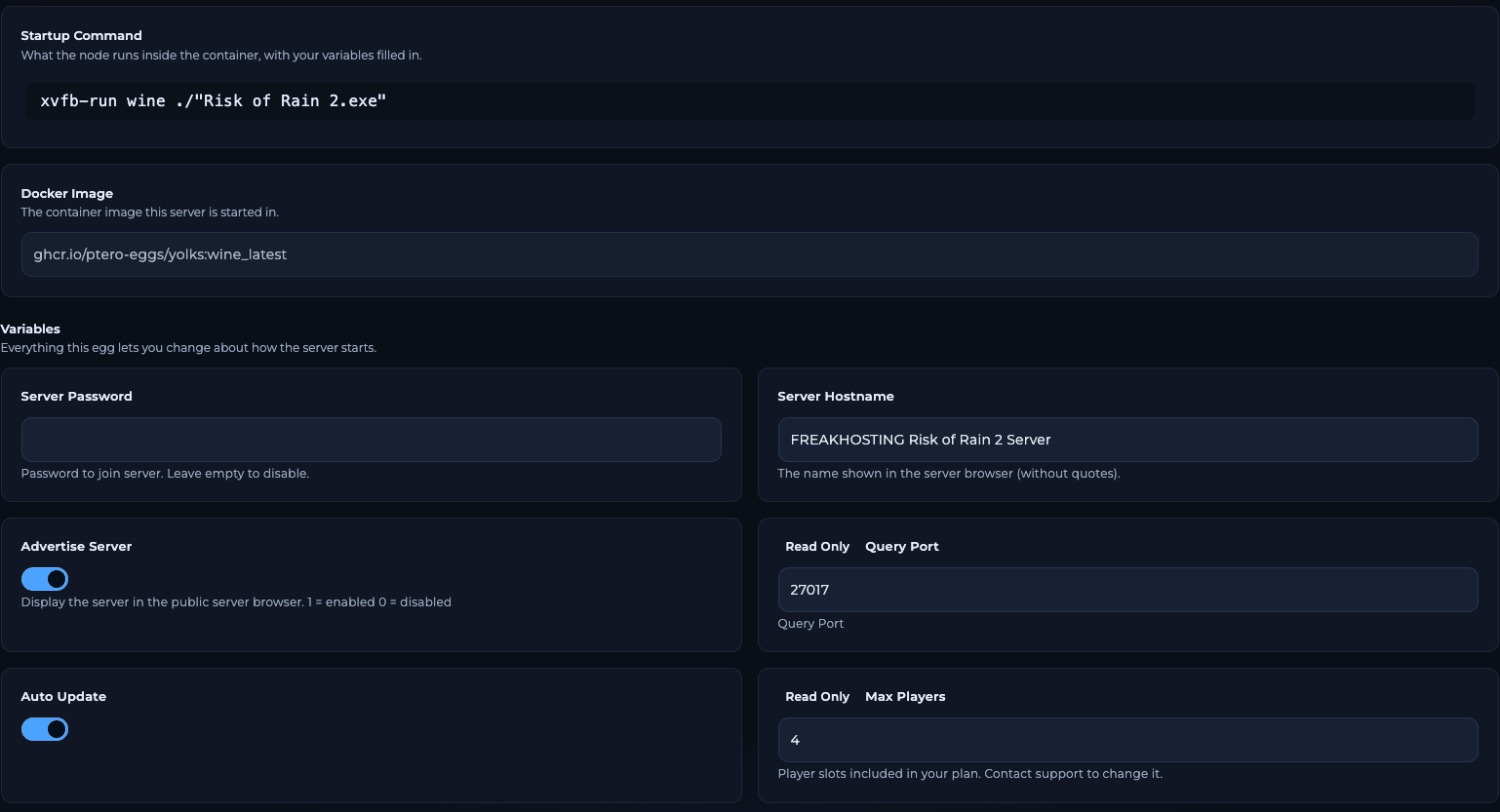
Startup page for a Risk of Rain 2 server in the FREAKHOSTING Game Panel
What the other Startup fields mean
The panel writes your Startup values into
Risk of Rain 2_Data/Config/server.cfg every time the server starts. Change them on Startup, not in the file. See server.cfg explained.
How to join your server
- On the Network page, click Copy next to the PRIMARY address, for example
203.0.113.10:27015. - In Steam, open View > Game Servers, set the game filter to Risk of Rain 2, find your server on the Internet tab (needs Advertise Server on) and double-click it.
- Or, in Risk of Rain 2, open the console with Ctrl + Alt + ~ and type
connect "203.0.113.10:27015".
Make your first backup
A Risk of Rain 2 run doesn’t save a world on the server, but yourserver.cfg and any mods do. Make a panel backup once your settings are done.
Frequently asked questions
How many players can play on a Risk of Rain 2 server?
The game is made for you and up to three friends, andsv_maxplayers defaults to 4. Max Players on Startup shows your plan’s slots.
Why doesn’t my new server name show?
Startup changes apply when the server starts. Restart the server after changing Server Hostname.Can I change game settings like Eclipse or tags?
Yes, inserver.cfg. See Eclipse mode and server browser tags.
Do my friends need the same game version?
Yes. Everyone needs the current version of Risk of Rain 2. Keep Auto Update on so the server updates when it starts.Related guides
Risk of Rain 2 server guide
Every Risk of Rain 2 page in one place.
Join your server
Server list and console connect.
Set a password
Keep your server private.
server.cfg explained
All config keys.
Not showing in the list
Find your server.
Tested by the FREAKHOSTING team on our Game Panel on 3 November 2026 (Risk of Rain 2 dedicated server, Startup and Network pages). In-game steps follow the official Risk of Rain 2 Wiki. Steps may differ slightly if the game changes.
Need Extra Help?
If you encounter any issues, our support team is ready to assist:- Live Chat: Quick assistance via our website.
- Support Ticket: Open a Ticket
- Discord: Join our Community
- Email: support@freakhosting.com
Last Updated: November 2026