Before you start
- Log in to the Game Panel.
- Have Rust installed on your PC through Steam.
- Find your SteamID64 (a 17-digit number, for example
76561198000000000). You need it to make yourself owner.
Step 1: Set your own RCON password (required)
RCON (remote console) is how the panel talks to your Rust server. Every new server starts with the same well-known default password. Rust refuses that password: it printsRCON password is very insecure, RCON is disabled. and switches RCON off. Until you set your own, the panel console only shows Waiting for RCON to come up..., typed commands don’t run, the Staff and bans page can’t send changes, and Stop can’t stop the server cleanly.
1
Open Server settings
Open your server in the Game Panel and click Server settings under RUST. The Checks card shows “The RCON password is a well-known default”.
2
Generate a password
Scroll to Security and plugins and click Generate next to RCON password. Click Show if you want to copy it for an RCON tool.
3
Review and save
Click Review and save. The dialog lists RCON password (RCON_PASS) under Startup variables. Click Save changes.
4
Restart
Restart the server. If the server was stuck in Stopping before you changed the password, use Kill once. After the restart the console shows
Connected to RCON. and accepts commands.Step 2: Name your server and fix the map
On the same Server settings page:
Click Review and save, then restart. Startup settings apply on the next start. See server settings explained.
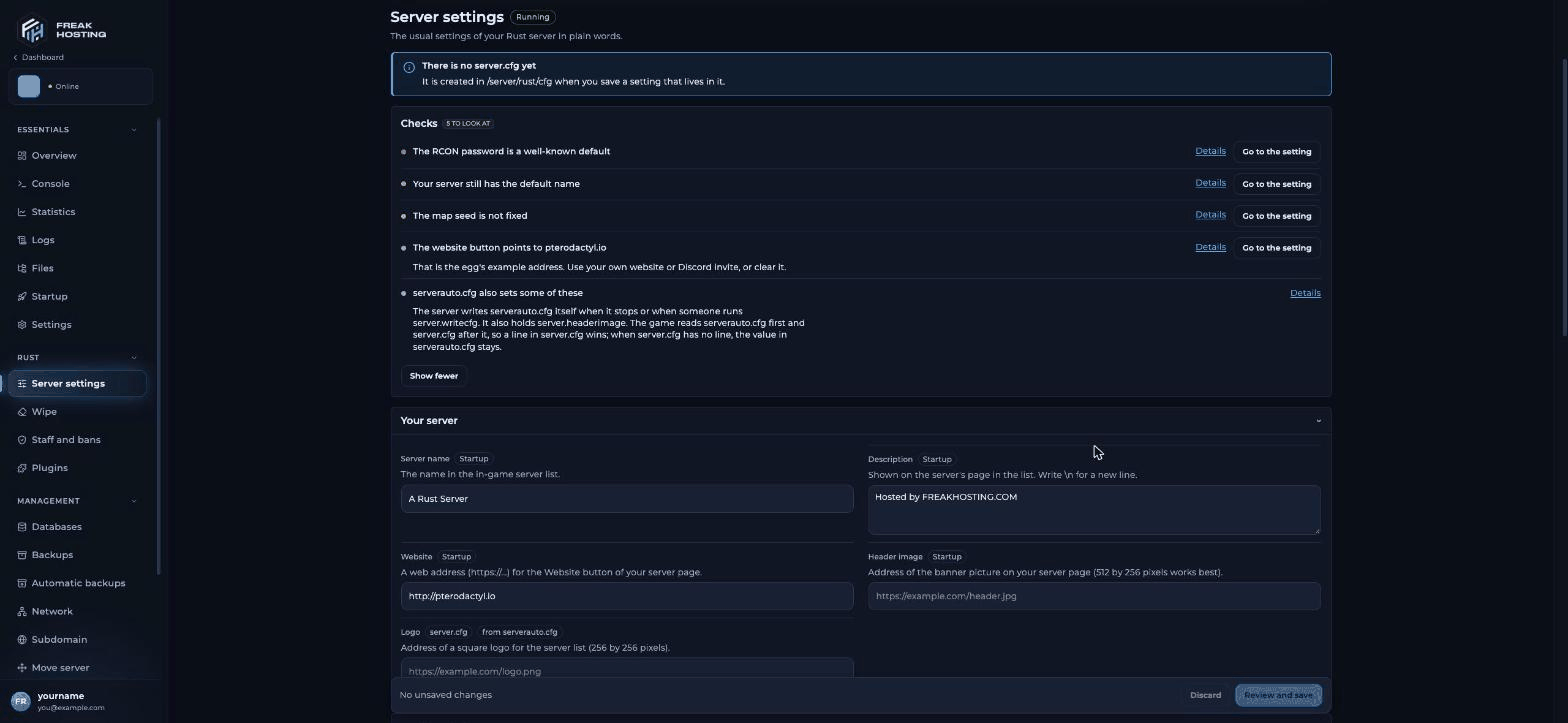
Server settings for Rust in the FREAKHOSTING Game Panel
Step 3: Start the server and wait for the map
The first start generates the procedural map, which takes about 5 to 6 minutes on a 3000 map. The console shows lines such asGenerating procedural map of size 3000 with seed ... and Couldn't load ... proceduralmap ... file doesn't exist (normal on the first start). The server is ready when you see:
Step 4: Join your server
Use the address and game port shown in the panel. Your server’s ports are 28015 (game), 28016 (RCON), 28017 (query, for the server list) and 28082 (Rust+ app).
Step 5: Make yourself owner
Open Staff and bans, enter your SteamID64, set Role to Owner and click Review and add. Reconnect to the game to get admin rights in the F1 console. See admins and moderators.Step 6: Make your first backup
Create a backup once your server is set up. The Wipe page also takes a backup before every wipe if Take a backup first is ticked.Frequently asked questions
Why does my Rust console say “Waiting for RCON to come up”?
Your server still uses the default RCON password, so Rust has turned RCON off. Generate your own in Server settings and restart. See console not working.How long does a Rust server take to start?
The first start takes about 5 to 6 minutes because the map is generated. Later starts are faster. Wait forServer startup complete in the console.
Can I install plugins?
Yes. Set Plugin framework to Oxide or Carbon in Server settings and restart. Then install plugins from uMod on the Plugins page. See install Oxide.Why can’t players find my server in the list?
The server only appears after the map has been generated. Search for its exact name, or join withclient.connect. See server not showing in the list.
Related guides
Rust server guide
Every Rust page in one place.
Server settings explained
Every field and server.cfg.
Admins and moderators
Make yourself owner.
Console not working
Fix “Waiting for RCON to come up”.
Start, stop and restart
Control your server’s power.
Tested by the FREAKHOSTING team on our Game Panel on 31 October 2026 (Rust dedicated server, procedural map 3000). Steps may differ slightly if the game changes.
Need Extra Help?
If you encounter any issues, our support team is ready to assist:- Live Chat: Quick assistance via our website.
- Support Ticket: Open a Ticket
- Discord: Join our Community
- Email: support@freakhosting.com
Last Updated: October 2026