true. Start the server and wait for the console line Bringing World … up for play. Players then find it by name in the Squad server browser. Other settings live in SquadGame/ServerConfig under Files.
Before you start
- Log in to the Game Panel.
- Have Squad installed through Steam.
- Know your SteamID64 (a 17-digit number that starts with
7656) if you want to make yourself an admin.
How Squad works in the Game Panel
Squad has no game settings page in the panel. You set the basics on Startup, and everything else in the config files inSquadGame/ServerConfig, which you edit in Files.
How to set up your Squad server
1
Open Startup
Open your server and click Startup. The variables here are written into
Server.cfg each time the server starts.2
Name your server
Replace the default Server Name (
Hosted by FREAKHOSTING.COM) with your own. It can be up to 80 characters. This is the name players see in the server browser.3
Check the listing
Make sure Advertise Server is
true so the server reports to the public server list. The true/false variables are text fields: type true or false in lower case.4
Set reserved slots (optional)
Enter a number in Reserved Slots to keep slots free for admins and players with the
reserve access level. The default is 0.5
Start the server
Start the server and watch the console. The server is ready when you see a line like
LogWorld: Bringing World /Al_Basrah/Maps/Gameplay_Layers/AlBasrah_AAS_v1… up for play. In our test this took about 20 seconds.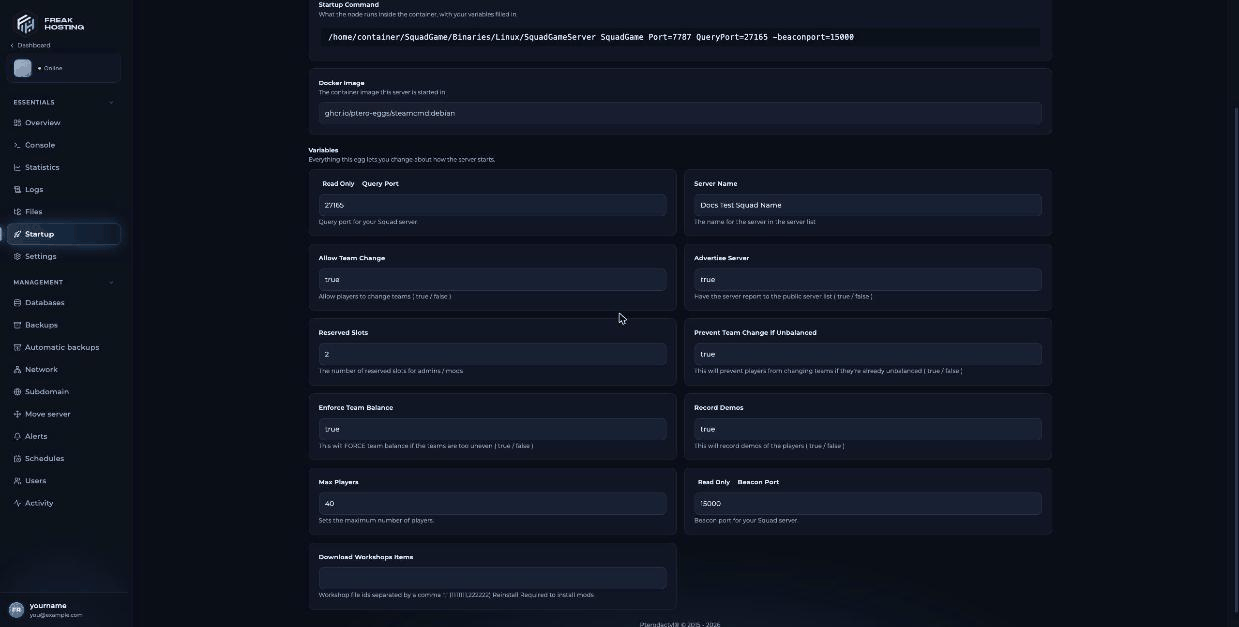
Squad Startup variables in the FREAKHOSTING Game Panel
How to join your Squad server
Launch Squad, open the server browser and search for your exact Server Name. If it doesn’t appear, see server not showing in the browser.How to make yourself an admin
1
Stop the server
Stop the server before you edit config files.
2
Edit Admins.cfg
In Files, open
SquadGame/ServerConfig/Admins.cfg and add a line with your SteamID64 and a group, for example Admin=76561198000000000:Admin // Your name.3
Save and start
Save the file and start the server. In game, double-tap the
~ key to open the admin console.Make your first backup
Once your configs are set up, make a panel backup. The backup includes yourServerConfig files, so you can undo a bad edit quickly.
Frequently asked questions
Which ports does my Squad server use?
Your server has a game port, a query port and a beacon port, all assigned by us. The panel shows them on Network and on Startup (Query Port and Beacon Port). You don’t need to change them.Can I change the number of player slots?
Your player slots come from your plan. To get more slots, open a ticket.Where are the Squad server config files?
InSquadGame/ServerConfig/, in Files. The main file is Server.cfg; see Server.cfg explained.
Can I install workshop mods?
Squad mods use Steam Workshop IDs, and installing them needs a reinstall of the server files. Open a ticket and we’ll help you add them.Related guides
Squad server guide
Every Squad page in one place.
Server settings
Every Startup variable explained.
Add admins
Admins.cfg groups and access levels.
Map rotation
Choose layers and voting.
Not showing in the browser
Find your server.
Tested by the FREAKHOSTING team on our Game Panel on 3 November 2026 (Squad dedicated server v10.6.3). Steps may differ slightly if the game changes.
Need Extra Help?
If you encounter any issues, our support team is ready to assist:- Live Chat: Quick assistance via our website.
- Support Ticket: Open a Ticket
- Discord: Join our Community
- Email: support@freakhosting.com
Last Updated: November 2026