Before you start
- Log in to the Game Panel.
- Have Terraria on PC. The server runs the version shown as Terraria version on Startup (1.4.5.6 when we tested). Your game must be on the same version.
- Decide on the world before the first start. Difficulty, size and seed only apply when a world is created.
How to set up your Terraria server
1
Open Game settings
Open your server and click Game settings under GAME SETTINGS. Settings tagged STARTUP are kept on the Startup page; the rest are written to
serverconfig.txt.2
Choose the world
Expand New world. Enter a World name (it is also the file name,
worldname.wld). Pick World difficulty: Classic, Expert, Master or Journey. New worlds use Journey unless you change it here. Pick World size: Small, Medium or Large. Leave World seed empty for a random world, or see use a world seed.3
Set a password (optional)
In Server, click Set next to Server password, type it and click Done. Leave it empty for an open server.
4
Set the message of the day
Change Message of the day. Players see it when they join.
5
Review and save
Click Review and save. The Review your changes dialog shows exactly what changes. Click Save changes.
6
Start the server
Start the server and watch the Console. It shows the world being generated, then
Listening on port 7777 and Server started. A small world took about 60 seconds on our test.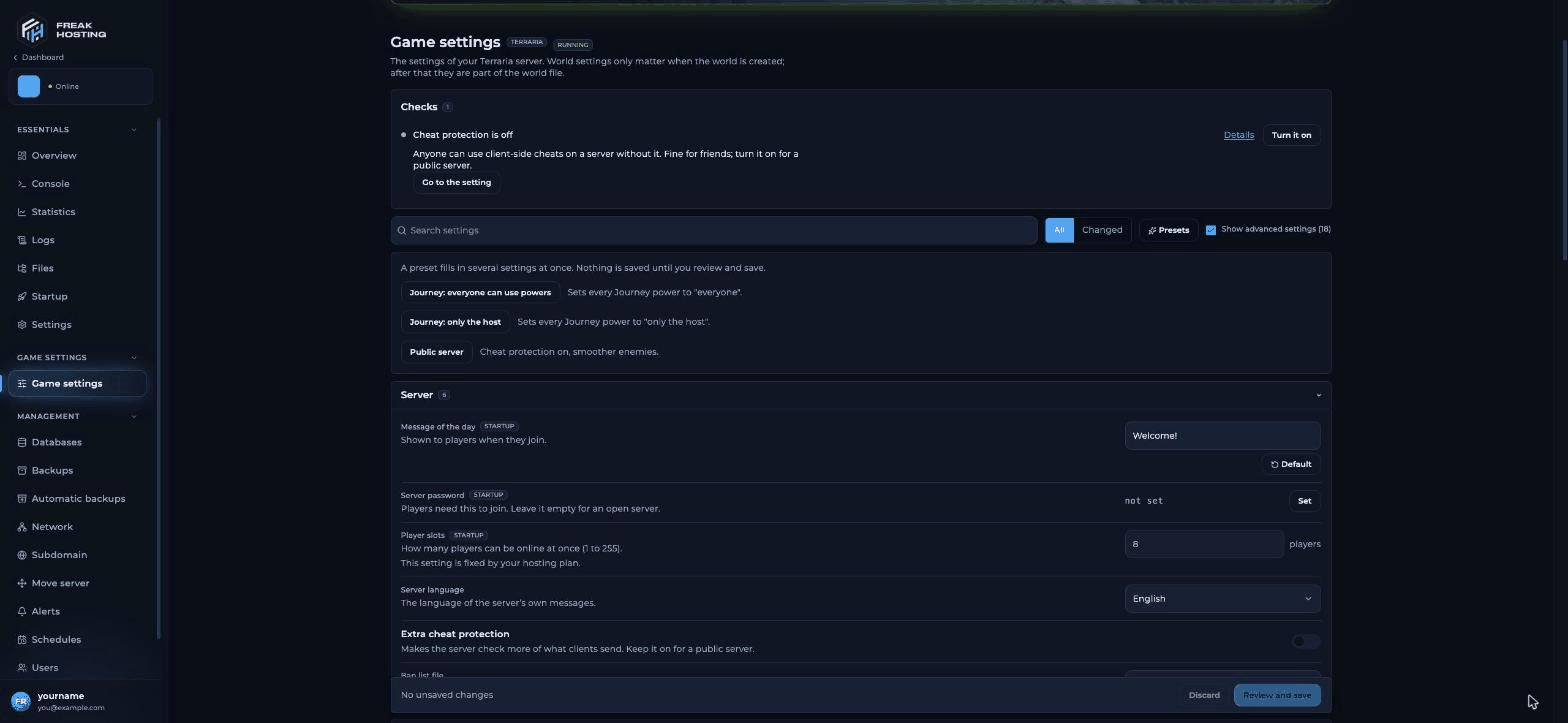
Game settings for Terraria in the FREAKHOSTING Game Panel
How to join your Terraria server
1
Open Multiplayer
Start Terraria and click Multiplayer, then Join via IP.
2
Choose a character
Pick a character that fits the world: a Journey character for a Journey world, a Classic character for the other difficulties.
3
Enter the address
Type your server’s IP (for example
203.0.113.10), then the port (7777 unless the panel shows another). Enter the password if you set one.Make your first backup
The server saves the world on its own, but make a full panel backup once the world is set up. See autosave and backups for how saving works.Frequently asked questions
What port does a Terraria server use?
Port 7777 by default. The console confirms it withListening on port 7777.
Can I change the difficulty after the world is created?
No. An existing world keeps its own difficulty and size. To get a different one, create a new world with a new World name. See world size and difficulty.How do I use my own world from my PC?
Upload the.wld file to /saves/Worlds and set World name to its file name. See upload a world.
Why can’t I change Player slots?
Player slots is fixed by your hosting plan, so the field is greyed out.Where are the server logs?
Vanilla Terraria prints everything to the Console, so check the Console when something goes wrong.Related guides
Terraria server guide
Every Terraria page in one place.
Server password
Set, change or remove it.
Upload a world
Use a world from your PC.
Can't connect
Fix joining problems.
Server settings explained
Every setting and where it is stored.
Tested by the FREAKHOSTING team on our Game Panel on 31 October 2026 (Terraria 1.4.5.6, vanilla server). Steps may differ slightly if the game changes.
Need Extra Help?
If you encounter any issues, our support team is ready to assist:- Live Chat: Quick assistance via our website.
- Support Ticket: Open a Ticket
- Discord: Join our Community
- Email: support@freakhosting.com
Last Updated: October 2026