Server folder with your worlds, player data, config.json, permissions and mods. Use Automatic backups to make backups on a schedule, and restore one from Backups to undo a crash, a bad mod or a wrong upload. The game also makes its own world backups in the Backups folder.
What should a Hytale backup contain?
A panel backup includes all of these.
How to make a backup now
1
Open Backups
Open your server in the Game Panel and click Backups under MANAGEMENT.
2
Create the backup
Click Create backup. Under NAME (OPTIONAL), type a name you will recognise, for example
Before mods, or leave it empty and the panel picks a name from the date.3
Start it
Click Start backup. The backup is made while the server keeps running. You can leave the page; it updates by itself when the backup is done.
How to set up automatic backups
Click Automatic backups under MANAGEMENT, choose Every 6 hours, Daily or Weekly, set how many automatic backups to keep and click Save. See automatic backups.How to restore a Hytale backup
1
Stop the server
Stop the server, so Hytale doesn’t write to the files during the restore.
2
Choose the backup
Open Backups and find the backup from before the problem.
3
Restore it
Click Restore on its card and confirm. Files changed since the backup are replaced.
4
Start the server
Start the server and check the world.
Does Hytale make its own backups?
Yes. Besides the panel’s Backups, the game server makes two kinds of backup of its own. Both are on by default.How to change the game’s backup settings
1
Open Game settings
Click Game settings under GAME SETTINGS and open Start-up and backups. For Archived backups to keep, click Show advanced settings.
2
Change the value
For example, set World backups to keep to
6. The row shows CHANGED.3
Review and save
Click Review and save. The dialog shows the change, for example
BACKUP_MAX_COUNT=5 to BACKUP_MAX_COUNT=6. Click Save changes.4
Restart
The server uses the new value the next time it starts.
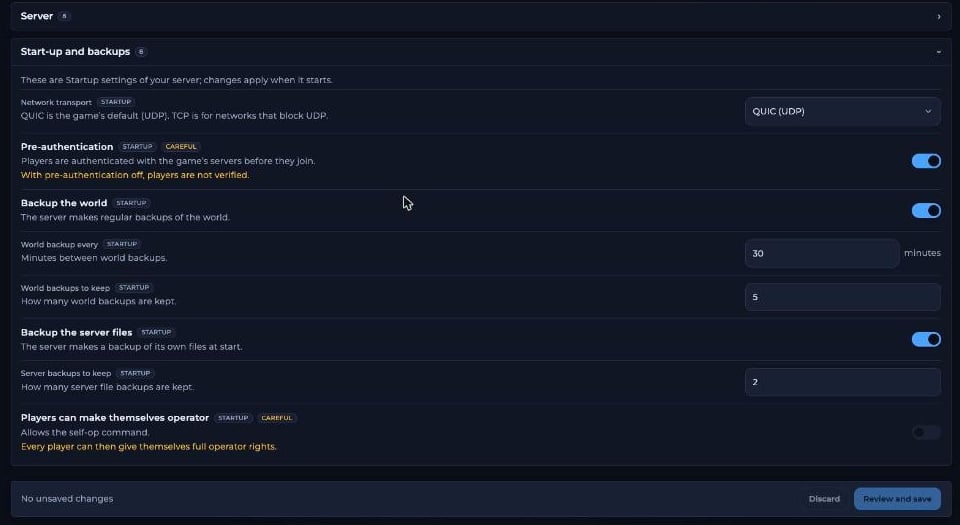
The game's backup settings in Game settings
Server/config.json, under Update, RunBackupBeforeUpdate and BackupConfigBeforeUpdate are both true by default.
How to download a backup to your PC
Click Download on the backup’s card in Backups. Keep a copy on your PC if your world matters to you. See create and restore backups.Frequently asked questions
How often should I back up my Hytale server?
At least once a day for an active server, and always before big changes. Automatic backups does this for you.Can I restore only one world?
Download the backup, take out the world’s folder fromServer/universe/worlds/, then stop the server and upload that folder over SFTP.
Does a backup include my mods?
Yes. A panel backup copies the whole server, including theServer/mods folder.
Can I back up while the server is running?
Yes. A panel backup is made while the server keeps running. For the cleanest copy of the world, make it when nobody is online.Where are the game’s own world backups?
In theBackups folder in Files. You can change the folder with Backup Directory on Startup.
Related guides
Hytale server guide
Every Hytale page in one place.
Update your server
Back up before updating.
Upload a world
Bring a world from your PC.
Backups
The Backups page in detail.
Automatic backups
Back up on a schedule.
Checked against the official Hytale Server Manual on 3 November 2026; panel steps tested on our Game Panel on 4 November 2026 (Hytale server, Game settings and Startup pages). Steps may differ slightly if the game changes.
Need Extra Help?
If you encounter any issues, our support team is ready to assist:- Live Chat: Quick assistance via our website.
- Support Ticket: Open a Ticket
- Discord: Join our Community
- Email: support@freakhosting.com
Last Updated: November 2026