Difficulty
Beginner
Time
2 minutes
Turn on automatic backups
1
Open Automatic backups
Open your server, then click Automatic backups in the sidebar.
2
Choose how often
Under Schedule, pick Every 6 hours, Daily or Weekly. Off turns automatic backups off.
3
Choose when
For Daily, pick the Time. For Weekly, also pick the Day. Check the Time zone. It starts on the server’s time zone, and you can pick your own.
4
Choose how many to keep
Use - and + next to Keep the last to set how many automatic backups to keep. The allowed range is shown next to it and depends on your plan’s backup slots.
5
Check the options
See the options below. The defaults suit most servers.
6
Save
Click Save. The message tells you when the next backup runs, for example Next backup: Tomorrow, 04:07. Click Undo changes to go back to what was saved.
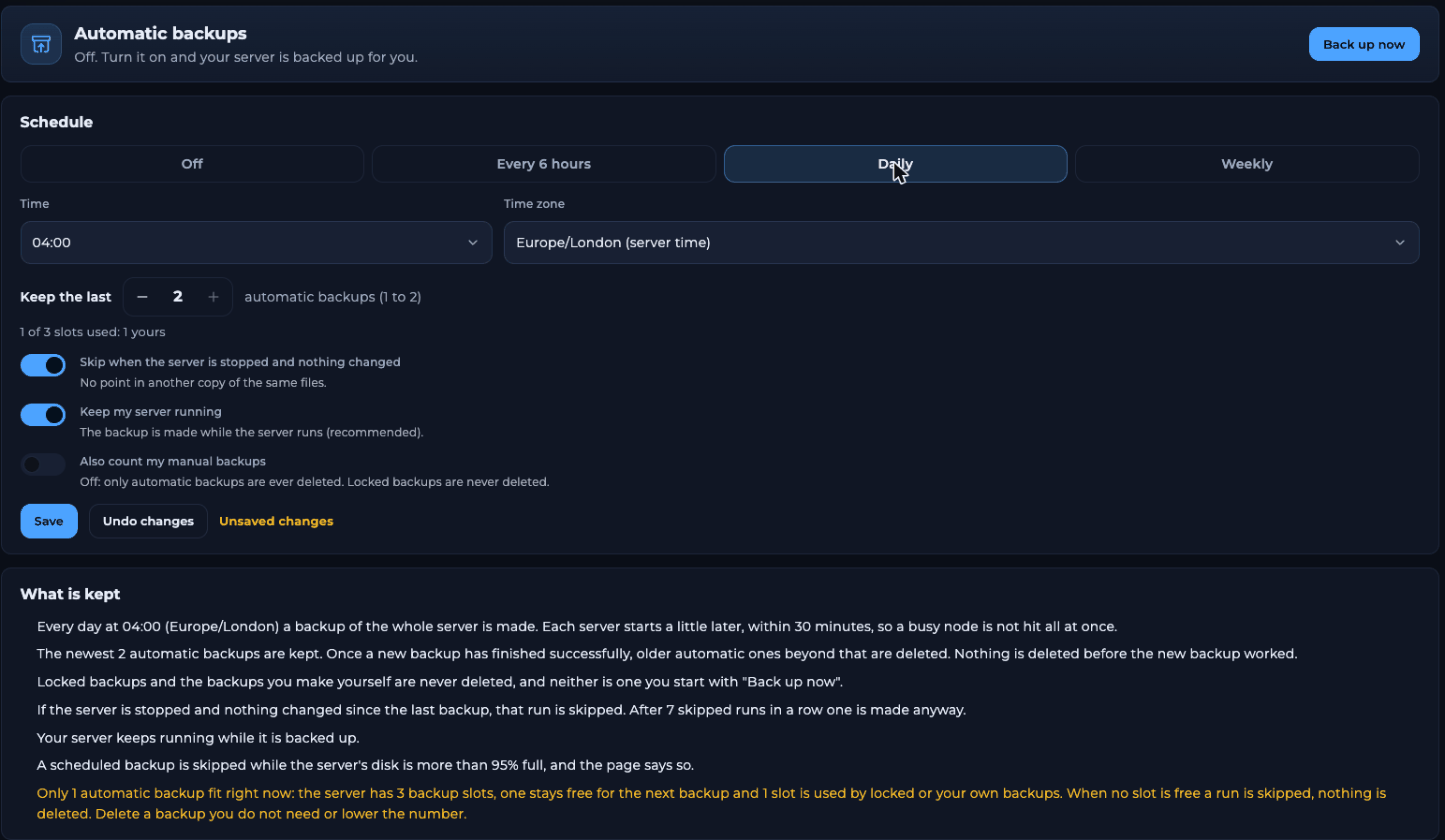
Daily automatic backups
The options
How the clean-up works
The What is kept box explains the rules for your settings in plain words. In short:- Each server starts its backup a little after your chosen time, within 30 minutes, so a busy node isn’t hit all at once.
- The newest automatic backups are kept, up to the number you chose. Older ones are only deleted after a new backup has finished successfully.
- Locked backups, backups you made yourself and backups started with Back up now are never deleted.
- If the server is stopped and nothing changed since the last backup, that run is skipped. After 7 skipped runs in a row, one is made anyway.
- A scheduled backup is skipped while the server’s disk is more than 95% full.
Backup slots
Automatic backups share your plan’s backup slots with your own backups. One slot always stays free for the next backup. If no slot is free, the run is skipped and nothing is deleted. The page tells you when this happens. Delete a backup you don’t need, or lower Keep the last.Back up right now
Click Back up now at the top right to make a backup straight away. It’s never deleted by the automatic clean-up. Finished automatic backups show under Recent backups and on the Backups page, where you can download or restore them.Troubleshooting
No automatic backup was made
No automatic backup was made
Check the What is kept box. The run may have been skipped because the server was stopped and unchanged, the disk was more than 95% full, or no backup slot was free.
An old backup I wanted was deleted
An old backup I wanted was deleted
Only automatic backups are cleaned up, unless you switched on Also count my manual backups. Lock any backup you want to keep for good.
The backup ran at a different time than I set
The backup ran at a different time than I set
Backups start within 30 minutes after the set time. Also check the Time zone.
Related articles
Backups
Download, lock or restore a backup.
Server alerts
Get told when a backup fails.
Need Extra Help?
If you encounter any issues, our support team is ready to assist:- Live Chat: Quick assistance via our website.
- Support Ticket: Open a Ticket
- Discord: Join our Community
- Email: support@freakhosting.com
Last Updated: October 2026