mods/deathmatch/mtaserver.conf and keeps the old file as mtaserver.conf.bak. Restart the server to apply the changes.
What is on the Game settings page?
The page shows a MULTI THEFT AUTO badge, the server state (RUNNING or STOPPED) and the note “Restart the server to apply them.”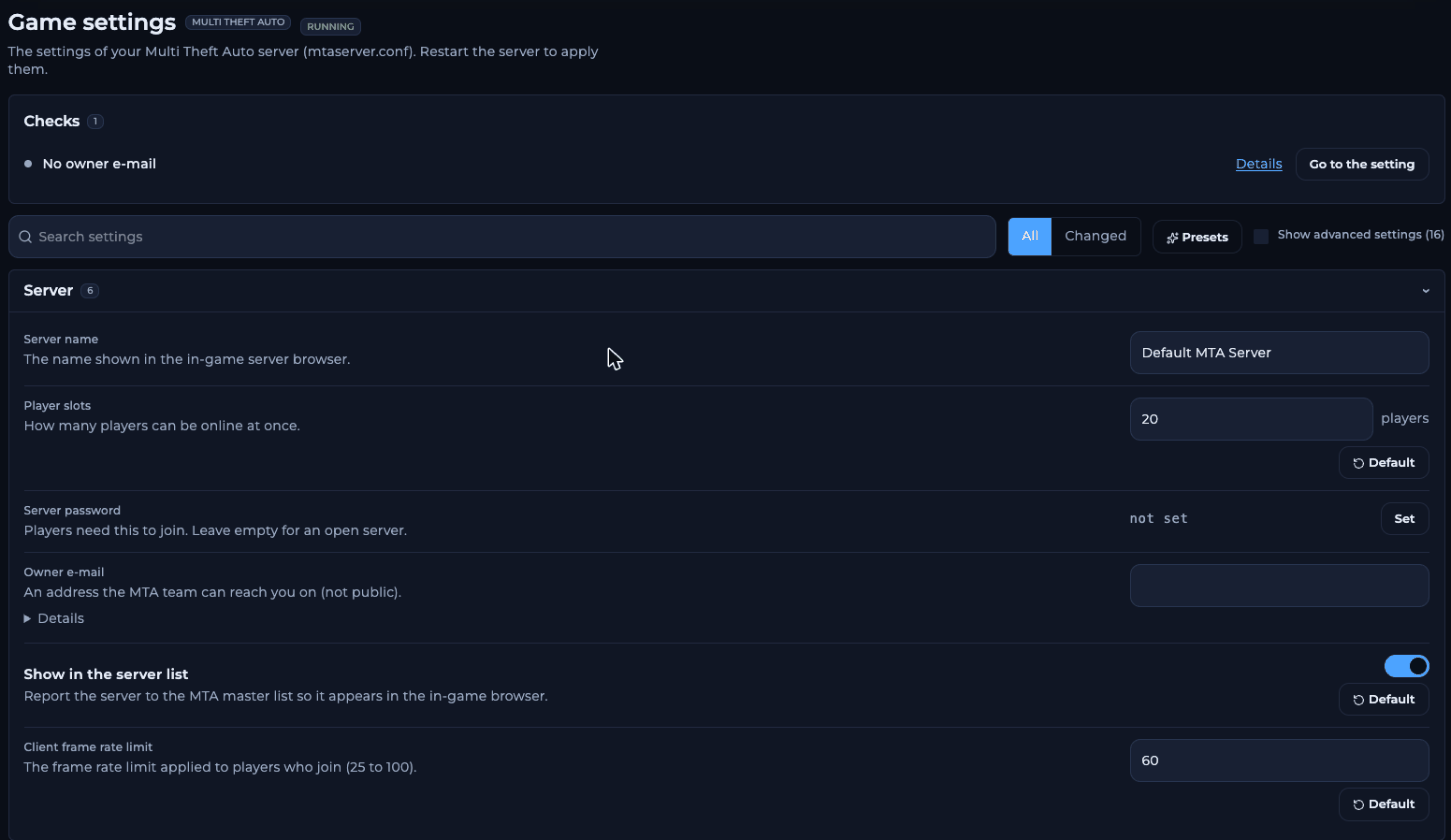
Game settings with Checks, the toolbar and the Server section
Which sections are there?
Every setting, with its key in the file, is listed in mtaserver.conf explained.
How to change a setting
1
Open Game settings
Open your MTA server in the Game Panel and click Game settings.
2
Edit the field
Change the value. The field gets a CHANGED tag and the section header shows how many unsaved changes it has. The bar at the bottom shows “1 unsaved change”.
3
Review the change
Click Review and save. The Review your changes dialog shows exactly which lines of
mtaserver.conf change. Passwords are hidden in this view.4
Save
Click Save changes. You see “Saved 1 change.” and the bar returns to “No unsaved changes”.
5
Restart
Restart the server so MTA reads the new file.
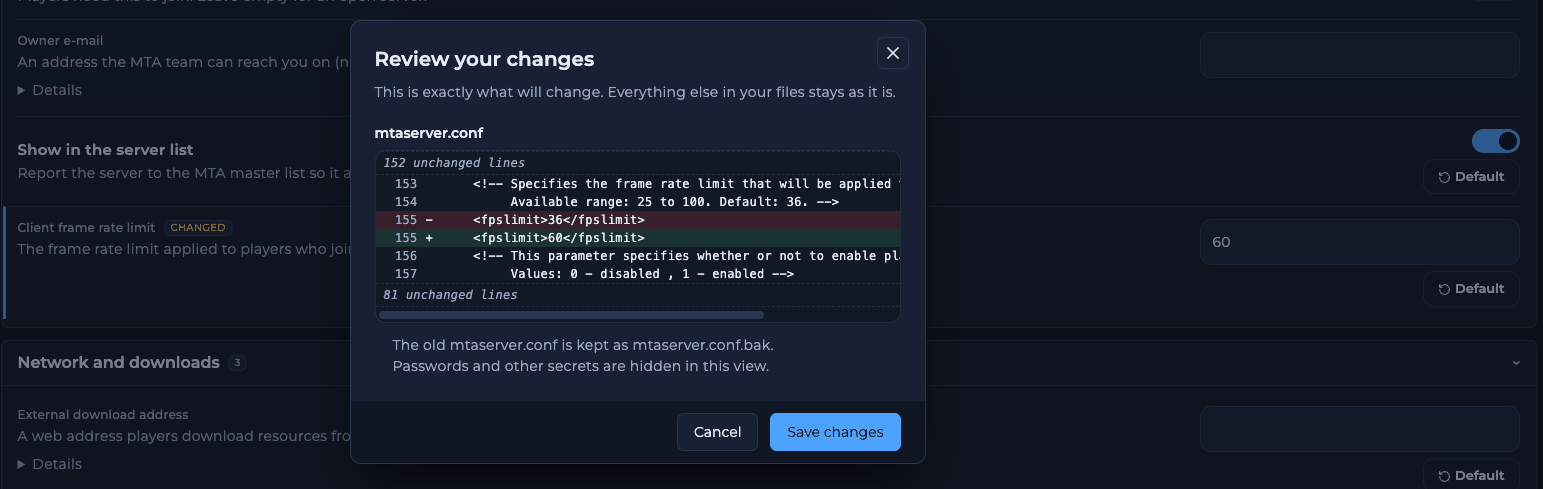
Review your changes shows the exact lines before anything is saved
How to use a preset
Click Presets. A preset fills in several settings at once; nothing is saved until you review and save.
After choosing a preset, check the Changed filter to see what it set, then Review and save.
Settings you should leave alone
- External download address is set up by us so players download resources from our download address. Don’t change or empty it. See resources not downloading.
- Player slots matches your plan. If you need more slots, open a ticket.
- The game, HTTP and ASE ports are set by us. See ports.
Frequently asked questions
Can I still edit mtaserver.conf by hand?
Yes. Use the mtaserver.conf: open the raw file link, or openmods/deathmatch/mtaserver.conf in the File Manager. Stop the server first and restart it afterwards.
Do settings apply straight away?
No. MTA readsmtaserver.conf when it starts, so restart the server after saving.
How do I go back to the old file?
The previous version is kept asmods/deathmatch/mtaserver.conf.bak. Stop the server, copy its content into mtaserver.conf and start the server. For larger mistakes, restore a backup.
Where do I add resources that start with the server?
Inmtaserver.conf as <resource> lines, edited in the raw file. See installing resources.
Related guides
MTA server guide
Every MTA page in one place.
mtaserver.conf explained
Every setting and its key.
FPS limit
Change Client frame rate limit.
Server password
Make the server private.
File Manager
Edit files by hand.
Tested by the FREAKHOSTING team on our Game Panel on 2 November 2026 (MTA:SA server 1.6, 64-bit). Steps may differ slightly if the game changes.
Need Extra Help?
If you encounter any issues, our support team is ready to assist:- Live Chat: Quick assistance via our website.
- Support Ticket: Open a Ticket
- Discord: Join our Community
- Email: support@freakhosting.com
Last Updated: November 2026