Before you start
- Sign in to the Game Panel at games.freakhosting.com. See how to log in.
- Every player needs Sons of the Forest on Steam (PC).
Step 1: Set a join password
New servers start without a join password: Password on Startup showsnone, which means no password. Your server can show in the public server list, so if you don’t want strangers joining, set a password before you invite players.
1
Open Startup
Open your server and click Startup.
2
Set a new Password
Replace
none in Password with your own password (up to 40 characters) and click outside the field. It saves automatically and applies at the next start. To remove a password later, clear the field or type none, then restart.3
Name your server
Type a name in Server Name. This is the name players search for in the server list.
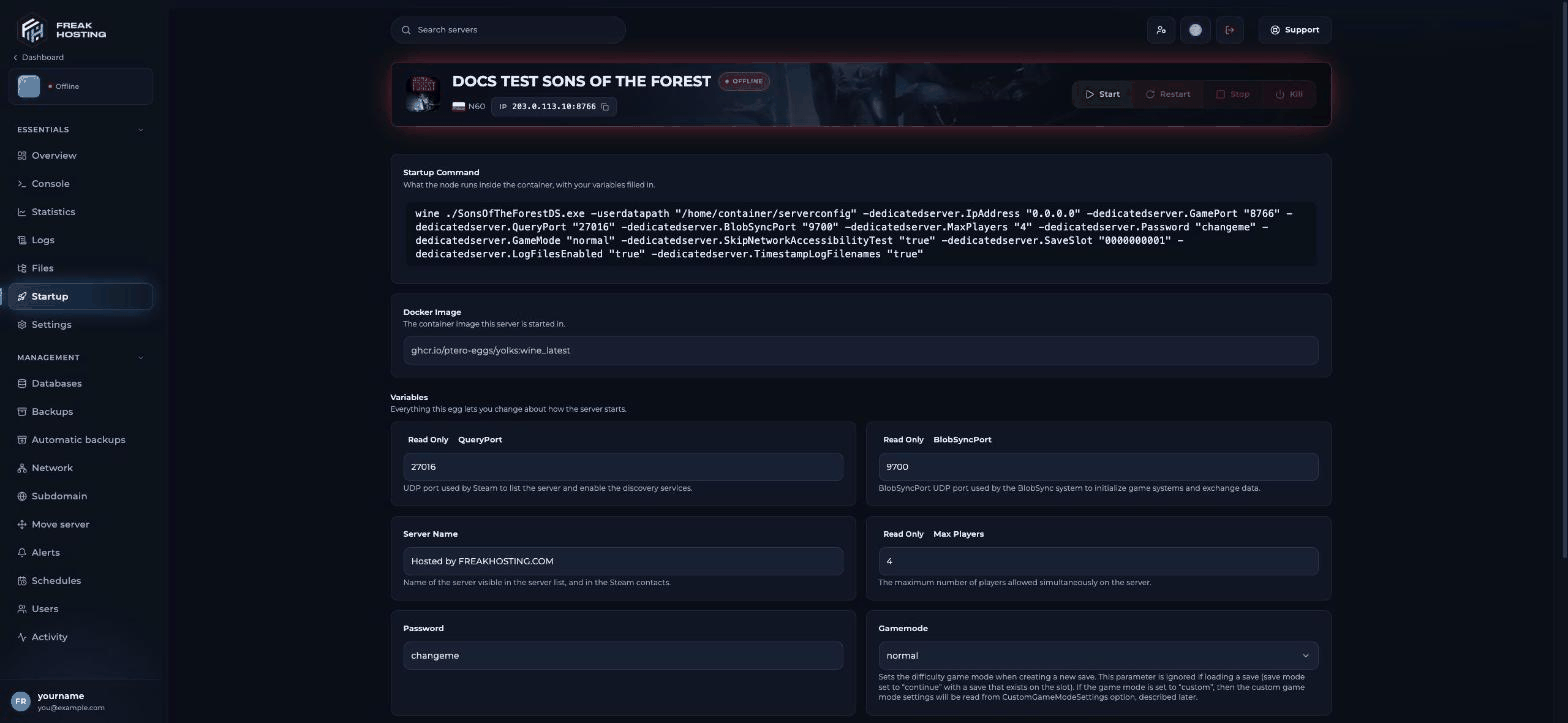
The Sons of the Forest variables on the Startup page
Step 2: Choose a game mode
Pick Gamemode before the first start, because the server only uses it when it creates a world:Step 3: Start the server
Click Start. On the first start the server createsserverconfig/dedicatedserver.cfg and a new world in save slot 0000000001. Watch the Console until the start-up messages stop. See how to use the server console.
Step 4: Join your server
1
Open the server list
Start Sons of the Forest and click Multiplayer, then Join.
2
Show dedicated servers
Set the source to Dedicated. Your server isn’t in the P2P list.
3
Find your server
Use the filter to search for your Server Name, then join and type your password.
: and the QueryPort shown on Startup.
Step 5: Make yourself the owner
Add your SteamID64 toserverconfig/ownerswhitelist.txt in Files and restart. Owners can kick, ban and promote players from the Players menu in game. See set up admins.
Step 6: Make your first backup
Open Backups and click Create backup, so you can undo a mistake later. See how to set up automatic backups.Frequently asked questions
How many players can join?
The Max Players value on Startup is read-only and comes with your plan. Sons of the Forest supports up to 8 players.Can I play without a password?
Yes. New servers have no password (Password showsnone). Anyone who finds your server can then join, so we recommend a password you share only with your friends.
Can I bring my own world?
Yes. Upload your save and pick its slot. See save slots.My server doesn’t show in the list. What now?
Check the source is set to Dedicated and see server not showing.Related guides
Sons of the Forest server guide
Every Sons of the Forest page in one place.
Server not showing
Fix a server that doesn’t appear.
Set up admins
ownerswhitelist.txt and the Players menu.
Change difficulty
Game modes and custom settings.
Startup variables
How the Startup page works.
Tested by the FREAKHOSTING team on our Game Panel on 30 October 2026 (Sons of the Forest dedicated server on our Game Panel). Steps may differ slightly if the game changes.
Need Extra Help?
If you encounter any issues, our support team is ready to assist:- Live Chat: Quick assistance via our website.
- Support Ticket: Open a Ticket
- Discord: Join our Community
- Email: support@freakhosting.com
Last Updated: October 2026