hostname in server.cfg under Files, then start the server. It is ready when the console shows Host identity created. Players join with your address and game port, for example 203.0.113.10:2302.
Before you start
- Log in to the Game Panel.
- Own Arma 3 on Steam. Players join from the Arma 3 Launcher or the in-game server browser.
- Arma 3 has no game settings page in the panel. You set everything on Startup or in files such as
server.cfg.
How to set up your Arma 3 server
1
Stop the server
The server is installed for you and may already be running. Stop it before you change settings.
2
Set the password and player slots
Click Startup. Type a Server Password (leave it empty for a public server) and set Max Players. Each field saves when you click outside it. See set a password.
3
Name your server
Click Files, open
server.cfg and change the hostname line, for example hostname = "My Arma 3 Server";. Click Save Content. The default name is Arma 3 Server.4
Set an admin password
In the same file, remove the
// in front of passwordAdmin and set your own password, so you can log in as admin in game with #login. See become admin.5
Change the welcome message
The
motd[] lines still hold example text such as TS3 Server: teamspeak.somewhere.com. Replace or remove them.6
Start the server
Start the server and open Console. It first checks for updates, then starts. When you see
Host identity created. and then Server load: FPS … lines, players can join.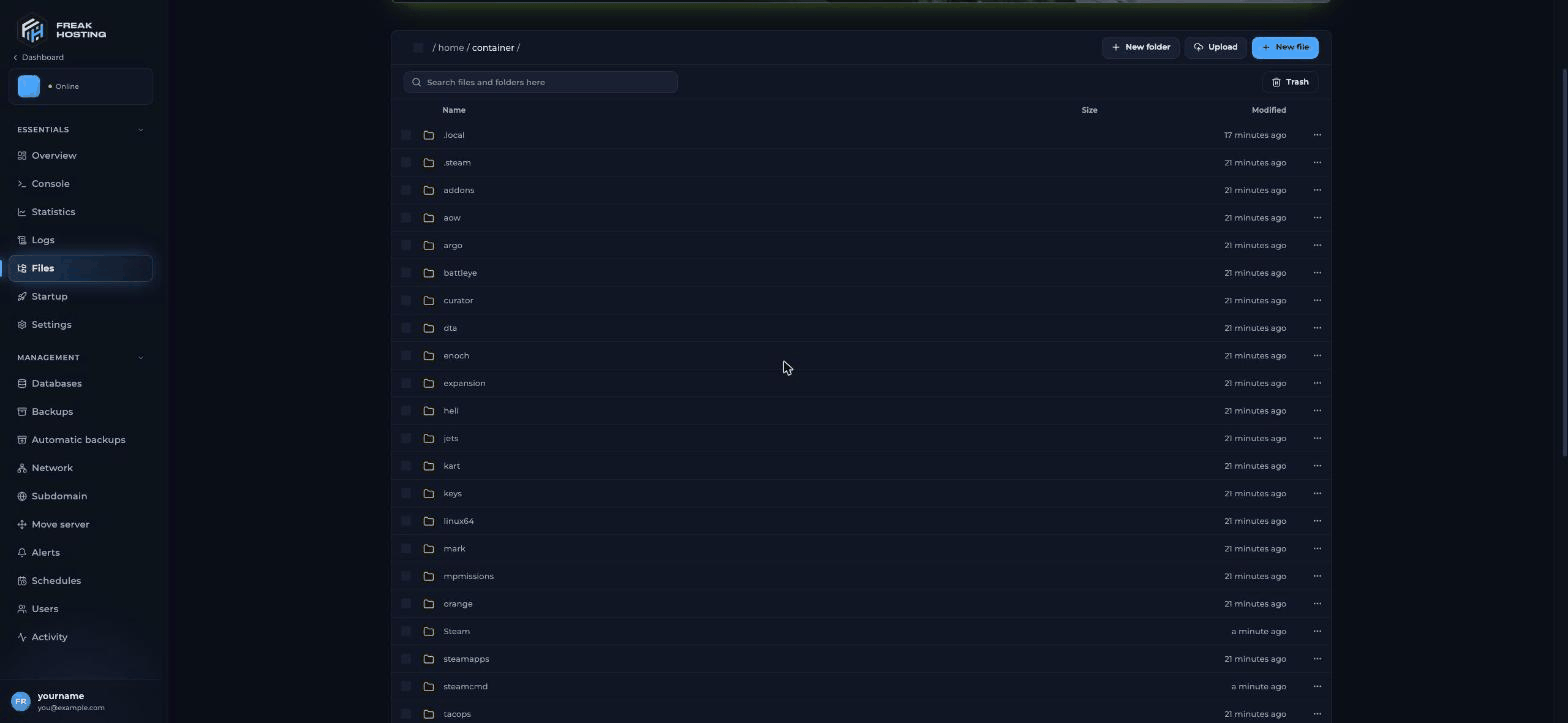
The server root in the File Manager, with server.cfg, basic.cfg, mpmissions and keys
What the console shows on first start
How players join your Arma 3 server
Copy your address from the Console page or the Network page. If players can’t find the server, see server not showing in the list.
Make your first backup
Make a backup once your settings work, and before you add mods or missions. You can also turn on automatic backups.Frequently asked questions
Which mission does a new Arma 3 server run?
The defaultserver.cfg rotates two built-in Zeus missions: MP_ZGM_m11.Altis and MP_ZGM_m12.Stratis. To run your own, see add missions.
What port does an Arma 3 server use?
The game port is 2302 by default. Arma 3 also uses the next four ports: Steam query (+1), Steam (+2), a reserved VoN port (+3) and BattlEye (+4). Players only need the game port.Why do I edit server.cfg instead of a settings page?
Arma 3 has no game module in the panel. The server name, admin password, welcome message and missions live inserver.cfg. Password and player slots are on Startup. See server.cfg explained.
How do I add mods to my Arma 3 server?
Export a preset from the Arma 3 Launcher as an HTML file and upload it asmodlist.html. The server downloads the Workshop mods when it starts. See install mods.
Related guides
Arma 3 server guide
Every Arma 3 page in one place.
server.cfg explained
Name, admin password, MOTD and rules.
Install mods
modlist.html and Workshop mods.
Startup parameters
Every Startup variable explained.
Not showing in the list
Find your server or join by IP.
Tested by the FREAKHOSTING team on our Game Panel on 31 October 2026 (Arma 3 dedicated server 2.22). Steps may differ slightly if the game changes.
Need Extra Help?
If you encounter any issues, our support team is ready to assist:- Live Chat: Quick assistance via our website.
- Support Ticket: Open a Ticket
- Discord: Join our Community
- Email: support@freakhosting.com
Last Updated: October 2026