server.cfg to set hostname (the server name) and announce 1 (to be listed), check your Rcon password on Startup and restart. Players join with the address shown in the panel, for example 203.0.113.10:7777.
Before you start
- Log in to the Game Panel.
- Have GTA San Andreas for PC (version 1.0) and the SA-MP client. See connect to your server.
What does a new SA-MP server include?
Your server runs SA-MP 0.3.7-R2 for Linux. It comes with the Grand Larceny gamemode (grandlarc) and four filterscripts: base, gl_actions, gl_property and gl_realtime. There is no game settings page for SA-MP: you change the game in server.cfg.
How to set up your SA-MP server
1
Start the server once
Click Start. The console shows
SA-MP Dedicated Server, the loaded filterscripts and Running Grand Larceny - by the SA-MP team. The last line, Number of vehicle models: 173, means the server is ready.2
Open server.cfg
Click Files and open
server.cfg in the main folder. See the File Manager guide.3
Name your server
Change the
hostname line, for example hostname My Stunt Server. This is the name players see in the server list and when they connect.4
Turn on the server list
Change
announce 0 to announce 1 if you want your server announced to the server list. Keep query 1 so players can see its name and player count.5
Save and restart
Save the file and restart the server.
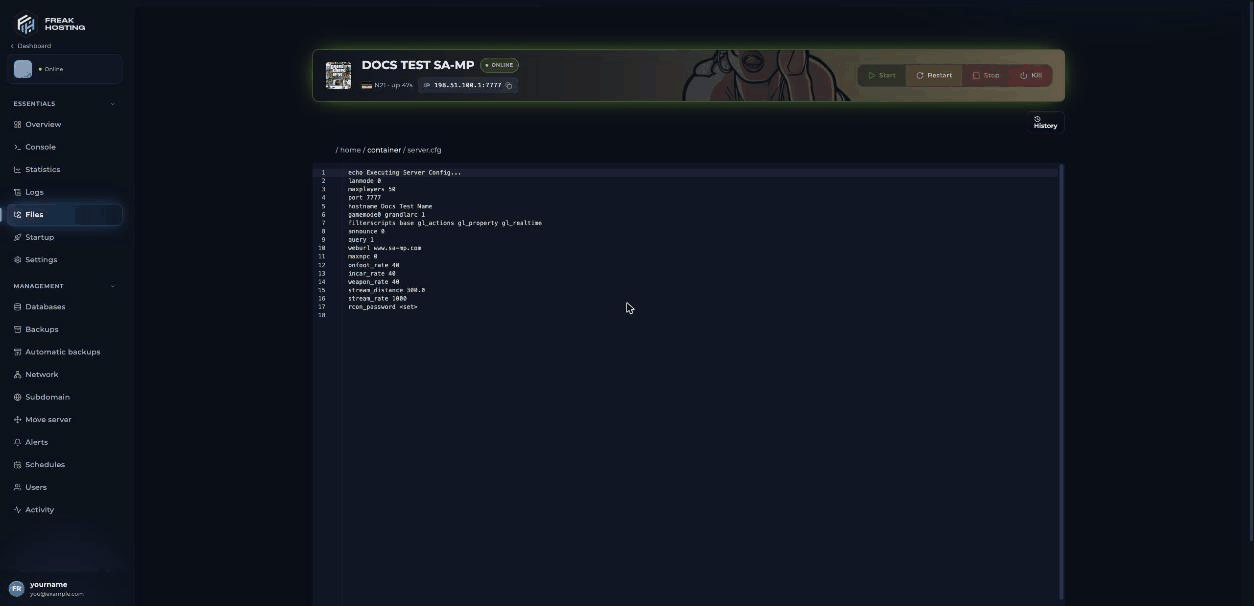
server.cfg open in the File Manager
Which settings does the panel control?
The panel writes three lines inserver.cfg each time the server starts, so change them in the panel, not in the file:
Every other line, such as
hostname, gamemode0 and filterscripts, stays as you save it. See server.cfg explained.
How to check your RCON password
RCON (remote console) is SA-MP’s built-in admin login. Open Startup and look at Rcon password. On a new server it is set torandom: the server then makes its own password, saves it in rcon_password.txt and shows it in the console when it starts. To use your own, type it (no spaces) and click outside the field; it saves on its own. Restart the server to use it. Players with this password can log in as admin with /rcon login <password>. See RCON commands.
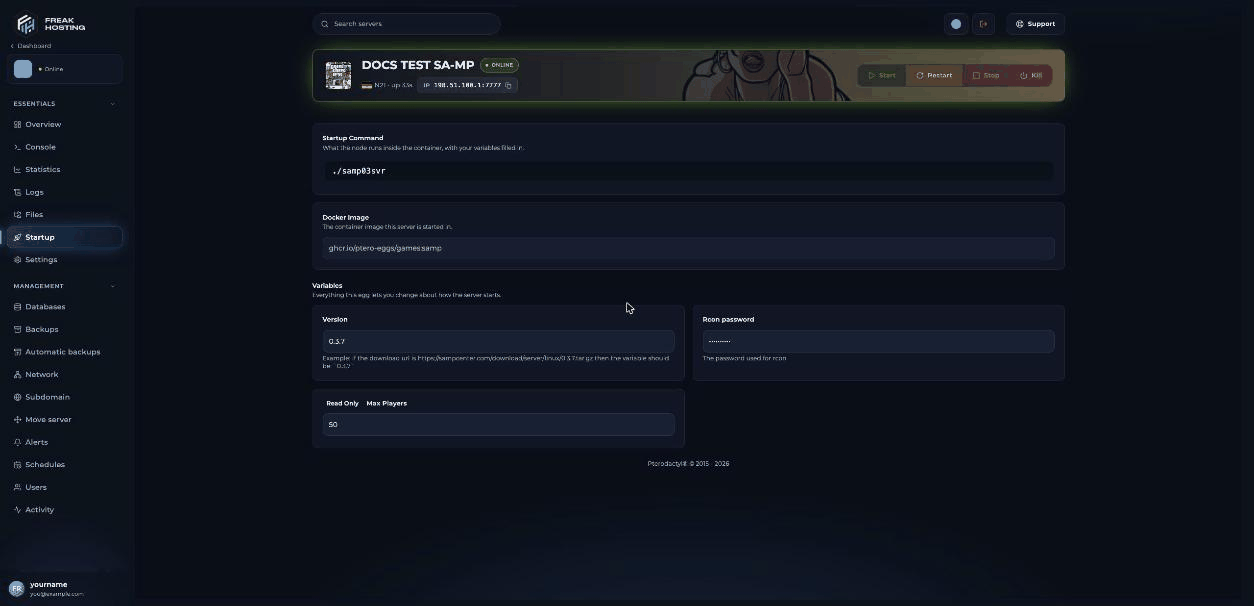
Rcon password and Max Players on the Startup page
How do players join?
Copy the address from the top of the panel or the Console page, for example203.0.113.10:7777. In the SA-MP client or the open.mp launcher, add it to Favorites and connect. See connect to your server.
Make your first backup
Before you add your own gamemode or plugins, make a backup. You can also set up automatic backups.Frequently asked questions
What port does my SA-MP server use?
The port in the address shown in the panel. The panel sets theport line in server.cfg to it at every start, so don’t change it in the file.
Why does maxplayers change back after I edit it?
Max Players on Startup is set by your plan, and the panel writes it tomaxplayers at every start. For more slots, open a ticket.
Can I type commands in the panel console?
The console shows the server’s output, but the Linux SA-MP server doesn’t answer typed commands. Use RCON in game instead:/rcon login <password>, then /rcon <command>.
Where is the server log?
The server writes its output toserver_log.txt in the main folder. Open it in Files or on the Logs page.
Related guides
SA-MP server guide
Every SA-MP page in one place.
Connect to your server
Client, launcher and Favorites.
Install a gamemode
Run your own gamemode.
Set a server password
Make your server private.
Not showing in the list
Get your server listed.
Tested by the FREAKHOSTING team on our Game Panel on 3 November 2026 (SA-MP 0.3.7-R2 Linux server). Steps may differ slightly if the game changes.
Need Extra Help?
If you encounter any issues, our support team is ready to assist:- Live Chat: Quick assistance via our website.
- Support Ticket: Open a Ticket
- Discord: Join our Community
- Email: support@freakhosting.com
Last Updated: November 2026