Difficulty
Beginner
Time
5 minutes
Open the logs
Open your server from the dashboard, then click Logs in the sidebar. The panel looks for log files in your server’s main folder, in thelogs and crash-reports folders and, for FiveM servers with txAdmin, in txData.
If you see No logs yet, start your server once. Its log files then show up here. Some games keep their logs in other folders. You can still open those in the file manager.
The log viewer
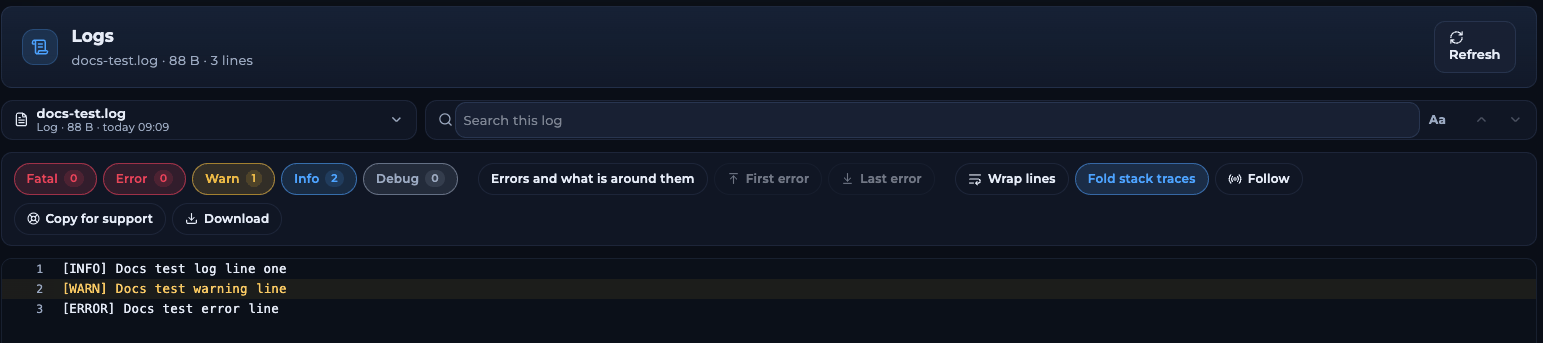
The log viewer
How a line is labelled depends on how your game writes its log. If a line isn’t counted as an error, search for words like
error, exception or failed instead.Find out why your server crashed
1
Open the newest log
Pick the most recent file in the file picker. If there is a crash report, open that.
2
Jump to the problem
Click Last error, or click the Error or Fatal counter.
3
Look at the lines around it
Click Errors and what is around them. The lines before an error often name the plugin, mod or file that caused it.
4
Ask for help if you're stuck
Click Copy for support, then open a ticket and paste it in. You can also use Share log in the console to send a link.
Troubleshooting
It says No logs yet, but my server has run
It says No logs yet, but my server has run
Your game may write its logs to a folder the panel doesn’t check. Open the file manager and look for a
logs folder inside your game’s folder.The log doesn't show the newest lines
The log doesn't show the newest lines
Click Refresh, or switch on Follow to see new lines as they arrive.
Related articles
Use the console
Watch the server live and share a log link.
Alerts
Get told when your server crashes.
Need Extra Help?
If you encounter any issues, our support team is ready to assist:- Live Chat: Quick assistance via our website.
- Support Ticket: Open a Ticket
- Discord: Join our Community
- Email: support@freakhosting.com
Last Updated: October 2026