Difficulty
Advanced
Time
10 minutes
The API is for developers and automation. If you just want alerts or to manage your firewall by hand, you don’t need it.
What you need
- An API key with the permissions your code needs. See How to create and manage API keys.
- A tool that can send web requests, such as
curl, Postman, or a programming language like Python, PHP or Node.js.
Open the API documentation
1
Open API docs
Click API docs in the sidebar, or go to network.freakhosting.com/api-docs.
2
Browse the endpoints
The reference opens as a full page. Use the menu on the left, or press
Ctrl + K (⌘ + K on a Mac) to search.3
Go back to the panel
Use your browser’s back button, or go to network.freakhosting.com.
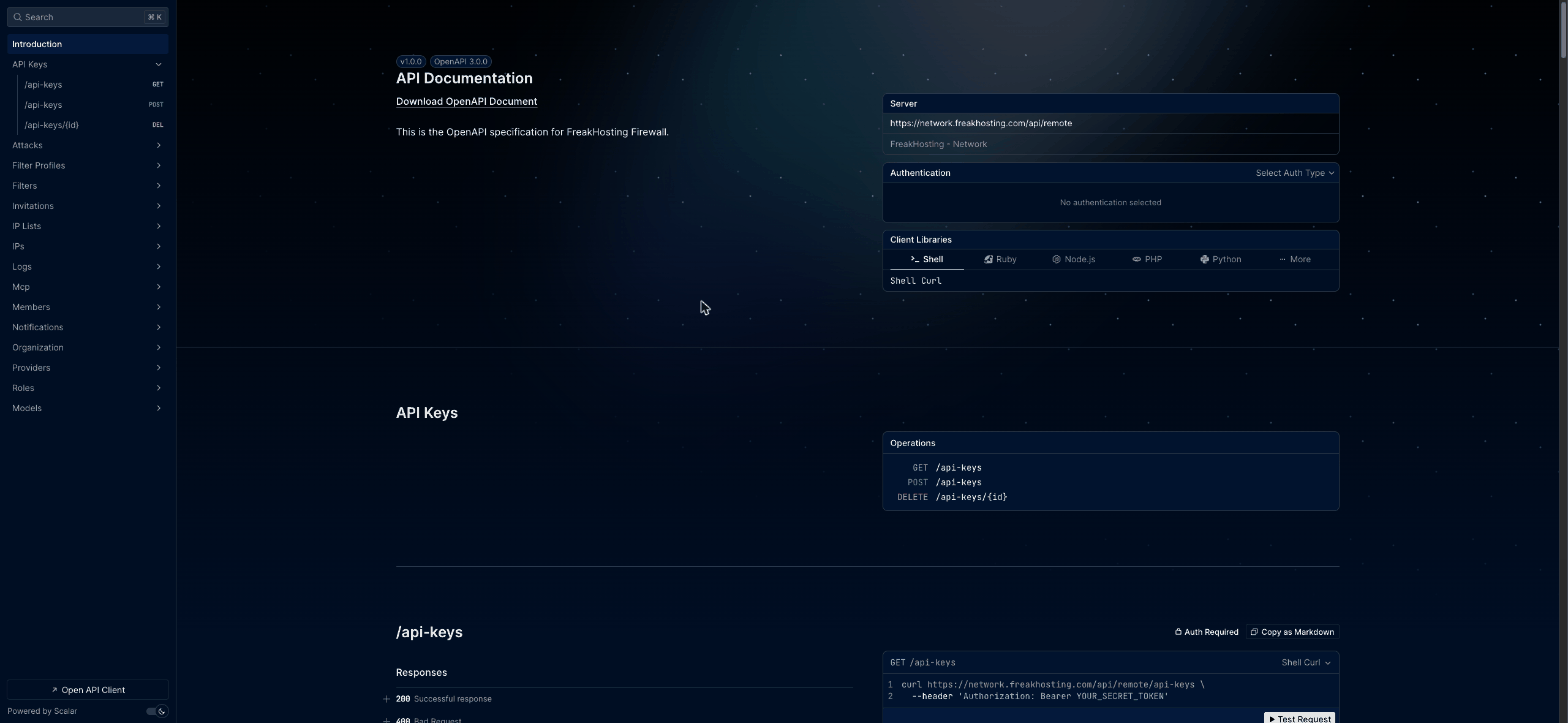
The API reference
The basics
Your first request
This request lists the IP addresses on your account. Your key needs theip → view permission.
YOUR_API_KEY with your key. Each IP address in the response includes these fields:
Try a request in your browser
1
Pick an endpoint
Open an endpoint from the left-hand menu, for example IPs → GET /ips.
2
Click Test Request
The API client opens.
3
Add your key
Choose Bearer as the auth type and paste your API key.
4
Send it
Send the request and read the response below it.
What’s in the API
For what each permission allows, see the permissions reference.
Error codes
Troubleshooting
Every request returns 401
Every request returns 401
Make sure the header is spelled exactly
Authorization: Bearer YOUR_API_KEY, with one space after Bearer. Copying the key can add an extra space or line break. If the key was revoked, create a new one.Some requests return 403
Some requests return 403
The key doesn’t have that permission. Open API keys and click the key’s Permissions link to check what it has.
Which ID do I use in /ips/ID/... requests?
Which ID do I use in /ips/ID/... requests?
Use the
id field from GET /ips, not the IP address itself.Related articles
API keys
Create a key and choose its permissions.
Connect AI tools (MCP)
Let an AI assistant use the API for you.
Need Extra Help?
If you encounter any issues, our support team is ready to assist:- Live Chat: Quick assistance via our website.
- Support Ticket: Open a Ticket
- Discord: Join our Community
- Email: support@freakhosting.com
Last Updated: October 2026