Difficulty
Intermediate
Time
10 minutes
Before you start
- An AI tool that supports MCP, such as Claude Code, Claude Desktop, Cursor, VS Code, Codex CLI or Gemini CLI.
- An API key for the assistant to use. Create a separate key just for the AI tool. See How to create and manage API keys.
Find your connection details
1
Open the MCP page
Go to network.freakhosting.com/mcp.
2
Copy the server URL
In the Connect section, copy the URL with the copy button. It is
https://network.freakhosting.com/api/remote/mcp.3
Pick your AI tool
Click the tab for your tool to see setup instructions you can copy.
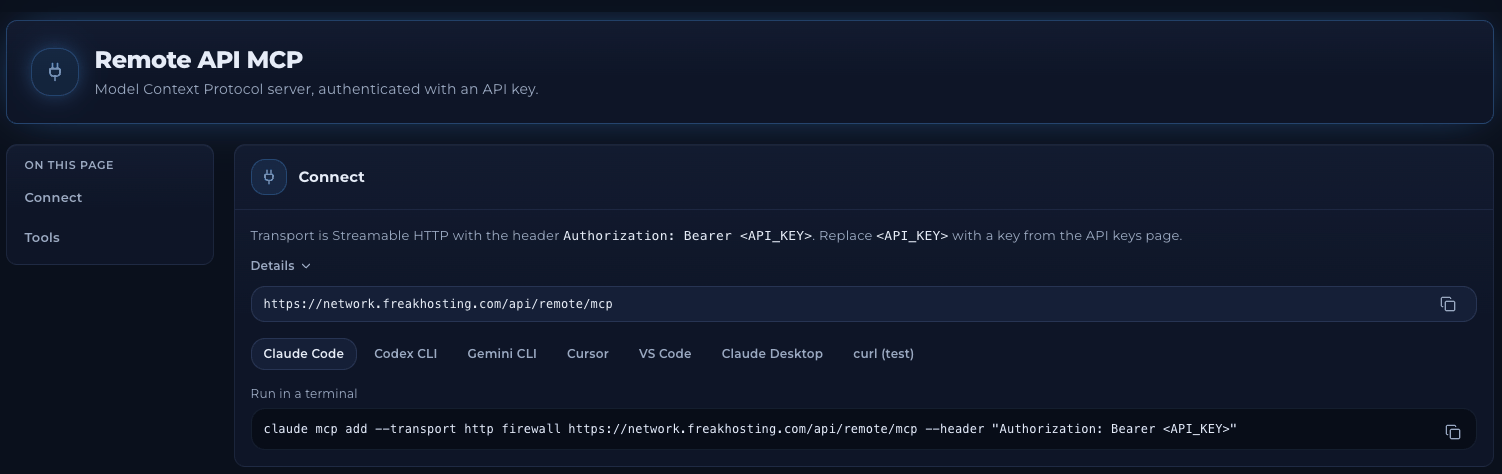
The MCP connection page
Set up your AI tool
In each example, replaceYOUR_API_KEY with your key.
- Claude Code
- Codex CLI
- Gemini CLI
- Cursor
- VS Code
- Claude Desktop
Run this in a terminal:
Try it out
Once connected, ask your assistant something like:- “List my protected IP addresses.”
- “Show me the attacks on my servers in the last 24 hours.”
- “Which firewall filters are on my game server’s IP address?”
- “Add 203.0.113.45 to my block list.” (needs
ipListEntry→create) - “Apply the Minecraft Java profile to my server’s IP address.” (needs
filterProfile→apply)
Available tools
The Tools section of the MCP page lists all 45 tools the assistant can use. Each tool shows its arguments and the permission it needs. Use the search box to find a tool or permission.
If the assistant says a tool failed because of permissions, give it a key with that permission. See the permissions reference.
Troubleshooting
The AI tool can't connect
The AI tool can't connect
- Check the URL is exactly
https://network.freakhosting.com/api/remote/mcp. - Check the header is
Authorization: Bearer YOUR_API_KEY, with your real key. - Restart the AI tool after you change its settings.
- Make sure the key hasn’t been revoked on the API keys page.
The assistant says it doesn't have permission
The assistant says it doesn't have permission
The key doesn’t include the permission that tool needs. Find the tool on the MCP page to see the permission. Then create a new key that includes it.
How do I disconnect the AI tool?
How do I disconnect the AI tool?
Revoke its API key on the API keys page. The tool loses access straight away. You can also remove the server from the tool’s settings.
Related articles
API keys
Create a key and choose its permissions.
API documentation
Use the API from your own code.
Need Extra Help?
If you encounter any issues, our support team is ready to assist:- Live Chat: Quick assistance via our website.
- Support Ticket: Open a Ticket
- Discord: Join our Community
- Email: support@freakhosting.com
Last Updated: October 2026