Difficulty
Beginner
Time
5 minutes
Your organization
Everything in the firewall panel belongs to an organization. This includes your IP addresses, lists, alerts and keys. Your own organization is marked Personal. Other people’s organizations can invite you too. Open Settings from the sidebar. The Organization tab shows: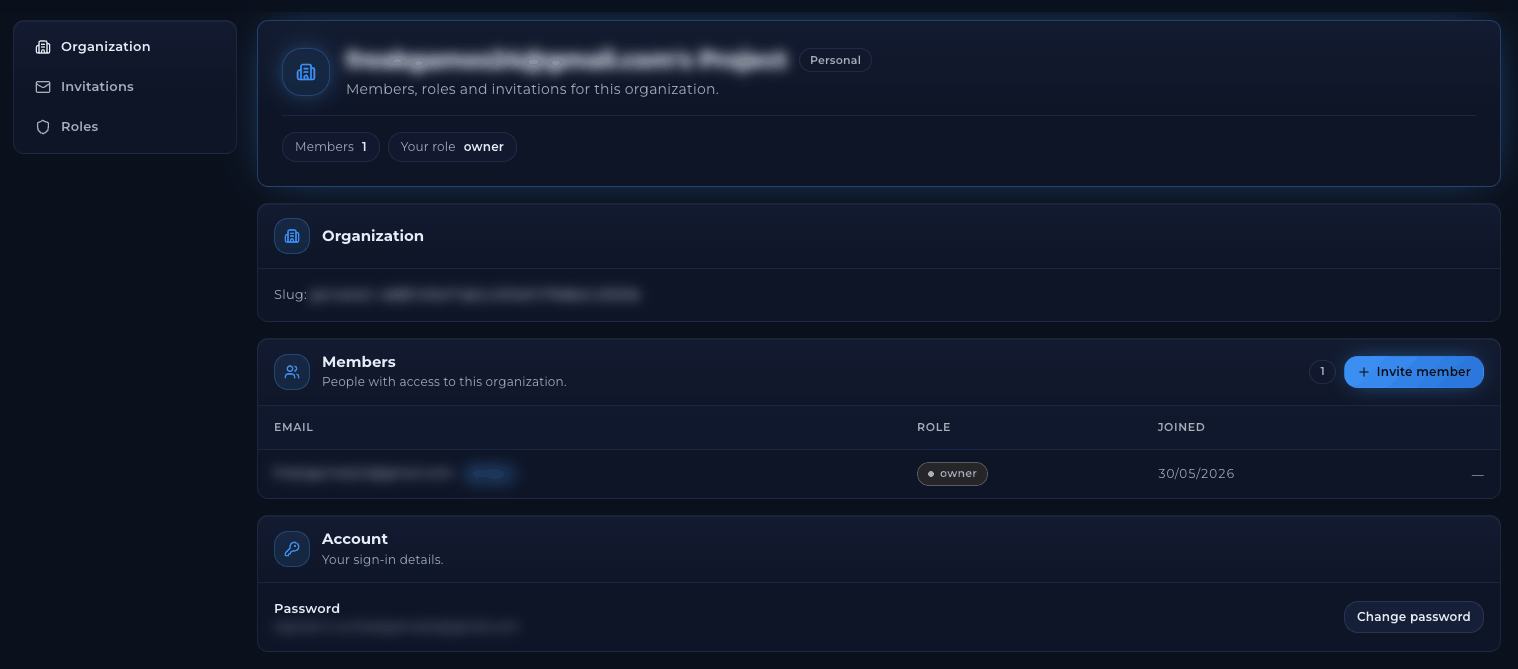
The Organization tab
Roles
Invite a member
1
Open Settings
Go to Settings and click Invite member in the Members card.
2
Enter their email
Type the email address of the person you want to invite.
3
Choose a role
Pick Owner, Member or one of your custom roles.
4
Send it
Click Send invitation. They get an email with a link to join.
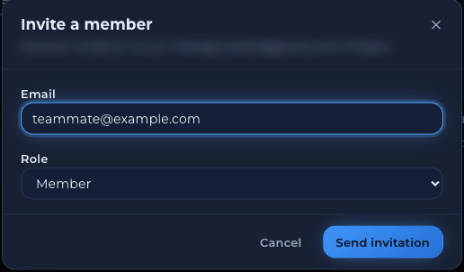
Inviting a member
Check or cancel pending invitations
Open the Invitations tab, or go to Settings → Invitations.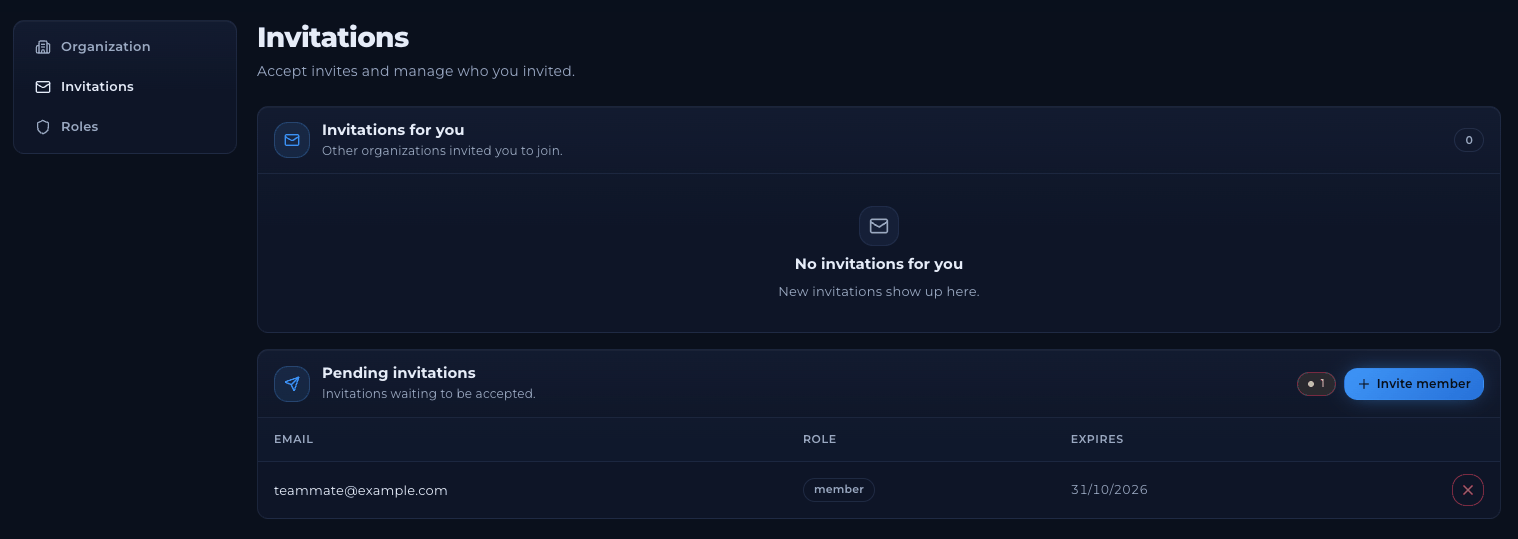
The Invitations tab
- Pending invitations lists invitations you sent that haven’t been accepted yet. It shows the email, the role and when the invitation Expires.
- To cancel one, click the X next to it and confirm with Cancel invitation. The link stops working straight away.
Invitations expire after about two days. If an invitation expires, send a new one.
Accept an invitation
If someone invited you to their organization, it appears under Invitations for you on the same tab. Accept it there, or use the link in the email.Create a custom role
Custom roles let you choose exactly what a person can do.1
Open Roles
Go to Settings → Roles and click New role.
2
Name the role
Use a clear name, such as
viewer or support.3
Choose the permissions
Click each permission the role should have. Selected permissions are highlighted. The permissions reference explains what each one allows.
4
Create it
Click Create role. The role now appears in the Role list when you invite someone.
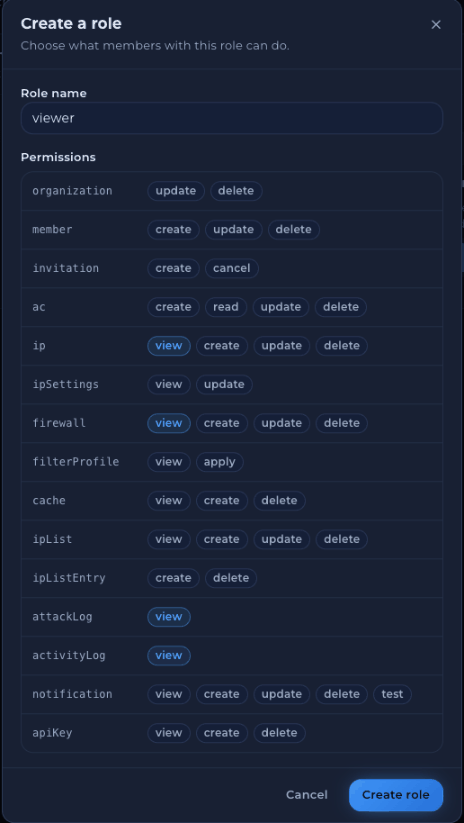
Creating a custom role
Example roles
See or delete a role
Your roles are listed under Custom roles. Click the resources link (for example 4 resources) to see a role’s permissions.
Your custom roles
Change your password
1
Open Settings
Go to Settings. In the Account card, click Change password.
2
Enter your passwords
Type your Current password, then your New password twice.
3
Save
Click Update password.
When you change your password, you are signed out on all your other devices. Sign in again there with the new password.
Switch organization or sign out
Click your name at the bottom of the sidebar.- Under Switch organization, click the organization you want to work in. A check mark shows the one you’re in now.
- Click Sign out to sign out.
Troubleshooting
The person didn't get the invitation email
The person didn't get the invitation email
Ask them to check their spam or junk folder. Make sure the email address in Pending invitations is correct. If it’s wrong, cancel the invitation and send a new one.
I can't add a permission to a role
I can't add a permission to a role
You can only give a role permissions that your own role has. Ask an owner to make the change.
Someone left the team. How do I remove their access?
Someone left the team. How do I remove their access?
In the Members table, use the actions next to their name to remove them. Also revoke any API keys they created on the API keys page.
I forgot my password
I forgot my password
Open a ticket and we’ll help you get back in.
Related articles
API keys and permissions
What each permission allows.
Activity log
See what each team member changed.
Need Extra Help?
If you encounter any issues, our support team is ready to assist:- Live Chat: Quick assistance via our website.
- Support Ticket: Open a Ticket
- Discord: Join our Community
- Email: support@freakhosting.com
Last Updated: October 2026