Server started and is ready to accept connections!. Then open Game settings, set Server name and Owner e-mail (and a Server password if you want a private server), click Review and save and restart. Players join with your address, such as 203.0.113.10:22003, through Quick Connect.
Before you start
- Log in to the Game Panel at games.freakhosting.com and open your MTA server.
- Players need GTA: San Andreas and the MTA:SA client from multitheftauto.com.
How to set up your MTA server
1
Start the server once
Click Start. The first start takes a few seconds. It loads 205 default resources and starts the
play freeroam gamemode. The server is ready when the console shows Server started and is ready to accept connections!.2
Look at Checks
Click Game settings under GAME SETTINGS. Checks shows “Note: No owner e-mail” on a new server. Click Go to the setting.
3
Set the owner e-mail and name
Enter your e-mail in Owner e-mail (not public; a missing address can hide the server from the list). Change Server name from “Default MTA Server” to your own name.
4
Set a password (optional)
For a private server, click Set next to Server password, enter it and click Done. Leave it empty for a public server.
5
Review, save and restart
Click Review and save, check the changes, click Save changes and restart the server.
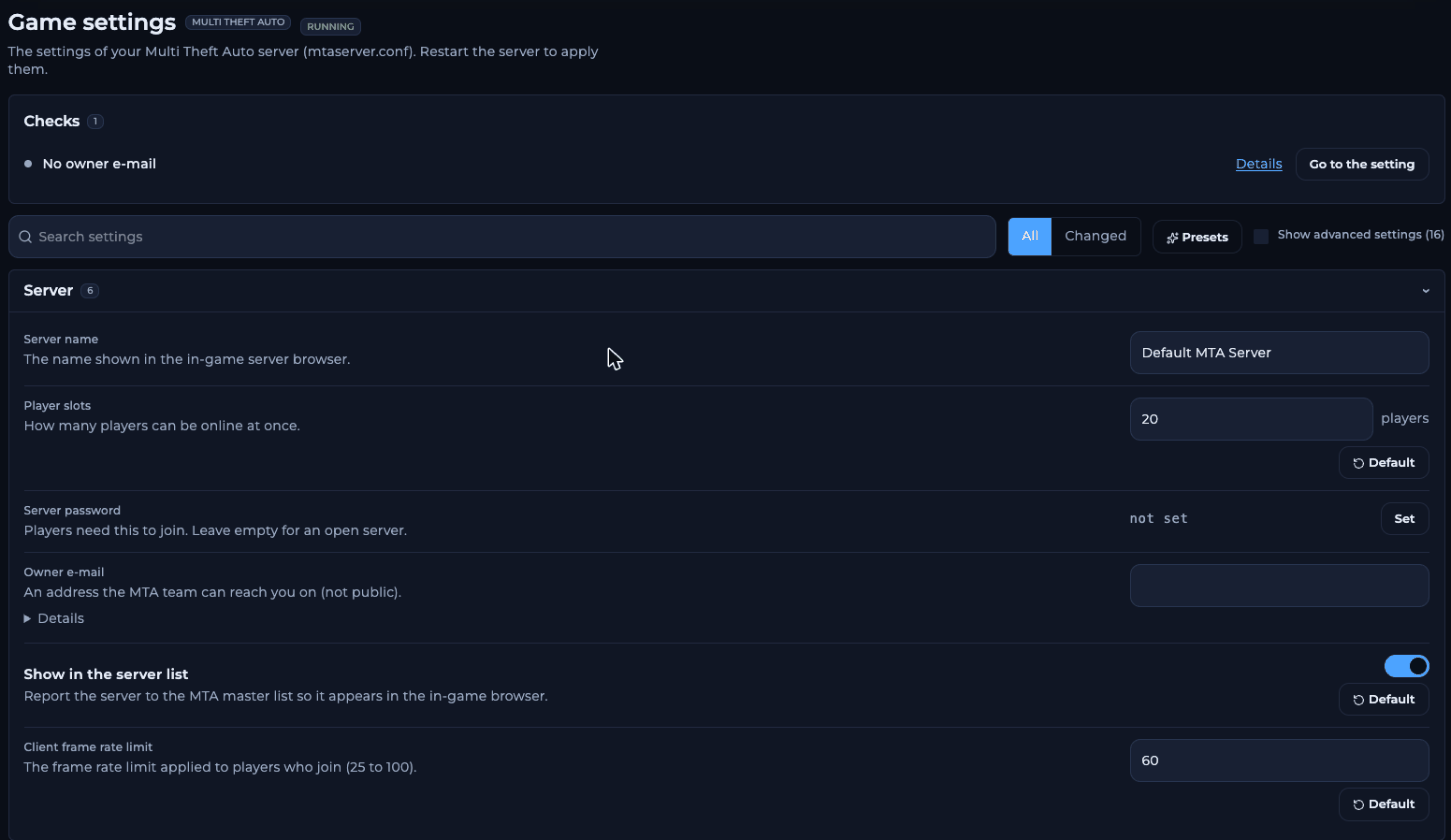
Game settings on a new MTA server, with the owner e-mail check
How players join your MTA server
Copy your address from the Copy address card on the Console page, for example203.0.113.10:22003.
Not in the list? See server not showing in the list.
Make yourself admin
Typeaddaccount <name> <password> in the console, stop the server, add <object name="user.<name>"></object> to the Admin group in mods/deathmatch/acl.xml, start the server and type /login <name> <password> in game. The full steps, including serial approval with authserial, are in make yourself admin.
Make your first backup
Open Backups and create one. A backup lets you undo a mistake or a crash. Then set up automatic backups.What next?
- Raise the FPS limit from 36 to 60.
- Pick a gamemode, such as
race. - Install resources from the community.
Frequently asked questions
How many players can join?
Up to your Player slots. If you need more, open a ticket.Are the warnings in the console a problem?
On a new server, warnings about the owner e-mail,ip2c and ACL requests are normal. See console warnings.
Do settings apply without a restart?
No. MTA readsmtaserver.conf when it starts, so restart after saving.
Which ports does my server use?
The game port (default 22003), the HTTP port (game port + 2) and the ASE port (game port + 123). See server ports.Related guides
MTA server guide
Every MTA page in one place.
Change server settings
How Game settings works.
Make yourself admin
addaccount, acl.xml and login.
Server password
Make the server private.
FPS limit
Client frame rate limit.
Tested by the FREAKHOSTING team on our Game Panel on 2 November 2026 (MTA:SA server 1.6, 64-bit). Steps may differ slightly if the game changes.
Need Extra Help?
If you encounter any issues, our support team is ready to assist:- Live Chat: Quick assistance via our website.
- Support Ticket: Open a Ticket
- Discord: Join our Community
- Email: support@freakhosting.com
Last Updated: November 2026