Before you start
- Log in to the Game Panel at games.freakhosting.com and open your Palworld server.
- Your server’s page shows a Getting started checklist with three steps. This guide covers them.
How to set up your Palworld server
1
Start the server once
Click Start. The first start creates the world and
PalWorldSettings.ini. With default settings it is Online in about a minute.2
Look at Checks
Click Palworld settings under PALWORLD. Checks lists things to look at, such as “No admin password” and “No join password”.
3
Name the server
In Your server, set Server name and Description. Console players find the server by its name.
4
Set the passwords
Set Admin password (keep it private). Set Join password if only friends should join; leave it empty for a public server. Use letters, numbers,
- and _ only.5
Pick a preset
Under Start from a preset, pick Casual, Normal or Hard. Normal is the game as Pocketpair ships it.
6
Review, save and restart
Click Review and save, check the list, click Save changes, then restart the server.
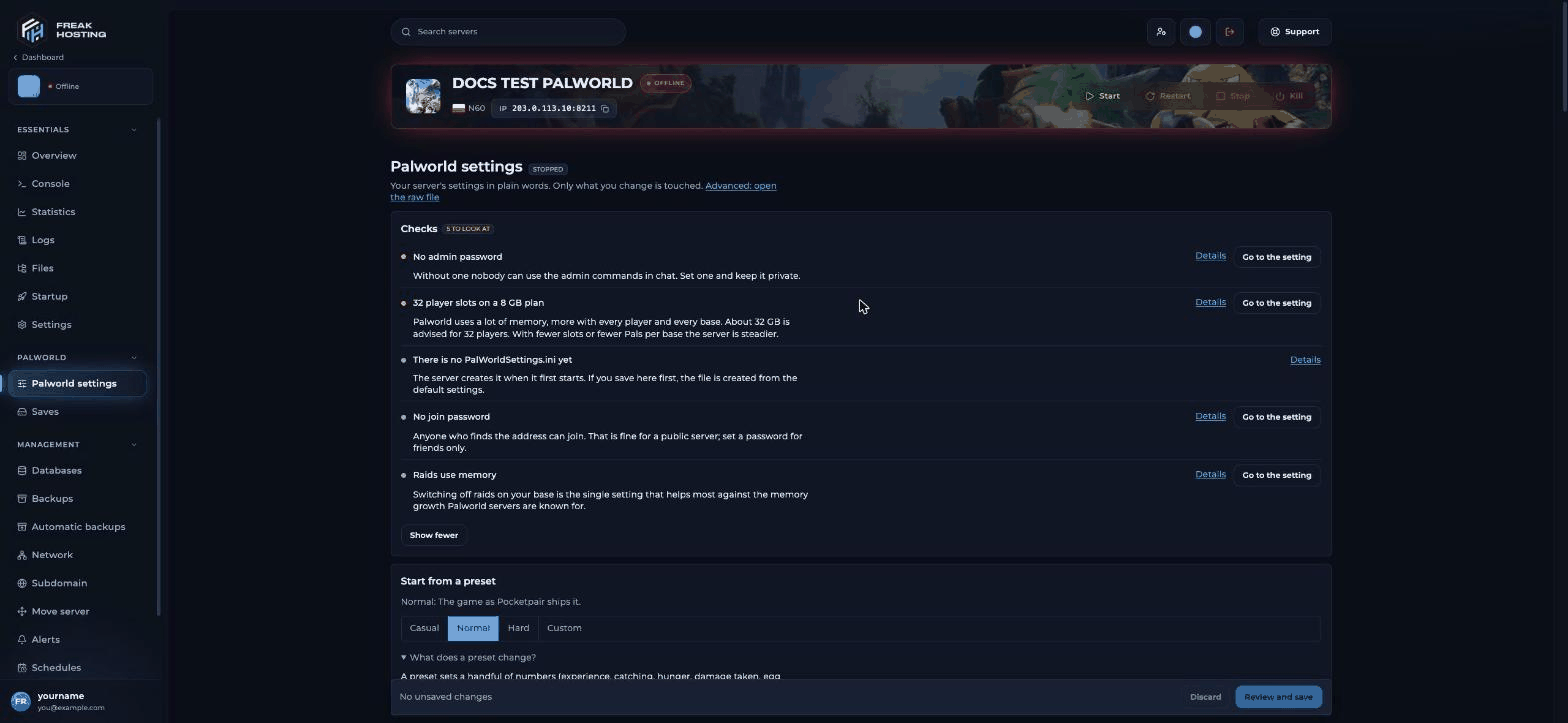
Checks on the Palworld settings page show what to set first
How players join your Palworld server
Copy the address (for example203.0.113.10:8211) from the Copy address card on the console page.
If the password box doesn’t appear, see password prompt not showing. Which platforms may join is set in Crossplay platforms; see crossplay.
How to become admin
Join the server, press Enter and type/AdminPassword <password>. Then you can use /KickPlayer, /BanPlayer, /Save and more. See admin commands.
Make your first backup
Open Backups and click Create backup. A backup lets you undo a mistake or a crash. Then set up automatic backups, for example daily. To download just the world, use Saves (see save files).Frequently asked questions
How many players can join?
Up to the number of Player slots set for your server, at most 32. If you need a different number of slots, open a ticket.How much memory does Palworld need?
Palworld uses a lot of memory, more with every player and base. For 32 players the panel advises about 32 GB. See memory and restarts.Can I bring my own world?
Yes. Upload it toPal/Saved/SaveGames/0. See save files.
Do settings apply without a restart?
No. Palworld reads its settings when it starts, so restart after saving.Related guides
Palworld server guide
Every Palworld page in one place.
World settings and XP rate
Presets and rates.
Server password
Join and admin passwords.
Admin commands
Kick, ban and save.
Save files and backups
Keep your world safe.
Tested by the FREAKHOSTING team on our Game Panel on 30 October 2026 (Palworld dedicated server on our Game Panel). Steps may differ slightly if the game changes.
Need Extra Help?
If you encounter any issues, our support team is ready to assist:- Live Chat: Quick assistance via our website.
- Support Ticket: Open a Ticket
- Discord: Join our Community
- Email: support@freakhosting.com
Last Updated: October 2026