Difficulty
Beginner
Time
5 minutes
The settings you see depend on your game. The examples on this page come from a Counter-Strike 1.6 server, where the panel edits server.cfg. Other games show their own groups and settings.
Open Game settings
1
Open your server
Sign in to the Game Panel and click Manage server next to your server.
2
Click Game settings
In the sidebar, under GAME SETTINGS, click Game settings.
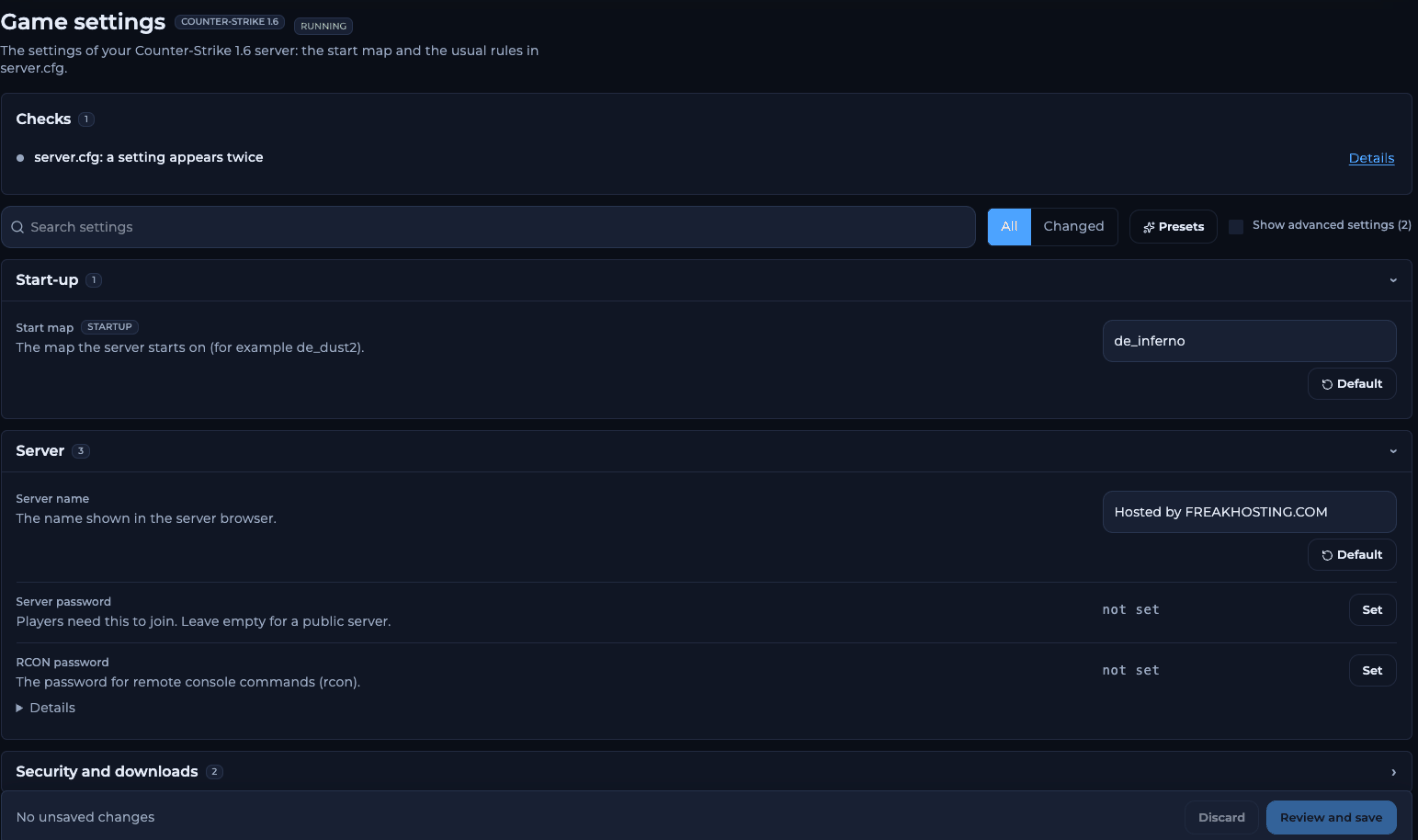
The Game settings page
Check for problems
The Checks box lists problems the panel found in your configuration file, for example a setting appears twice. Click Details to see more. For example, it may tell you that a setting is set 2 times and that the last one is used. Fixing the setting here removes the duplicate confusion.Find a setting
Settings are sorted into groups, such as Start-up, Server, Security and downloads, Chat and voice, Logging, Rounds and rules and Money and buying. Click a group’s name to open or close it.
Change a setting
1
Change the value
Type a new value, flip a switch or pick an option from a drop-down. The setting gets a CHANGED label, and its group shows how many unsaved changes it has.
2
Undo one setting if needed
Click Default under a setting to put it back to the game’s default value.
3
Set a password
Passwords, such as Server password and RCON password, show not set or a hidden value. Click Set, type the new value and click Done.
Start map has a STARTUP label. It is the same setting as the map on the Startup page, so changing it in one place changes it in both.
Use a preset
A preset fills in several settings at once. Nothing is saved until you review and save.1
Click Presets
Click Presets next to the filters.
2
Pick a preset
Click the preset you want. On Counter-Strike 1.6, for example:
- Competitive: friendly fire on, no flashlight, fixed rounds.
- Fun server: lots of money, long buy time, no friendly fire.
3
Check and save
Look at the changed settings, then review and save.
Review and save
While you have unsaved changes, a bar at the bottom shows how many there are.- Click Discard to throw away all unsaved changes.
- Click Review and save to see what will change.
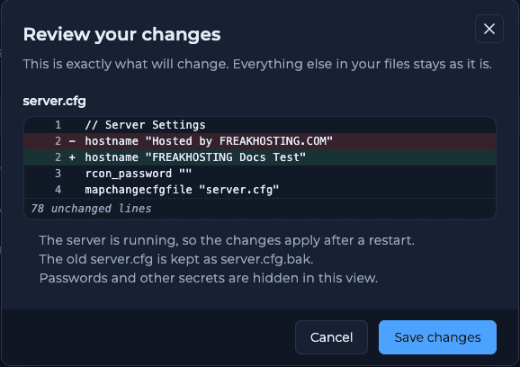
The Review your changes window
- Your old file is kept as a backup copy, for example server.cfg.bak.
- Passwords and other secrets are hidden in this view.
Restart to apply your changes
If your server is running, it still uses the old settings. A yellow banner appears at the top of the page.
The restart banner
1
Click Restart now
Click Restart now in the banner.
2
Confirm
The panel warns that everyone who is playing is disconnected while the server restarts. Click Restart. Your changes apply when the server is back online.
Edit the raw file
Need a setting that isn’t on the page? At the bottom, click open the raw file next to the file name. It opens the file in the file manager’s editor.Troubleshooting
I saved my changes but nothing changed in the game
I saved my changes but nothing changed in the game
The server reads its settings when it starts. Restart it with Restart now in the yellow banner, or with the Restart button at the top of the page.
I made a mistake and want the old settings back
I made a mistake and want the old settings back
Click Default under a setting to reset it. If you already saved, your previous file was kept as a .bak copy, and the file manager’s history also keeps earlier versions.
The server is stuck on Stopping after a restart
The server is stuck on Stopping after a restart
Wait a minute. If it is still stuck, click Kill and then Start. See starting and stopping your server.
I don't see a setting I need
I don't see a setting I need
Tick Show advanced settings, or use the search box. If it still isn’t there, use open the raw file to add it by hand.
Related articles
Startup variables
Change the start map, version and other start-up options.
Restart your server
Start, stop, restart and kill your server.
Need Extra Help?
If you encounter any issues, our support team is ready to assist:- Live Chat: Quick assistance via our website.
- Support Ticket: Open a Ticket
- Discord: Join our Community
- Email: support@freakhosting.com
Last Updated: October 2026