Difficulty
Beginner
Time
5 minutes
Open My account
Click your account icon at the top right and choose My account, or go to web.freakhosting.com/profile. The same menu shows your role (for example Owner) and has Logout.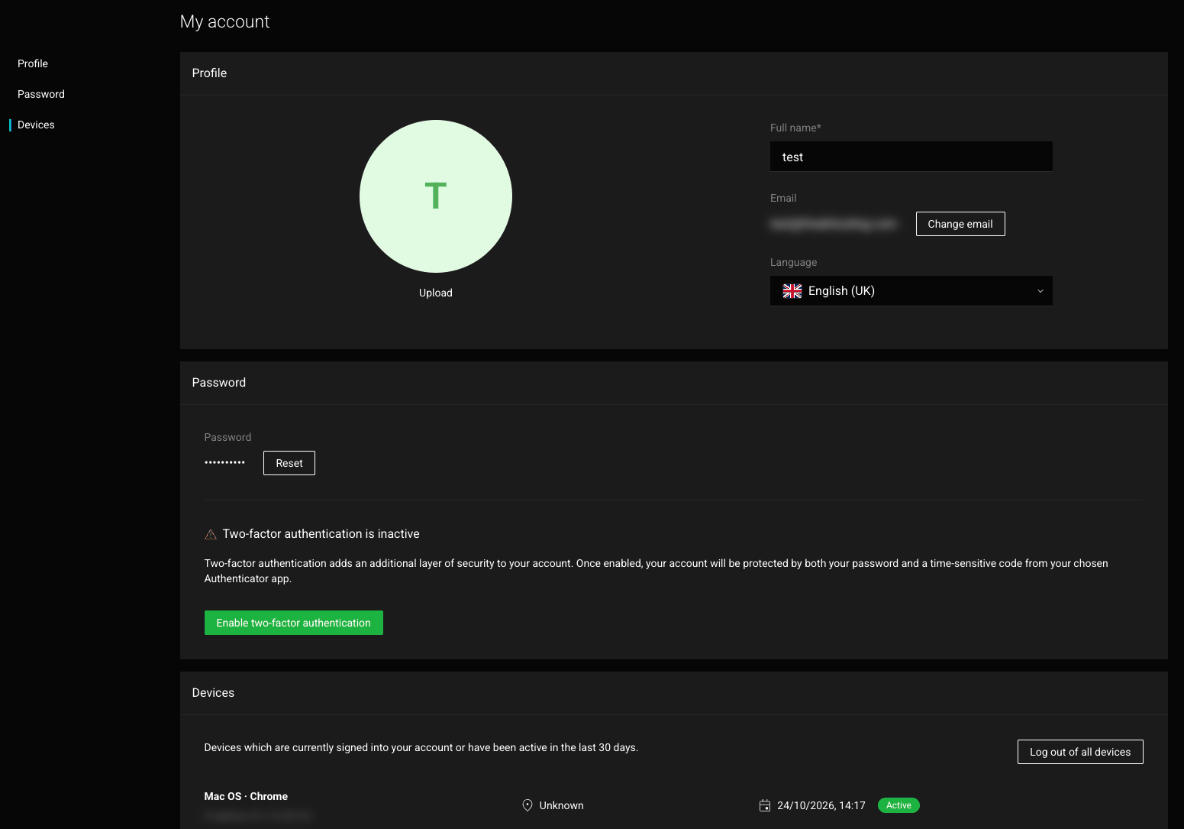
My account
This is your web hosting panel login. Your FREAKHOSTING client area login (for billing) is separate.
Turn on two-factor authentication
Two-factor authentication (2FA) asks for a code from your phone as well as your password, so nobody can sign in with your password alone.1
Get an authenticator app
Install an app such as Google Authenticator, Microsoft Authenticator or Authy on your phone.
2
Click Enable two-factor authentication
It’s in the Password section of My account.
3
Scan the QR code
Scan this QR code with your preferred authenticator app and enter the generated code below.
4
Enter the code
Type the 6-digit code from the app to finish.
Sign out other devices
The Devices section lists browsers that are signed in to your account or were active in the last 30 days. If you see one you don’t recognise, click Log out of all devices and then reset your password.Check your plan usage
Click Subscriptions in the sidebar, or go to web.freakhosting.com/packages. Each plan shows:- Websites used out of your limit
- Disk space used
- Bandwidth used
- Emails and Databases used
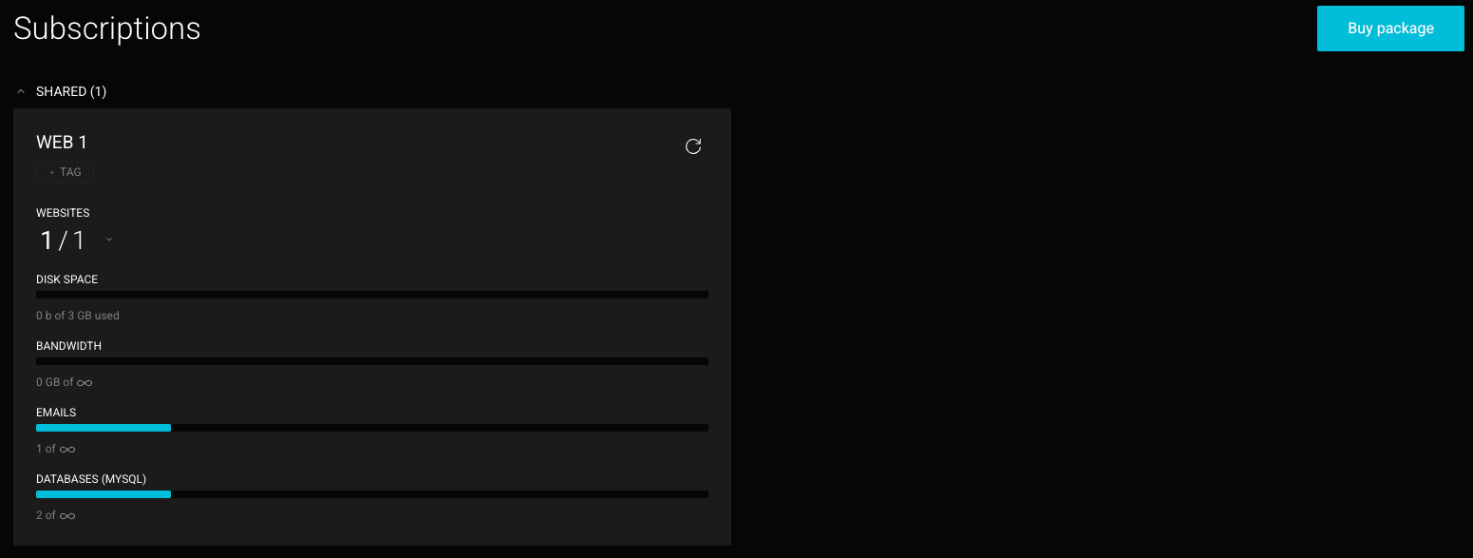
Subscriptions
Check the activity log
Click Logs in the sidebar, or go to web.freakhosting.com/logs. It records important events, such as websites and domains being added, removed or cloned, backups, errors and logins.- All types: filter by Website, Domain or Login.
- All operations: filter by Added, Cloned, Encountered error, Removed, Imported, Backed up or Failed to backup.
- Pick a date range, or search.
- Click the
{…}icon on a row for the full details.
Logs don’t record every change you make, such as editing a file or adding a DNS record.
Light and dark mode
Click the sun icon at the top right to switch between light and dark mode.Troubleshooting
I can't sign in
I can't sign in
Open a ticket from the client area and we’ll help you get back in.
My disk space shows 0
My disk space shows 0
Usage figures update from time to time. Click the refresh icon on the plan card.
Need Extra Help?
If you encounter any issues, our support team is ready to assist:- Live Chat: Quick assistance via our website.
- Support Ticket: Open a Ticket
- Discord: Join our Community
- Email: support@freakhosting.com
Last Updated: October 2026